Bulk actions
Filling the same alt text, category or caption on twenty freshly uploaded images one at a time is exactly the kind of chore Media Directories is meant to remove. Bulk actions let you edit many items together and set a field value once to apply it across the whole group.
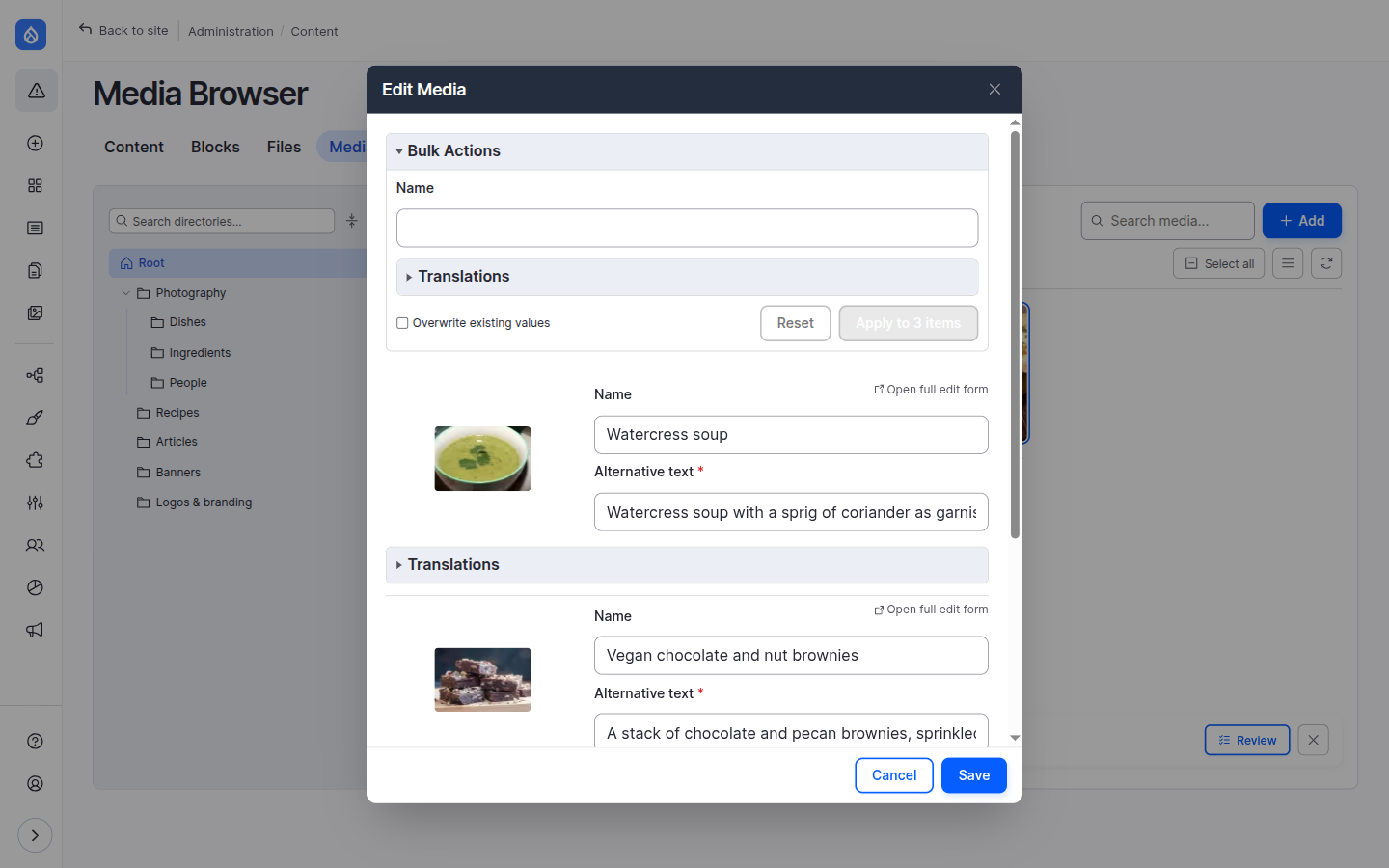
Editing many items at once
Select several items and choose Edit (from the selection toolbar), or drop several files in the upload modal. The modal then stacks an edit form for every item, and — when bulk actions are on — adds a Bulk Actions panel at the top.
Autofilling a field
In the Bulk Actions panel, fill in a field once and click Apply to N items to copy that value into every selected item. A few things to know:
- Only chosen fields appear. An administrator decides which fields are offered in the bulk form, per media type, so the panel stays focused on the fields worth batching (alt text, a category, a caption…).
- Mixed selections merge sensibly. If you've selected items of different media types, the panel shows the fields those types have in common plus each type's own fields.
- Overwrite or fill-empties. By default, applying a value only fills items where that field is empty. Tick Overwrite existing values to replace what's already there. Reset clears the bulk form without touching your items.
You can still fine-tune individual items below the panel afterwards — the bulk autofill is a starting point, not a straitjacket.
Availability
Contexts: standalone browser · field widget · CKEditor. Turn on with Enable bulk actions, then pick the per-type Bulk action fields, under Browser settings → Uploads.
Bulk translations and AI
If translations are enabled, the panel can also fill a field per language, and — with the AI submodule — AI-translate or AI-generate alt text across the whole selection in one action. A banner warns you when some selected items are in a non-default language, since only translation updates apply to those.
What bulk actions is not
The Bulk Actions panel does field-value and translation autofill only. The other two "bulk" operations live elsewhere in the browser:
| To bulk… | Use |
|---|---|
| Delete many items | The Delete button in the selection toolbar (standalone page). |
| Move many items to a folder | Drag the multi-selection onto a folder in the tree — see Organising media in folders. |