Editing media
You rarely need the full Drupal media form to fix an alt text or rename a file. The browser's quick-edit modal handles the common edits in place.
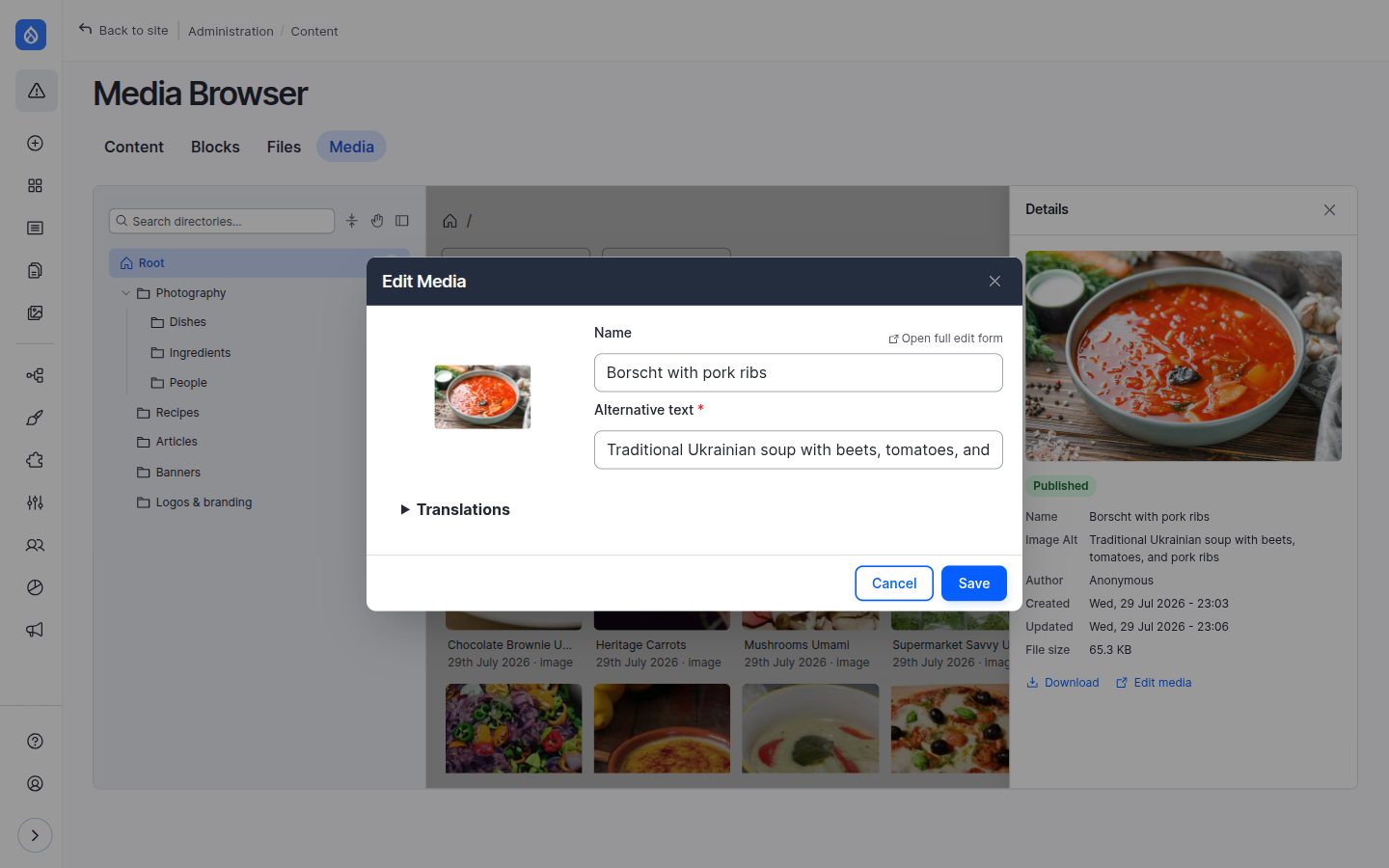
The quick-edit modal
Open it from a card's pencil button, the edit button in list view, or the Edit action in the selection toolbar (which edits every selected item — see Bulk actions).
The fields you see are built from the media type's form display, so the modal mirrors your site's configuration:
- Name, and for images Alternative text and Title (with their required flags respected),
- other visible fields — plain text, long text, select / list options, and entity-reference autocomplete fields with type-ahead search,
- a focal-point picker for images when the Focal Point module is installed: drag the crosshair on the preview to set the focus point used by cropping image styles.
Required fields are validated before Save is allowed, and cancelling with unsaved changes asks for confirmation so you don't lose edits.
When you need the full form
Every item has an Open full edit form link that opens the complete Drupal media edit form in a new tab — for revisions, moderation, or fields the modal doesn't surface. From the field widget, an item's Edit link opens the same form in an off-canvas panel instead.
The Directory field
The base module adds a Directory field to every media entity, so a folder can also be assigned (or changed) from the normal media add/edit form, not just from the browser. An empty value means the item lives in Root. This is what the browser reads and writes when you drag media between folders.
Availability
Contexts: standalone browser · field widget · CKEditor. The quick-edit modal is always available; the focal-point picker and any optional fields depend on the media type's configuration and the modules you have installed. Editing respects Drupal's media update permissions.