Translations & AI assistance
Media metadata — labels, alt text, captions — often needs translating, and that's tedious work. Media Directories lets editors translate media inside the browser, and (optionally) hand the first draft to an AI.
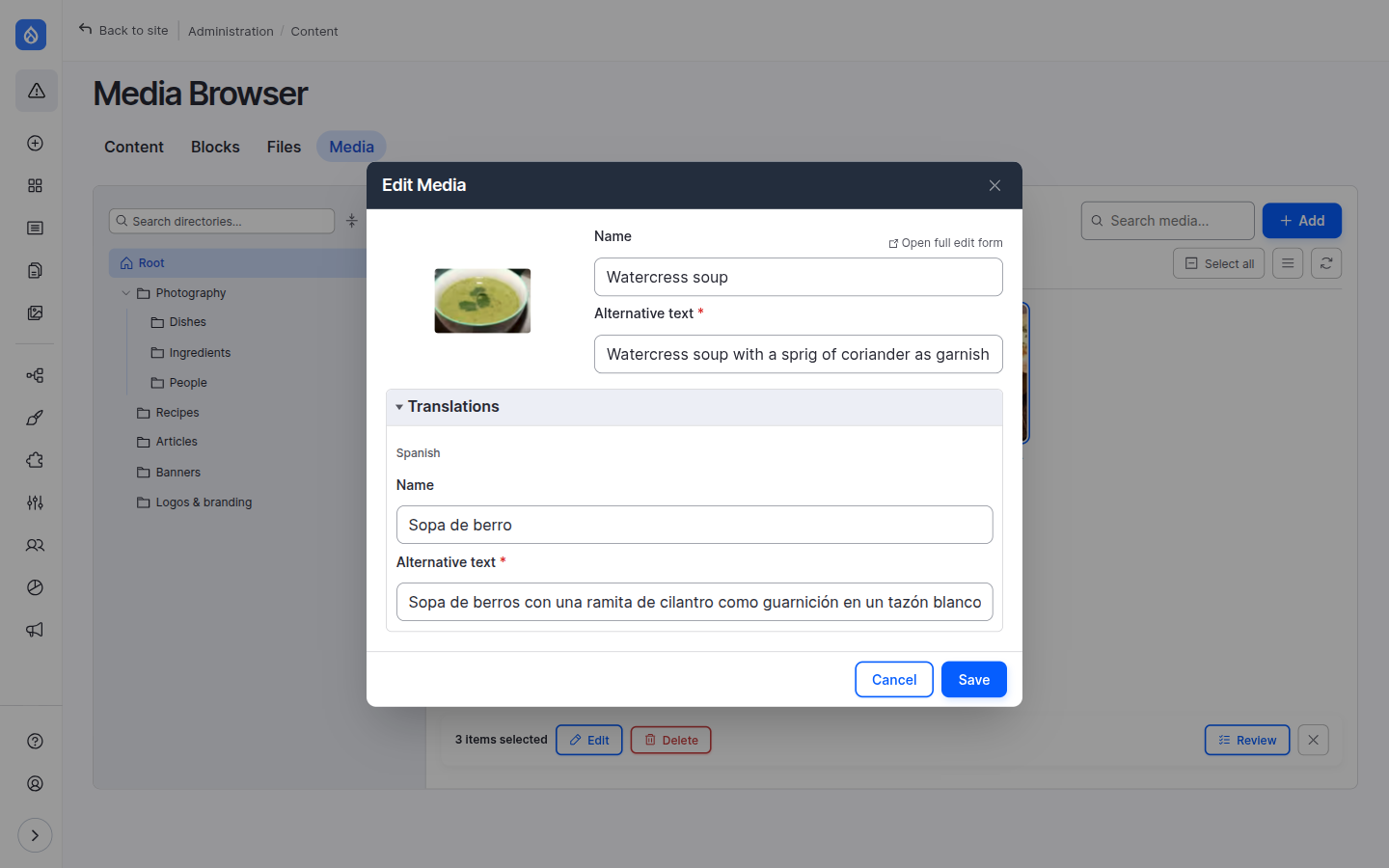
Translating media
When a media type is translatable, the edit and upload modals grow a Translations section for its translatable fields (name, alt text, and so on):
- With one extra language, the translation fields appear inline.
- With several, each language gets its own collapsible panel, with a "filled" dot so you can see at a glance which languages still need work.
Translations are saved alongside the source item — including for media you're translating as part of an upload.
Availability
Contexts: standalone browser · field widget · CKEditor. Requires core Content Translation and at least one translatable media bundle. Turn the panels on with Enable translations and pick the bundles under Browser settings → Translations.
AI alt text
With the AI submodule configured, image fields get a Generate button next to the alt text. Click it and the configured AI provider looks at the image and writes a first draft you can accept or tweak. It works for media that already exists and for a file you're still uploading, and it's available in bulk across a whole selection.
AI translation
The same submodule adds an AI translate button next to each language in the Translations panel. It fills that language from the source text so a human only has to review, not translate from scratch — again, per item or in bulk.
Availability
Contexts: standalone browser · field widget · CKEditor.
Requires the media_directories_ai submodule, the
AI module with a configured provider
(a vision-capable model for alt text), and — for AI translation —
translations enabled as above. Which fields are AI-fillable or
AI-translatable is set per bundle on the
AI settings tab.
Screenshots need a live provider
Because AI output depends on your provider and prompt, this page doesn't ship canned "after" screenshots — what you get is whatever your configured model returns. See the AI setup page for wiring it up and tuning the prompts.