Finding & previewing media
Browsing folders is one way to find media; this page covers the other tools — search, filters, sorting — and how to select items and inspect them without leaving the browser.
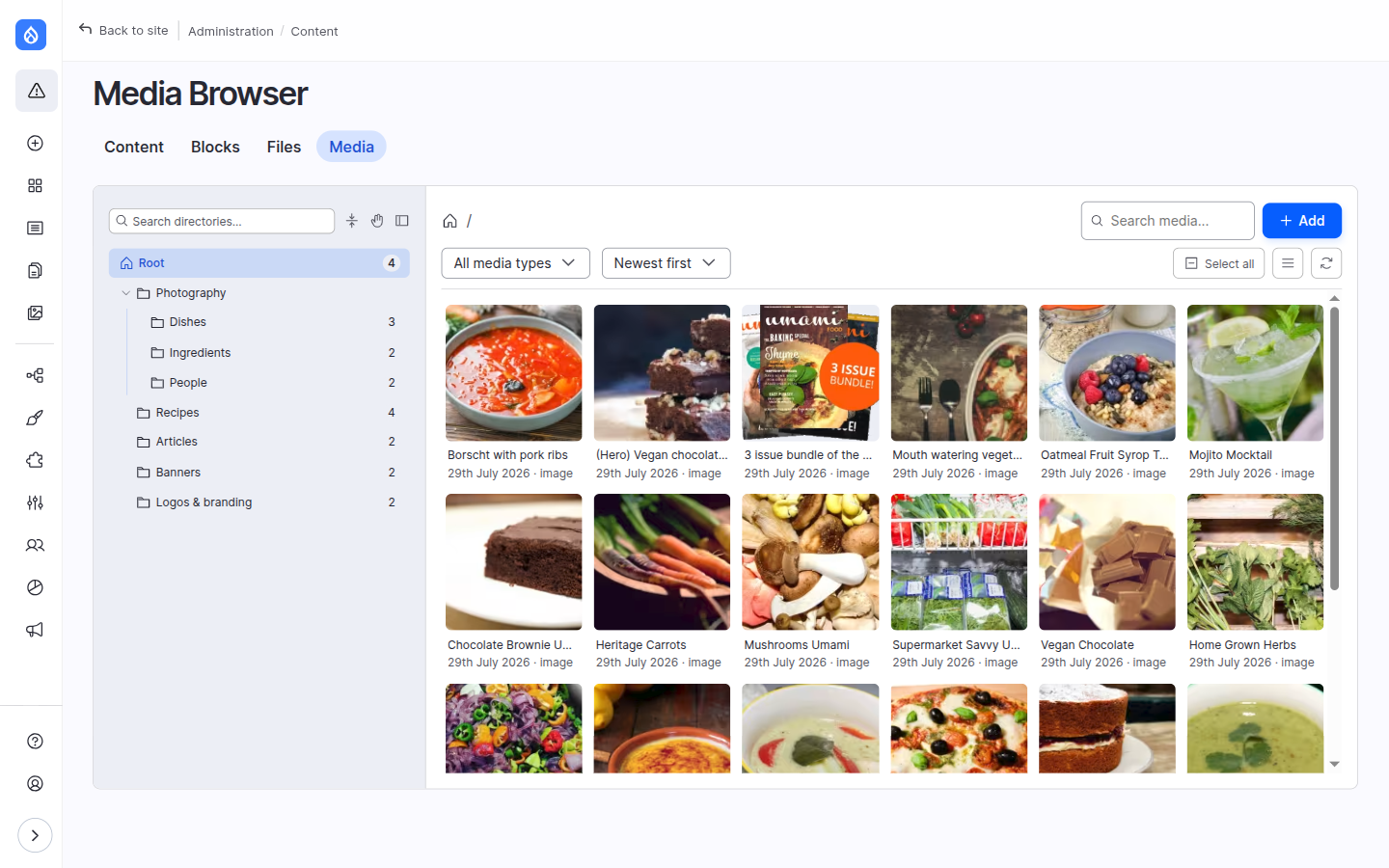
Search, filter and sort
The toolbar gives you three ways to narrow the grid:
- Search media — type to filter. The search matches both the media name and the underlying file's filename (for file- and image-based types), and runs as you type, so you don't need to press Enter.
- Media type — a dropdown to show only one type (Image, Document, Video…). It only appears when a folder holds more than one type.
- Sort — Newest first, Oldest first, Name A–Z or Name Z–A.
Results load in pages as you scroll (infinite scroll) — there are no pager links to click; just keep scrolling and the next page loads automatically.
Selecting media
Click a card to select it. To select several:
| Action | Result |
|---|---|
| Click | Select just that item |
| Ctrl / Cmd + click | Add or remove one item |
| Shift + click | Select a range |
| Select all (toolbar) | Select everything loaded |
Keyboard equivalents (arrows, Enter, Ctrl+A, Shift+Up / Shift+Down) are on the Keyboard page.
Once something is selected, a selection toolbar floats at the bottom with the count and the available actions — Edit (see Editing and Bulk actions), Delete, Review and Clear.
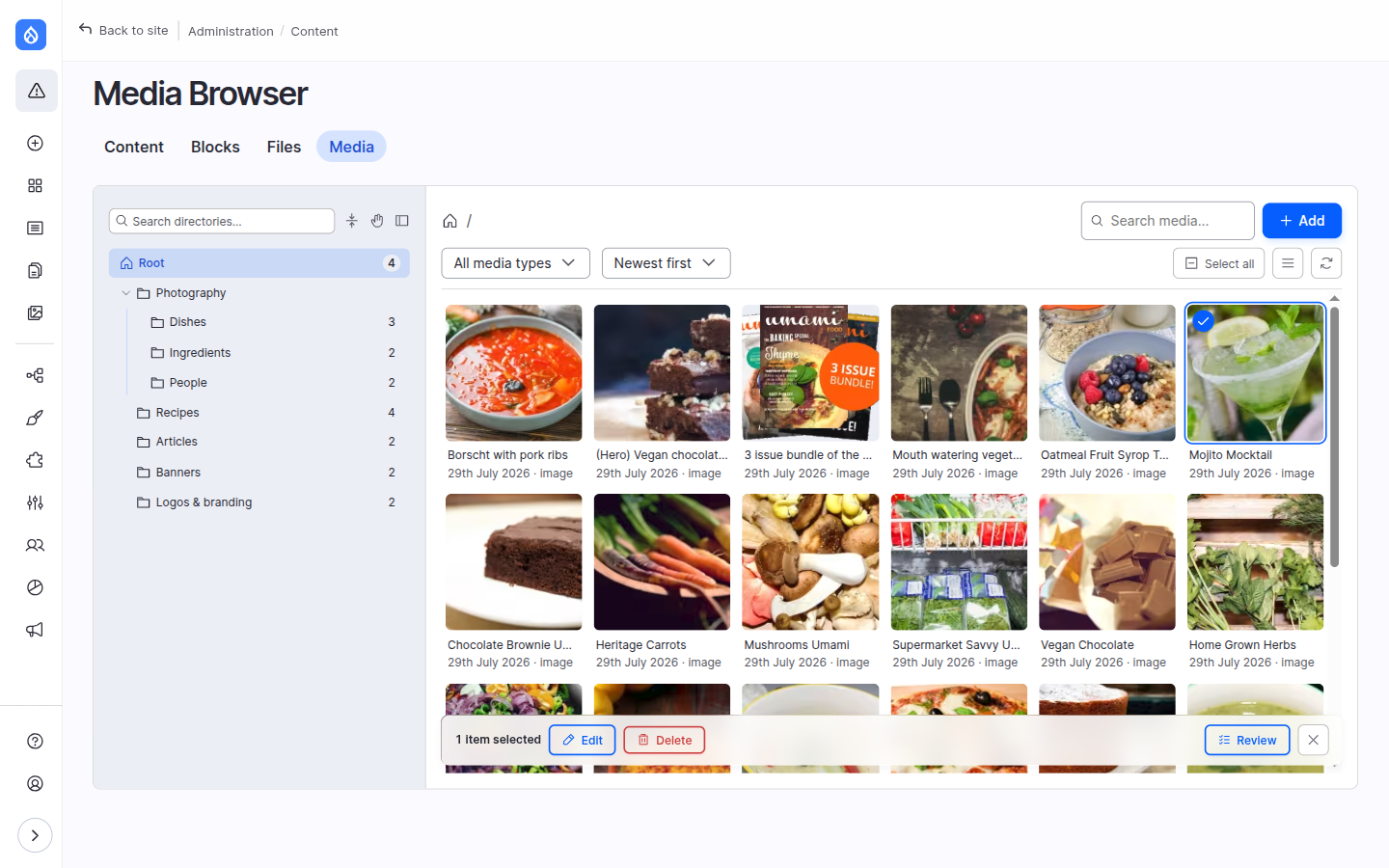
Delete is standalone-only
The Delete action appears only on the standalone browser page. In the field-widget and CKEditor contexts you're picking media, not managing it, so deletion is hidden.
The selection drawer
Click Review to open the selection drawer — a running list of everything you've picked, each with a thumbnail and a remove (×) button, plus Clear all.
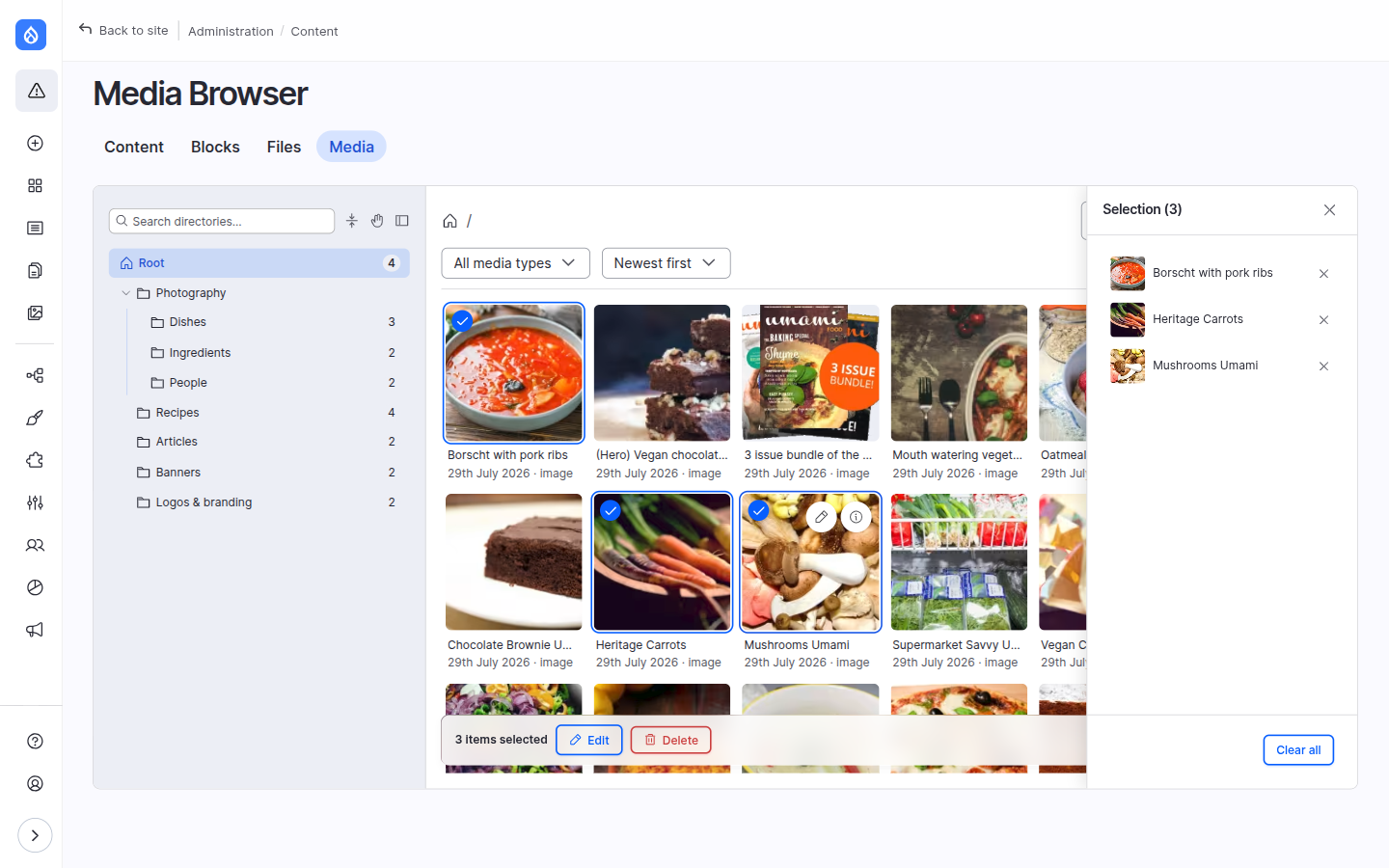
Its real value is that it remembers picks across folders: select two images in Dishes, move to Ingredients and pick a third, and all three stay in the drawer ready to confirm. That's what makes multi-folder selections practical in the field widget and CKEditor.
Availability
Contexts: standalone browser · field widget · CKEditor (not in single-item pickers). Toggle with Enable selection drawer under Browser settings → Display & behaviour.
The preview drawer
Click a card's info (ⓘ) button — or press I with a card focused — to open the preview drawer on the right.
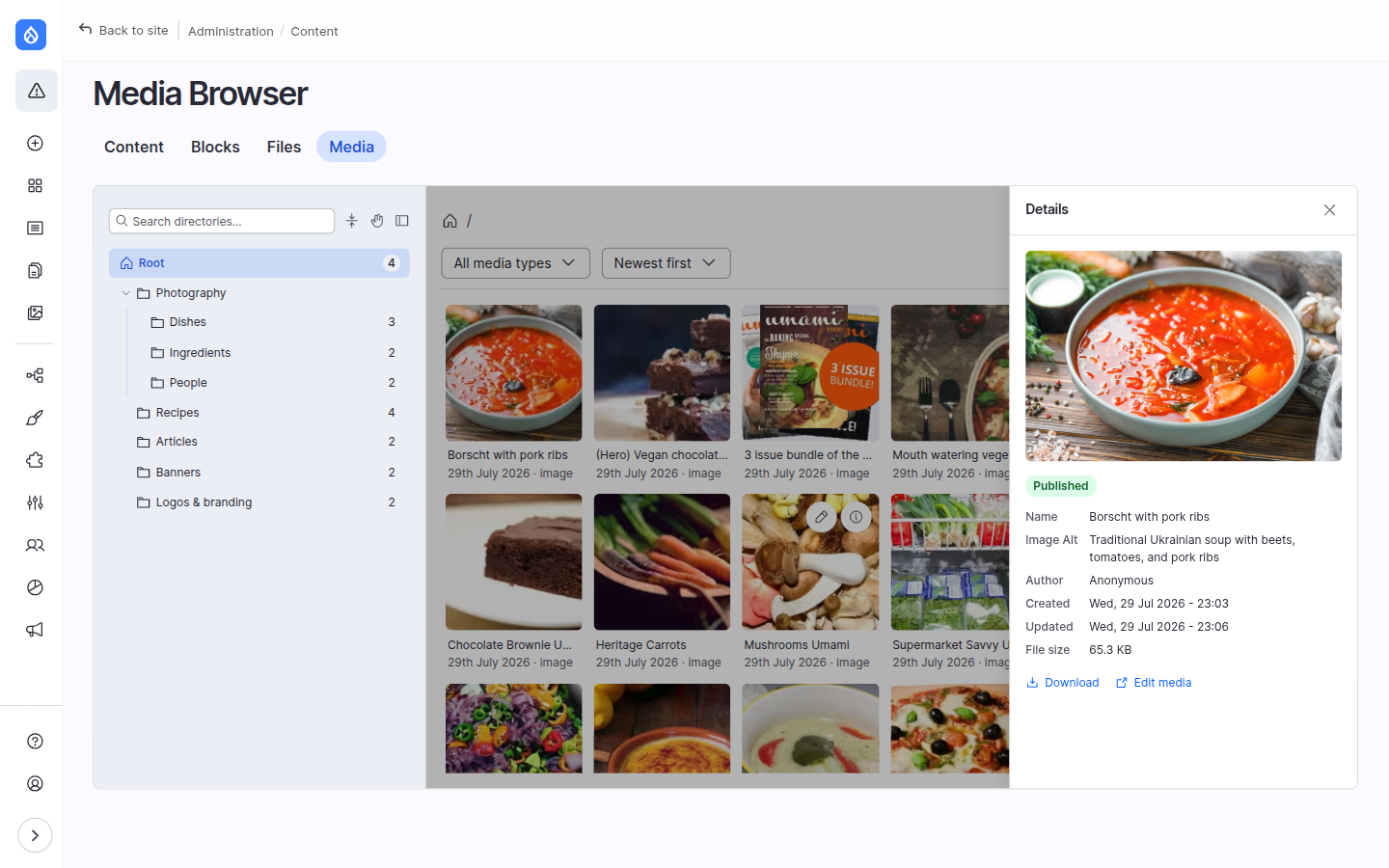
It shows a large preview (images inline; video and audio play right in the drawer), a Published / Unpublished badge, the item's metadata, author, created/updated dates and file size, plus:
- a Download link to the original file,
- an Edit media link that opens the full Drupal edit form in a new tab,
- and, when the Entity Usage module is installed, a "where used" count linking to everywhere the item is referenced — worth checking before you delete or replace something.
Availability
Contexts: standalone browser always; in the field-widget and CKEditor modals only when Also show the preview drawer in modals is on. Both are under Browser settings → Display & behaviour.