The status page
The status page shows what AI Disclosure needs on your site and what went
wrong while it worked. Find it under Reports, at
/admin/reports/ai-disclosure/status. You need the administer ai disclosure
permission to open it.
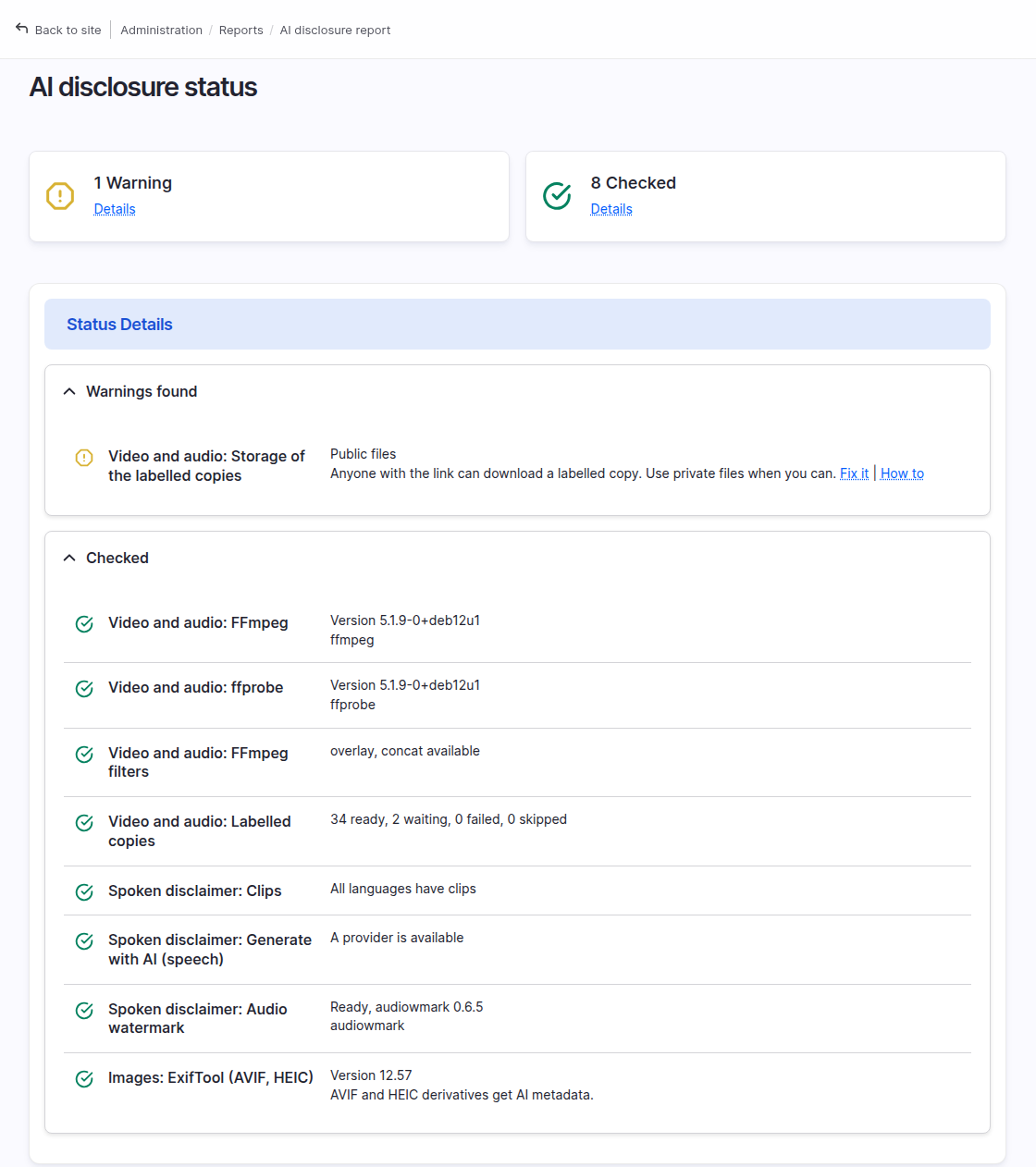
The checks
The top of the page looks like the status report of Drupal. Counters show how many entries are errors, warnings or fine. Below them the entries are grouped by severity, and errors come first.
Each title starts with the part of the module it is about: Images, Video and audio, Spoken disclaimer or Output. A warning or an error ends with two links. Fix it opens the settings page that solves the problem. How to opens the matching section of the requirements page.
A warning appears in Images when "Images with the icon" is set to "None" and the site has deep fake media. It counts them and says they have no visible label on the page. An image style with the burn-in effect labels only that style's copies. Fix it opens the Media tab.
Features you have not turned on are not problems. They sit in a closed block called Off on this site. Open it to see what each one would need.
The status report of Drupal at /admin/reports/status shows the same entries
with the same links. It also has one line, AI disclosure, that gives the
number of problems and links here. The keys of the entries are the ones earlier
versions used, so monitoring that reads the status report keeps working.
The messages
Under the checks, a table lists things that went wrong while the module did its work. A labelled copy that failed, a file skipped because it is longer than the limit, a spoken disclaimer language that lost its clip, and an AVIF or HEIC image left without its XMP mark because ExifTool is missing all leave a message.
Each row shows when it happened, the area, the severity and the text. The Fix column links to the file or image style and to the page that solves it.
A message closes by itself when its cause is gone. Once the labelled copy is made, or the clip is added again, the row disappears from the table. A problem that repeats updates its row and does not add a new one.
Press Dismiss to hide a message you have read. Set the Status filter to Dismissed, or to - Any - to see them next to the active ones, and press Filter. Then press Undo to bring a message back. The Status filter shows the active messages by default. The other filters pick an area or a severity.
Messages are kept in their own table, not in the Drupal log. Sites that send their log to syslog have no log table, and a log line cannot be dismissed.