Labels on video
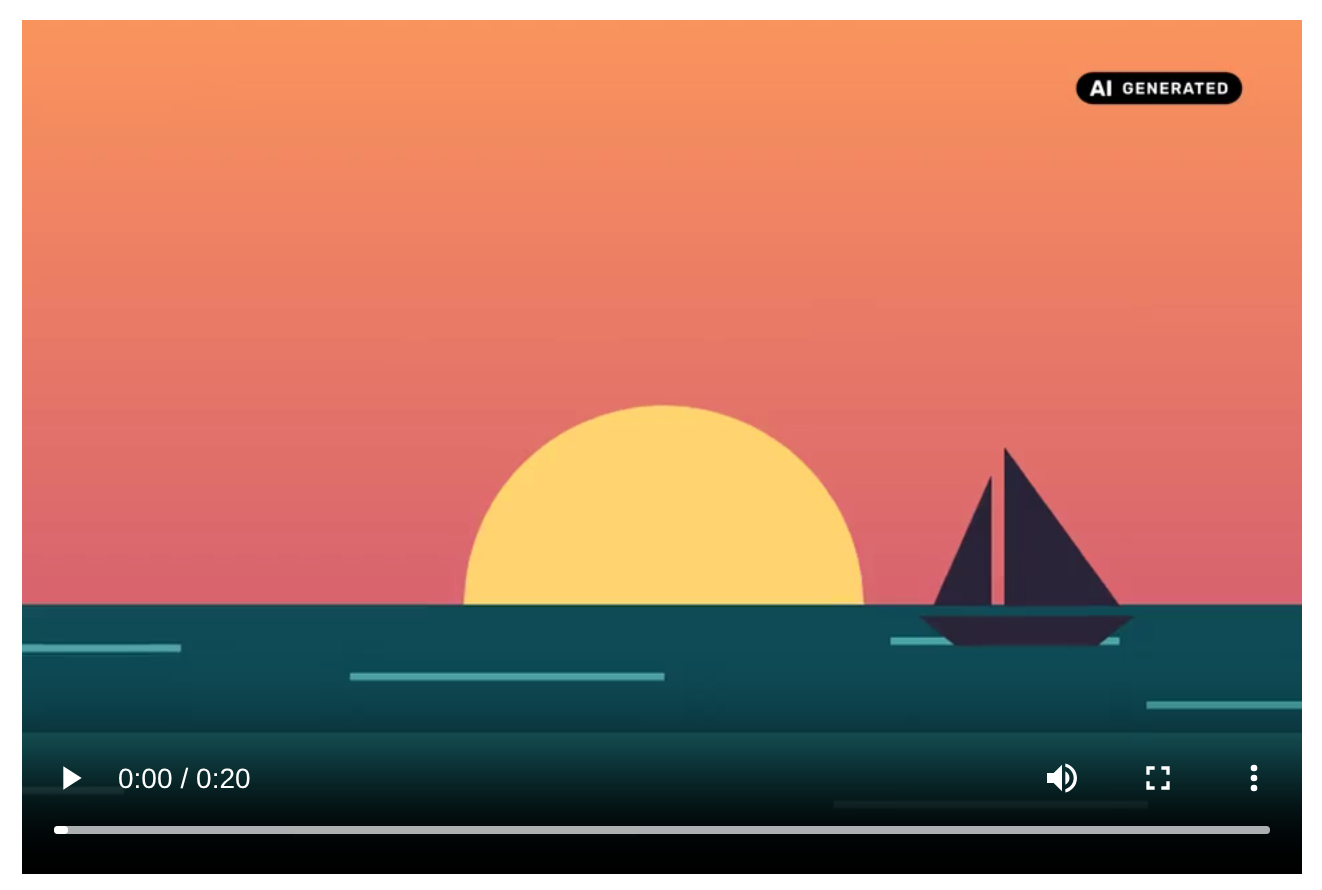
A deep fake video needs the icon over the player, visible from the first frame, without any action. The module draws it for video files and oEmbed videos, with the same wrapper, the same settings and the same rules as the labels on images. The scope and the corner are set on the Overview.
On the page
The icon sits in a top corner of the video, over the picture, visible before the video is played. It never covers the controls: those run along the bottom edge, so a player only uses the top corners. If the site setting or the position chosen for the file is a bottom corner, the player uses the top corner on the same side. The icon lets clicks through to the player.
The grade's sentence is added as visually hidden text, and the video points to
it with aria-describedby. The icon has the alt text of the official icon.
Where the ai_disclosure_av submodule produces a labelled rendition of the
video, the icon stays on the page until that rendition is ready. Once the
labelled file is served, the label is in its pictures, and the icon on the page
steps aside so it does not show twice.
oEmbed video
The module draws the icon over the iframe of an oEmbed video, in a top corner. The player itself belongs to the platform and cannot be changed, so the overlay is a layer on top of it that lets clicks through.
Also set the label on the platform. A viewer who watches the video on the platform, or in an app, never sees your page. Most platforms have a setting for this: on YouTube, use the "Altered content" (altered or synthetic content) setting when you upload the video. Do this for every AI video you embed.
The overlay is drawn for the oEmbed formatter on a media item whose source is an oEmbed video, in a field rendered by the field template. A photo or a link returned by the same provider is not a player and is left alone.
The icon in the picture
This feature needs the ai_disclosure_av submodule, which makes the labelled copy of the video.
The renderer video_icon makes a copy of a video that carries the EU AI Act
icon over the picture, so the label is on the video and not next to it. It
applies to a file with a MIME type of video/* whose disclosure follows the
rule of MediaOverlay::burnsIn(): the label is required, the grade is a deep
fake and the work is not evidently artistic. In the worker it also needs a
video stream. The icon is the PNG of the grade from the main module, laid over
the picture by the overlay filter of FFmpeg. A PNG needs no libfreetype
and no font file.
When the icon shows
Under "Video" on the settings page, with the defaults in brackets:
- When the icon shows. Start + interval (default), or the whole video. This is the schedule of a video that has none of its own.
- At the start, show for (5 s), Then show for (5 s) and
Repeat every (60 s). With the defaults the icon shows for the
first 5 seconds, then for 5 seconds at 1:00, 2:00 and so on. The enable
expression of the filter is
lt(t,5)+lt(mod(t,60),5). An icon that is shown for as long as the interval never goes away. - Icon size (8%), the height of the icon in % of the short edge of the
picture, and Margin (3%), in % of the height. The short edge is the
height of a landscape video and the width of a portrait one, as
ffprobereports them, so the size is the same share of a phone clip and of a 4K film. The width follows the shape of the icon. - Icon variant (automatic). Automatic measures the brightness of the corner of the icon on three frames spread over the video, and burns in the black icon on a bright corner and the white one on a dark corner, with the same threshold as the labels on images. It can be fixed to black or white.

For footage that is only partly manipulated, an editor gives the segments on the media form. A video media whose file gets an icon shows a section "When the icon shows" in the AI disclosure panel, under the widget, with:
- the mode: the default, start + every interval, the whole video, or segments
- the segments, one
start-endper line, in seconds or asminutes:seconds, for example0:10-0:20and90-105.5
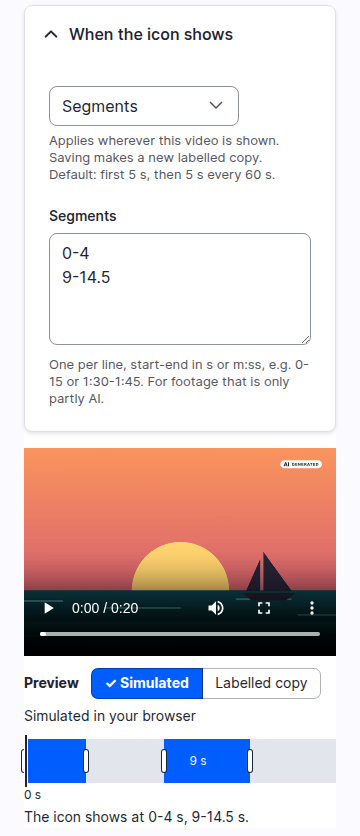
A segment must end after it starts, end within the longest file to render, and
come after the one above it without overlapping it. The form says which line
is wrong. The enable expression of segments is the sum of
between(t,start,end).
The schedule belongs to the file, not to the media, so it applies wherever the
file is shown. It is stored in the table ai_disclosure_av_video_schedule,
keyed by file ID, the way the icon position is. No field changes. A file with
no row follows the site setting. Deleting the file deletes the row.
Under the fields the form plays the original video with the icon laid over it during the scheduled spans, and a track shows those spans with a playhead that follows the playback. The track follows the mode and the segments while they are typed. The line under it says the same in words, for example "The icon shows at 0-5 s, 60-65 s", because the track itself is only a picture. The playhead is not a control: use the player to seek.
The switch "Simulated | Labelled copy" chooses what the player shows. The pressed button is filled and carries a check mark. "Simulated" plays the original with the icon laid over it by the browser. "Labelled copy" plays the copy the server made, and a line under the switch gives its date. Where there is no copy, the button is disabled and the reason is written next to it, for example "Not made yet: queued" or "FFmpeg is not installed". It is a preview made in the browser: the copy is what the reader gets. Without JavaScript the preview does not show and the rest of the form works.
Dragging the schedule
When the browser has read the duration of the file, the spans of the track can be changed with the mouse or a finger:
- Drag a span to move it. Drag one of its edges to make it longer or shorter. The edges are 44 pixels wide, so they are easy to hit on a touch screen.
- The times are written in seconds, in steps of 0.1 s, and stay between the start and the end of the file. A span stops a step before the next one, so two spans never overlap.
- Each change is written to the segments field as
start-endlines. The field stays the source of truth: the stored values are the same as if they had been typed, and changing the field redraws the track. - If the file followed the default or one of the other modes, dragging a span of it switches the file to segments, starting from the spans it had.
The edges are also reachable with the Tab key: the left and right arrows move the focused edge by one second, with Shift by five, and Home and End take it to the lowest and the highest place it can have. The segments field does the same by typing. If the duration of the file cannot be read, or FFmpeg is not installed and the fields are disabled, the track only shows the spans. The audio disclaimer has no schedule of its own, so its track cannot be dragged.
Position and rebuilding
The icon sits in the corner that the file has for its other uses: the position chosen on the media form of the image module, else the site setting of the labels on images, top right by default. The distance from the edge is the setting above.
A change of the schedule, of the position of the file, or of any video setting
gives a new hash and queues a new copy. The schedule and the position are
followed at once, because the file is queued when they change. The settings are
followed when a media is next saved or when ai-disclosure-av:requeue runs.
The copy
The copy follows a few fixed rules for the picture, the sound and the index of the file.
- The copy is always an MP4 file. The picture is encoded with H.264 when this
ffmpeghaslibx264, and with MPEG-4 part 2 when it has not. - The sound is copied as it is when it is AAC or MP3, and encoded to AAC otherwise. A video with no sound gets none.
-movflags +faststartmoves the index to the front, so the video starts before it is downloaded in full.- The tags
comment, with the disclosure sentence of the grade, andai_digital_source_type, with the IPTC URI of the grade, are written with-movflags use_metadata_tags. A grade with no IPTC URI writes no such tag.
The equivalent command, for a 1080 pixel high video with the icon at the top right:
ffmpeg -i in.mp4 -i ai_generated--white--480.png \
  -filter_complex "[1:v]scale=212:-1[ic];[0:v][ic]overlay=W-w-32:32:enable='lt(t,5)+lt(mod(t,60),5)'[v]" \
  -map "[v]" -map 0:a? -c:a copy -movflags +faststart+use_metadata_tags \
  -metadata comment="This is synthetic media produced by AI." \
  -metadata ai_digital_source_type="http://cv.iptc.org/newscodes/digitalsourcetype/trainedAlgorithmicMedia" \
  out.mp4
The command shows the white variant. When the corner cannot be measured, the icon is white.
To check a copy, read its tags and streams:
ffprobe -v error -show_entries format_tags:stream=codec_type,codec_name -of default=nw=1 copy.mp4
It lists comment and ai_digital_source_type, one video stream and, when the
original had sound, one audio stream.
Where it applies
- Video and audio files shown with the "Video" and "Audio" file formatters, on media and on file fields.
- Media of the oEmbed video source shown with the oEmbed formatter.
Theming
The markup comes from the ai_disclosure_media_overlay theme hook, the same
as for images, with the --player modifier and --video, --audio or
--embed. A labelled video and audio are rendered by
file-video--ai-disclosure-player.html.twig and
file-audio--ai-disclosure-player.html.twig, which you can copy into your
theme. A theme that overrides file-video.html.twig keeps that template for
the videos that get no label, and for the labelled ones uses the template of
the module unless it overrides the suggestion too.
Limits
The label on the page is HTML, as for images, so it is not in the video file unless the labelled rendition is served.