Media
AI Disclosure labels images, video and audio, not only text. This section describes what the module does for each kind of file, and the settings they share.
- Is it a deep fake?: the question every label on media depends on.
- Images: the icon on the image, and the icon burned into the file.
- Video: the icon over the player, and the labelled copy.
- Audio: the label next to the player, and the spoken disclaimer.
- What machines see: the JSON-LD block and the meta tag.
Some features need a tool that is not part of Drupal, see Requirements. Optional modules add others, see Integrations.
The Media tab
The Media tab opens on the image settings. Where the ai_disclosure_av
submodule is enabled, it gets three sub-tabs: Images, Video and audio
and Spoken disclaimer.
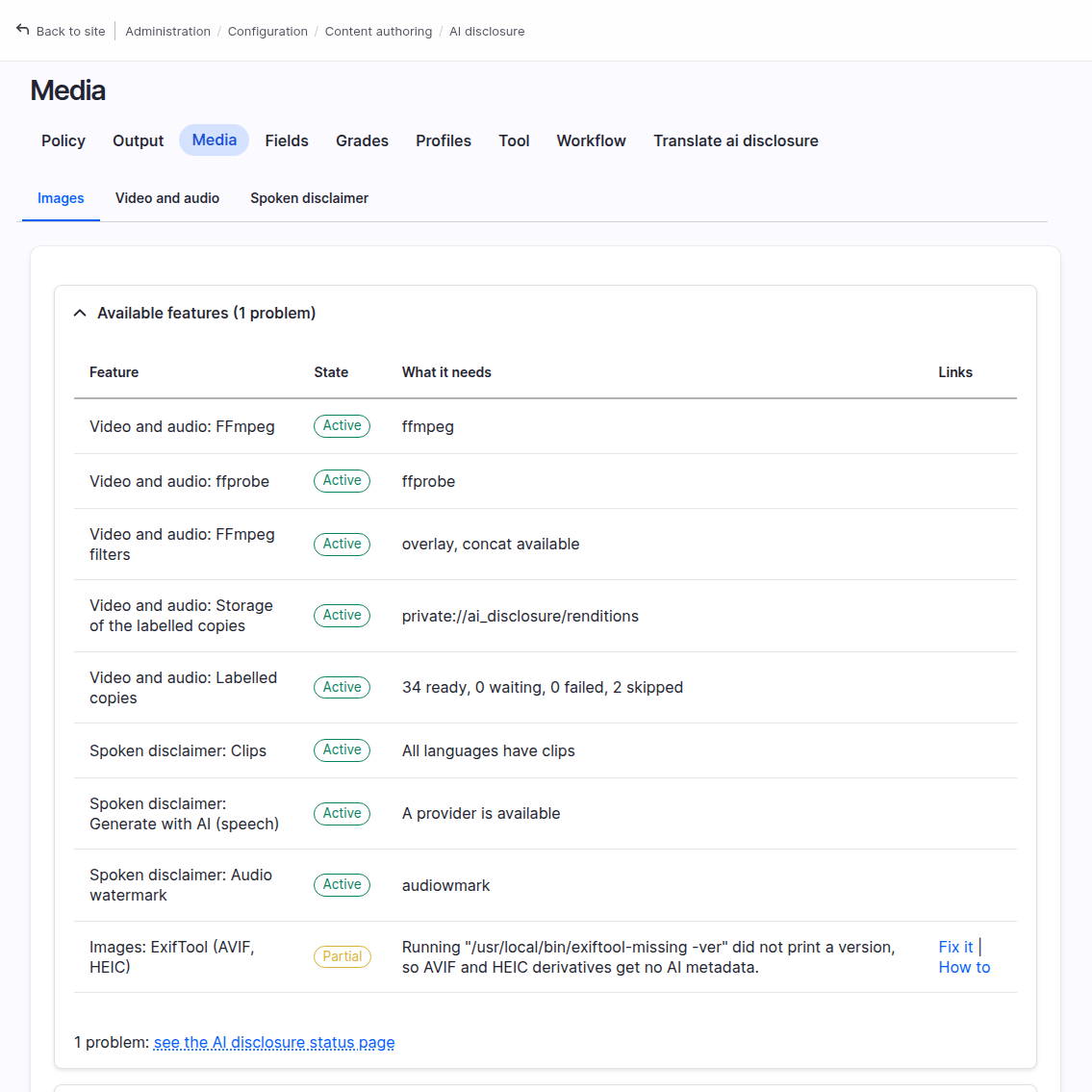
At the top of Images, a block called Available features has one row per feature of the module. A row shows the state and what the feature needs, with links to fix it. The block is closed unless something is wrong. Then it links to the status page.
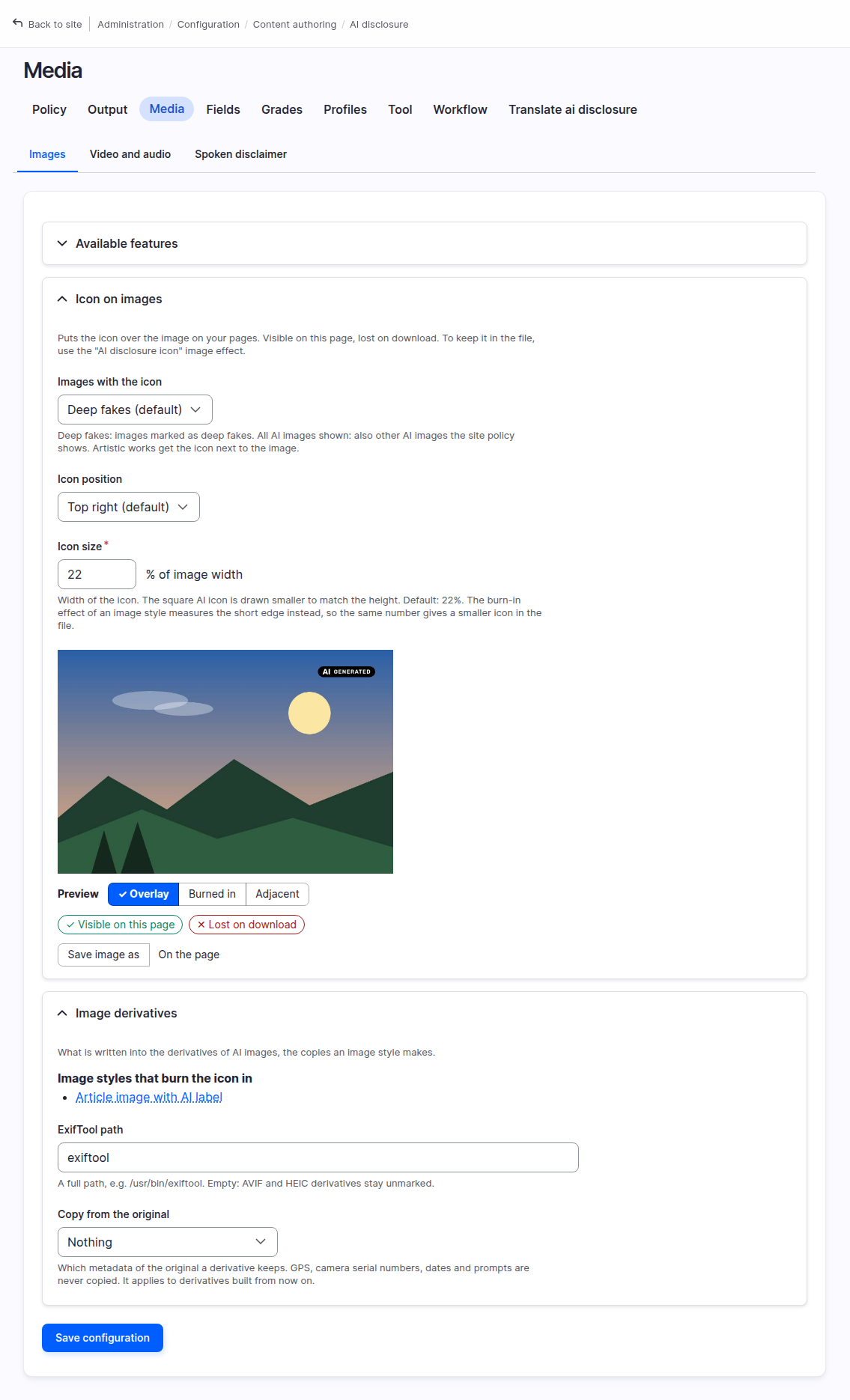
- Icon on images. Which images get the icon on the image itself, and the corner it sits in. See Labels on images.
- Image derivatives. Where the
ai_disclosure_imagesubmodule is enabled: the image styles that burn the icon in, with a link to each, and the path of ExifTool. See ai_disclosure_image. - Video and audio and Spoken disclaimer. See ai_disclosure_av.
When an image gets the icon
The Media tab, under Images, has an "Icon on images" section. Its select "Images with the icon" has three choices.
- Deep fakes (default). The image gets the icon when its file resolves to a disclosure that requires a label and whose medium is "deep fake". The file is resolved as described in Resolving disclosures for files.
- All AI images shown. The deep fakes above, plus images of other AI grades that the site policy would show. This is the same rule as the "Site policy" option of the AI disclosure formatter's "When to show" setting. An image whose disclosure is about text is never labelled: a text disclosure does not label the photos around it.
- None. No icon on images.
New installs get "Deep fakes". A site that upgrades gets "None", through an update that says so, and turns the icon on by choosing a value here. An image that does not get the icon keeps exactly the markup it had.
When a player gets the label
The decision is the one of images. The "Icon on images" section of the Media tab (Images) sets the scope and the corner:
- A player whose disclosure requires a label and is a deep fake always gets the label.
- With "All AI images shown", the other AI grades the site policy would show get it too.
- A disclosure about text never labels a player.
- An evidently artistic work gets the icon next to the player, not over it.
- "None" turns the labels off. A player that gets no label keeps exactly the markup it had.
The disclosure of a video or audio file is resolved from the media that uses it, as described in Resolving disclosures for files. The disclosure of an oEmbed video is the one of its media item, since there is no file.
Position
The icon sits top right by default, the example the Code of Practice gives. The same section lets you choose another corner from a select. Icon size is the width of the icon as a percentage of the image width, 22 by default, with a minimum size so it stays recognizable on a small image. The square "AI" icon is drawn smaller to match the height. The burn-in effect and the video copy measure from the short edge instead, see their pages. A site that upgrades keeps 22, and its markup does not change.
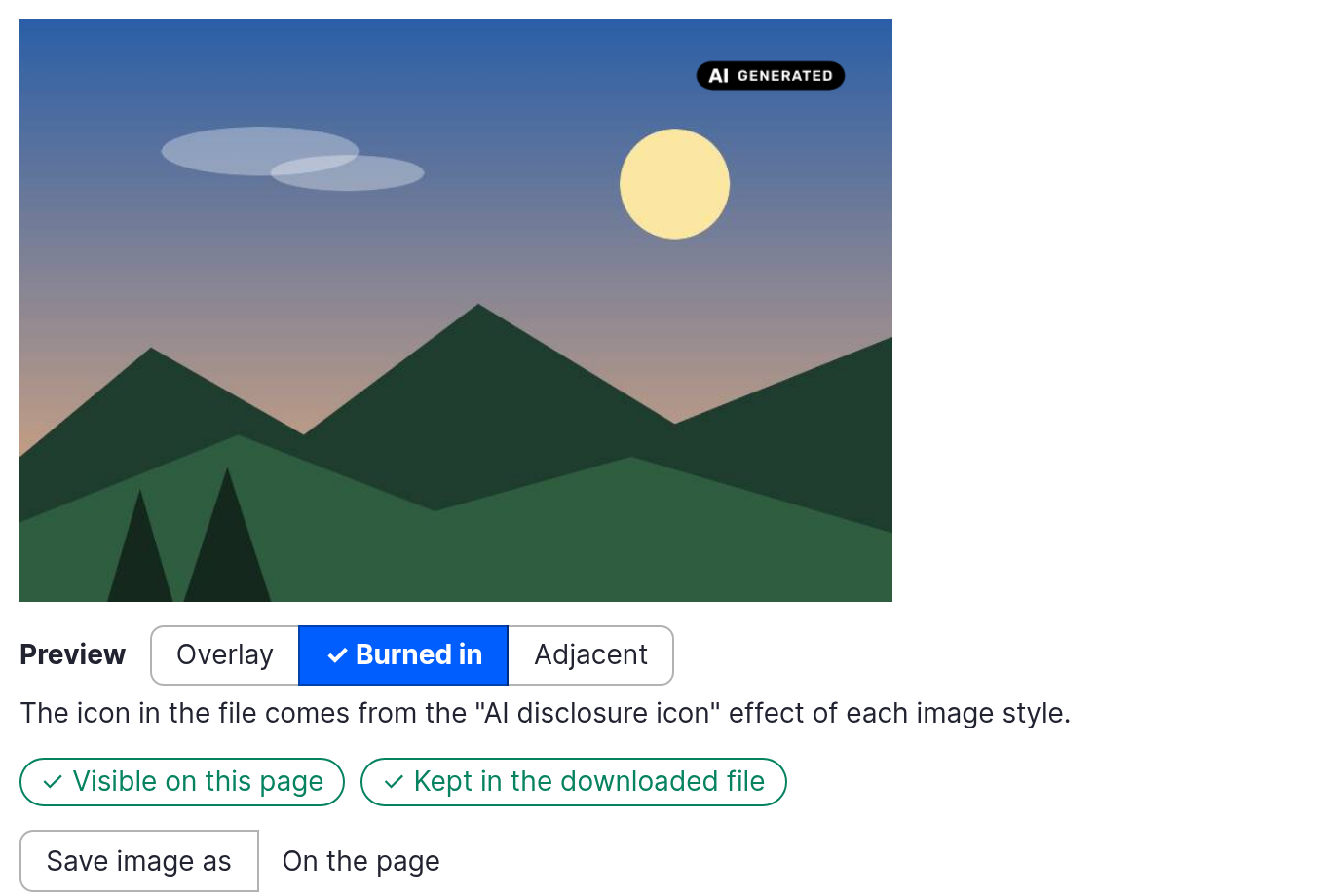
Below the size field, a preview shows the icon on a sample picture. It follows
the corner and the size as you change them, before you save. Overlay is the label as readers see it
on the page, Burned in draws the icon into the picture, and Adjacent
puts it next to the picture, as for an artistic work. "Save image as" shows what
a download keeps: the bare picture for Overlay and Adjacent, the picture with
the icon for Burned in, which needs the ai_disclosure_image submodule.
The panel on a media form
On a media form the widget is the one AI disclosure panel in the sidebar. Everything that belongs to the file is in it, in this order:
- A state line: the effective grade, a factual verdict ("Label required", "No label required" or "Not assessed") and the article it comes from, Art. 50(4). The verdict is a statement about the declaration, not a legal ruling.
- The widget.
- The sections that apply to the type of media: Icon position for an image or a file that shows an icon, When the icon shows for a video, and Spoken disclaimer for an audio. Each is described on its own page, see Images, Video and Audio.
- The preview of a video or an audio, see Preview.
The panel is open when the file needs a label and closed when it does not. The values are stored where they were stored when each section was a panel of its own. A form that does not show the widget keeps the sections as separate panels.
The preview is there on the add form too. Upload the file and the preview appears before you save, built from that file and from the disclosure chosen in the form, with the switch on "Simulated" and "Labelled copy" disabled until the copy is made. It follows the form: the state line and the preview refresh when the file is uploaded, replaced or removed, and when the grade or an answer changes. A deep fake that is made a "No label required" grade loses its preview on the spot, and gets it back the same way.
The panel fits a 320 px wide screen without scrolling sideways.