Labels on audio
An audio needs the label next to the player. The module draws it for audio files, with the same wrapper, the same settings and the same rules as the labels on images. The scope is set on the Overview. Where it applies, the theming and the limits are those of video.
On the page
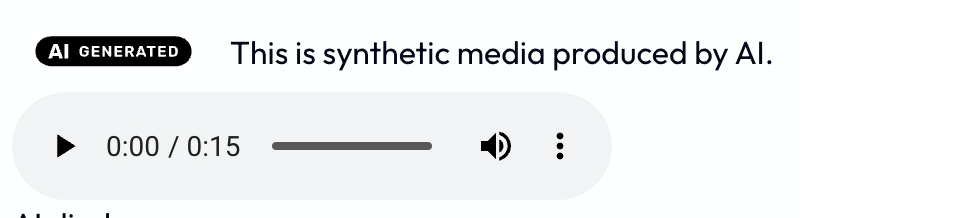
An audio player has no picture, so the icon and the disclosure sentence sit above it as visible text, always. A rendition with a spoken disclaimer does not remove them: a visitor who looks at the page still needs to see the label.
A spoken disclaimer first
This feature needs the ai_disclosure_av submodule, which makes the copy. An audio recording that needs the label gets a copy that starts with a spoken
disclaimer, such as "This audio was generated by AI.", then a short pause of
0.4 seconds, then the recording. The rule is the one of the icon in a deep
fake video: the label is required, the work is a deep fake and it is not an
evident artistic work. The disclaimer is a clip of audio, one for each active
language of the site and for each of two kinds: audio generated by AI, and
audio altered with AI. The kind follows the EU icon of the grade.
The clips
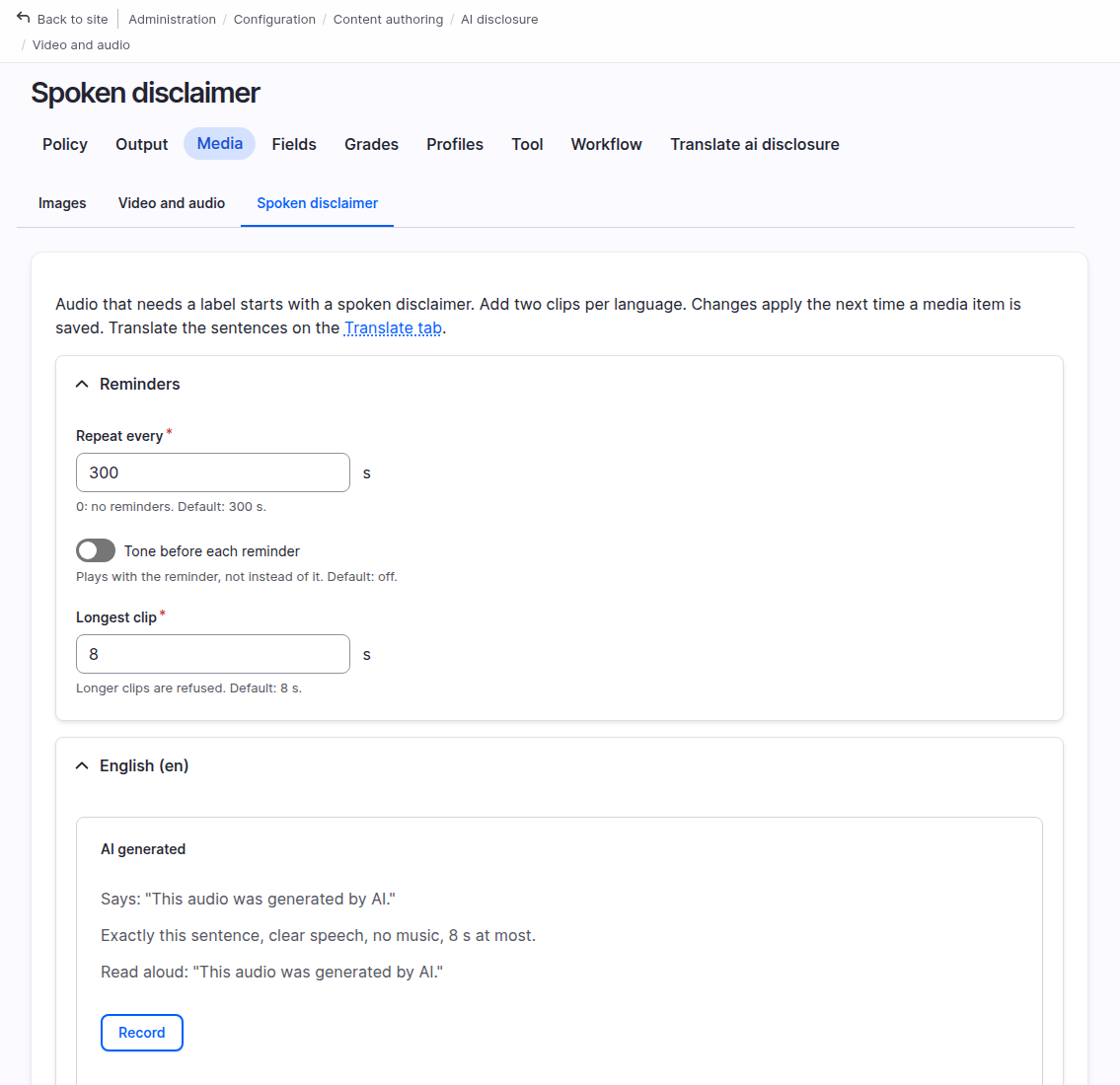
Open Spoken disclaimer, under Media, next to the video and audio settings
(/admin/config/content/ai-disclosure/video-audio/audio, permission
administer ai disclosure). The page lists every active language of the site,
and only those: a language that is not enabled does not appear, and the clip of
a language that is removed is ignored. A site with one language has one row.
For each language and kind, the row shows:
- the sentence the clip must say, in that language. The two sentences are settings of the submodule, and are translated with Configuration Translation on the Translate tab of the page. A language without a translation shows the source text, with the note "Not translated yet".
- what the clip must be, in plain words: it says exactly that sentence, takes a few seconds, and is clear speech.
- a way to give the clip. Three are offered, and all of them end in the same place: the file is checked and stored the same way.
- a player for the current clip.
The three sources:
- Upload a file: MP3, WAV, Ogg, Opus, M4A, FLAC or WebM.
- Record it in the browser, with the Record button next to the sentence to read. Press Stop, or wait: the recording stops by itself at the longest clip. Listen to it, then use it or discard it. "Use recording" hands the recording to the upload field of the row, as if a file was chosen. Recording needs a secure page (HTTPS) and the permission to use the microphone. Where the browser cannot record, the button is disabled and says why. A recording made in the browser is converted to a WAV file of 44100 Hz, mono, when the page is saved, so the renderer always gets the same kind of input.
- Generate with AI, a helper for sites that have the AI module
(
drupal/ai) with a provider for thetext_to_speechoperation. The button makes the clip from the sentence of the row and shows it. Nothing is generated by itself, only when the button is pressed. The voice and the language of the speech are those the provider gives: listen to it before you keep it. If the module or a provider is missing, the button stays disabled. A line says so and links to the install guide. The module is not a dependency.
Whatever the source, a clip is used only after the page is saved, so an editor
can listen first. A clip is refused, with the reason, when it is longer than the
longest clip (8 seconds), has no audio stream, or is silent (its loudest sound
is under -50 dB). The files are managed files, permanent, with a file usage
registered for the module, in ai_disclosure/disclaimers of the file system of
the copies. In the private file system only those who administer the module
can play them.
The settings keep the ID of the file of each clip, and a configuration export carries that ID but not the file. After an import on another site, the ID can point at nothing or at an unrelated file. The module then ignores the clip, so the disclaimer is missing until the clip is recorded or uploaded again on that site.
The language of a file
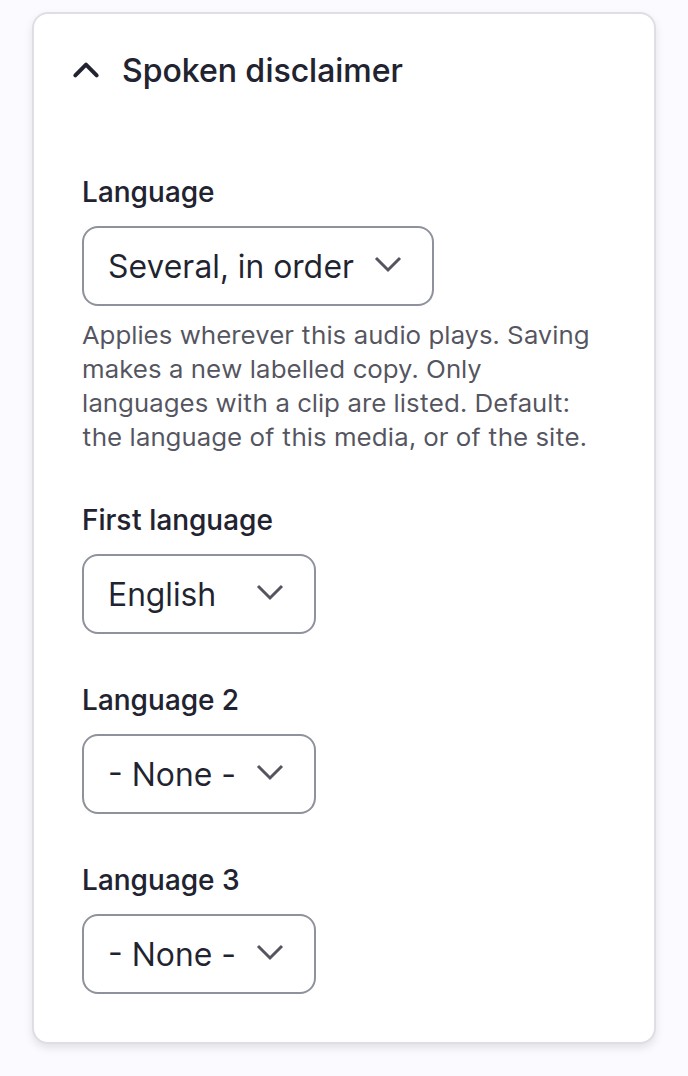
A file without a choice is announced in the language of its media, and in the
default language of the site when there is no clip in that one. On the media
form of an audio, the section Spoken disclaimer of the AI disclosure panel
lets an editor choose from one to
three languages, spoken one after the other, for example Italian then English.
Only languages that have a clip of the kind the file needs are offered. The
choice belongs to the file, in the table ai_disclosure_av_audio_disclaimer,
and changing it queues a new copy. When a chosen language loses its clip, or is
removed from the site, the file follows the default rule again, the media form
says so, and so does the status report.
Reminders
A long recording gets the spoken disclaimer again every N seconds of the recording (300 by default, 0 for none), except in the last 2 seconds. The reminder is the same disclaimer, in the same languages and order. An optional earcon, two short tones, can come before each reminder. It is an addition and never replaces the spoken disclaimer, and it is not played at the start. The tones are made by ffmpeg, so there is no sound file to ship.
Reminders are at least 5 seconds apart, and a recording gets at most 200 of them.
The copy
Before the parts are joined, everything is converted to 44100 Hz stereo, so the disclaimer and the recording match. The copy keeps
the container of the original when it is MP3, M4A, FLAC, Ogg, Opus or WAV, and
is MP3 otherwise. The tags are the same as for video: comment with the
disclosure sentence and ai_digital_source_type with the IPTC URI. They are
written as an ID3 TXXX frame in MP3, as MP4 tags in M4A, and as Vorbis comments
in FLAC, Ogg and Opus. A WAV file has no place for a tag of its own, so it
keeps only comment.
To read the tags:
ffprobe -v error -show_entries format_tags -of default=nw=1 copy.mp3
The hash of a copy includes the kind, the languages, the clips and the reminder settings, so any change makes a new copy.
Watermark
The watermark is optional, and it is meant only for sites that generate audio themselves. Under Article 50(2) of the AI Act, a provider of AI-generated audio must mark it in a machine-readable way. The labels this module writes (the spoken disclaimer and the tags) are deployer labels under Article 50(4), so they do not make a site a provider. A site that is a provider can set the path of audiowmark on the video and audio settings page, and each audio copy then gets an inaudible watermark.
The message is 128 bits, written as 32 hex digits: the first 32 digits of
sha256(site UUID + ":" + file UUID), where the file is the original. A
provider who finds a message in audio can map it back to the site and the file.
The copy is decoded to WAV, marked and encoded again with its tags. If that
fails, the copy is kept without the mark and a message in the status report says
so. The original upload is not changed.
Set a key file made with audiowmark gen-key, because without one anyone can
read the message and remove the mark. Copies made with the remote render Drush
commands are not marked.
Preview
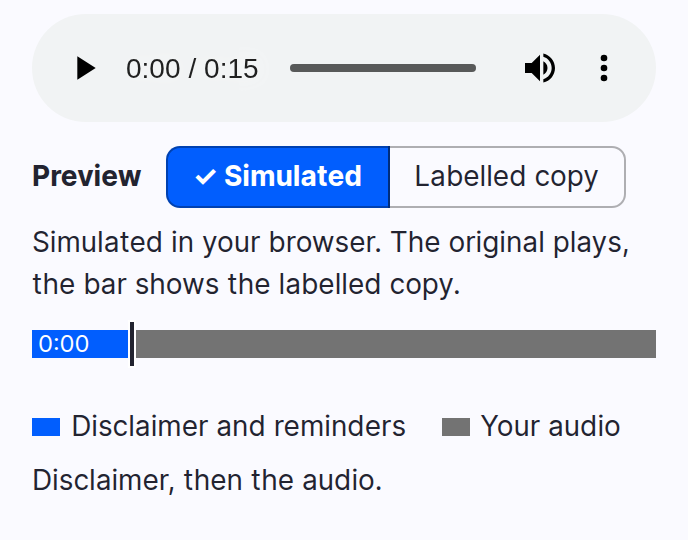
The media form of an audio uses the same preview as a video. It draws a track of the copy: the disclaimer, the recording, and a reminder at each interval, with a playhead that follows the player, and a line under it that lists the reminders in words. The switch "Simulated | Labelled copy" plays the original, with the track showing where the disclaimer would be, or the copy where one is ready, with the playhead in step. Where there is no copy, the button is disabled and says why.
The preview sits at the bottom of the AI disclosure panel, under the sections. It is there on the add form too: once the file is uploaded it is built from that file and from the disclosure chosen in the form, before anything is saved, and it is refreshed when the file or the disclosure changes. A video that is not saved yet cannot have a labelled copy, so the preview opens on "Simulated". See The panel on a media form.