From real traffic to tests
Questions you invent test what you expect. Questions your visitors really ask test what happens. In this tutorial you import what your AI feature actually answered, review it, name the ways it goes wrong, and turn the failures into test questions.
It takes about 90 minutes, most of it reading answers. You need a trace file from your site and the Administer AI Eval permission. With separate reviewer permissions, Operate AI Eval lets you upload and view traces. Labeling traces needs Annotate AI Eval results or Validate AI Eval judges. Annotating run results and promoting into datasets need Annotate AI Eval results. Naming failure modes and undoing an import need Administer AI Eval.
You will learn to
- import a file of traces recorded on your site;
- review an agent run and label it pass or fail;
- name failure modes and read how often each one happens;
- promote the failures into a dataset your tests can run.
Terms with a dotted underline are defined in the Glossary. Point at one to see a short definition; click or tap it to read the full entry.
The path from a visitor's question to a test
flowchart LR
    V["Visitor asks<br/>Ask AI"] --> S["Your site records<br/>each AI call"]
    S --> F["Trace file<br/>(JSON)"]
    F --> I["Import"]
    I --> R["Review and label"]
    R --> M["Failure modes<br/>and rates"]
    R --> D["Promote failures<br/>to a dataset"]
    D --> T["A test runs them"]
Before you start: the trace file
Your site records AI calls only if someone has set it up. The AI module's AI Observability submodule sends one record per AI call using OpenTelemetry, and a collector writes those records to a JSON file. Production traces explains the setup. Ask whoever runs the site for the file; on the demo site it came from the collector's output folder.
The file used here holds 30 visitor questions asked on the demo site's Ask AI page, three of them with a follow-up. It is 0.88 MB; the import form takes files up to 8 MB.
1. Import the file
Open AI Eval > Trace review and click Import traces at the top of the page. Choose the file in OTLP JSON file and click Import. With Administer AI Eval the form also asks for a Source: keep Upload a file.
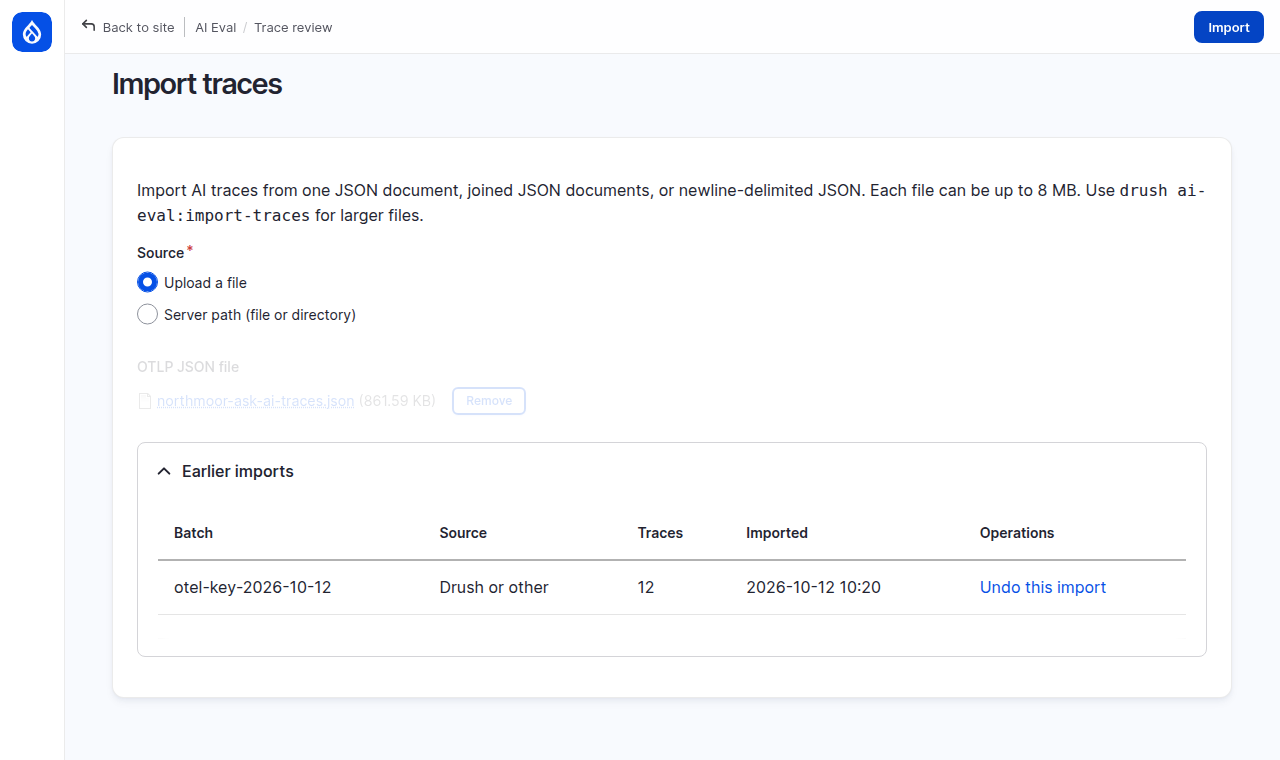
AI Eval reads the file and reports what it kept. On the demo site: "Imported 155 / 349 spans (194 skipped, 0 truncated at source)", with a batch ID you can use to undo the import.
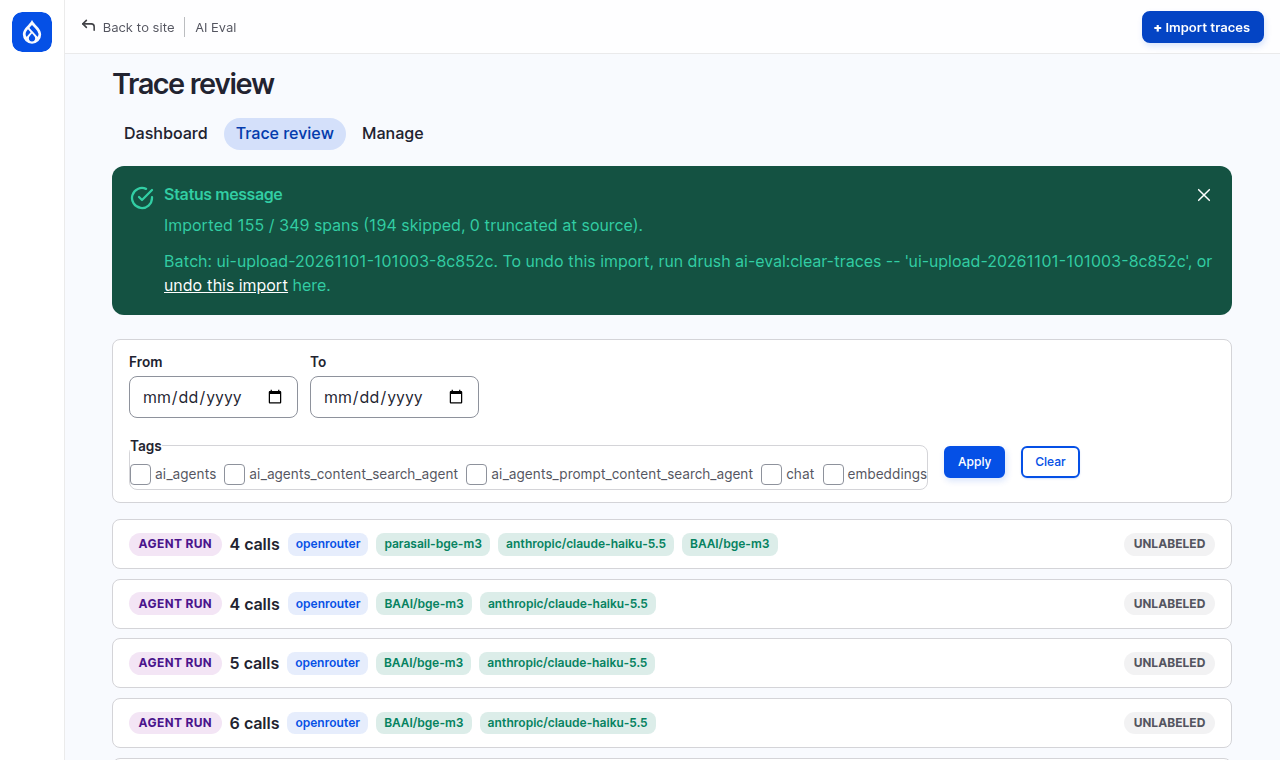
Under the hood: what the import keeps
A trace file records more than AI calls, for example page requests and logins. Each record is a span. AI Eval keeps the spans that are AI calls (155 here) and skips the others (194 here), along with any span it cannot identify.
The kept spans are grouped by the conversation or thread they belong to; without one, by the trace they share, which for an agent means all the calls it made for one question. On the demo site the 33 questions (30 plus 3 follow-ups) became 33 agent runs. A file from another site can give conversations or single calls instead. Everything the import added carries one import batch ID, so Undo this import on the import page removes exactly this file again.
2. Open an agent run
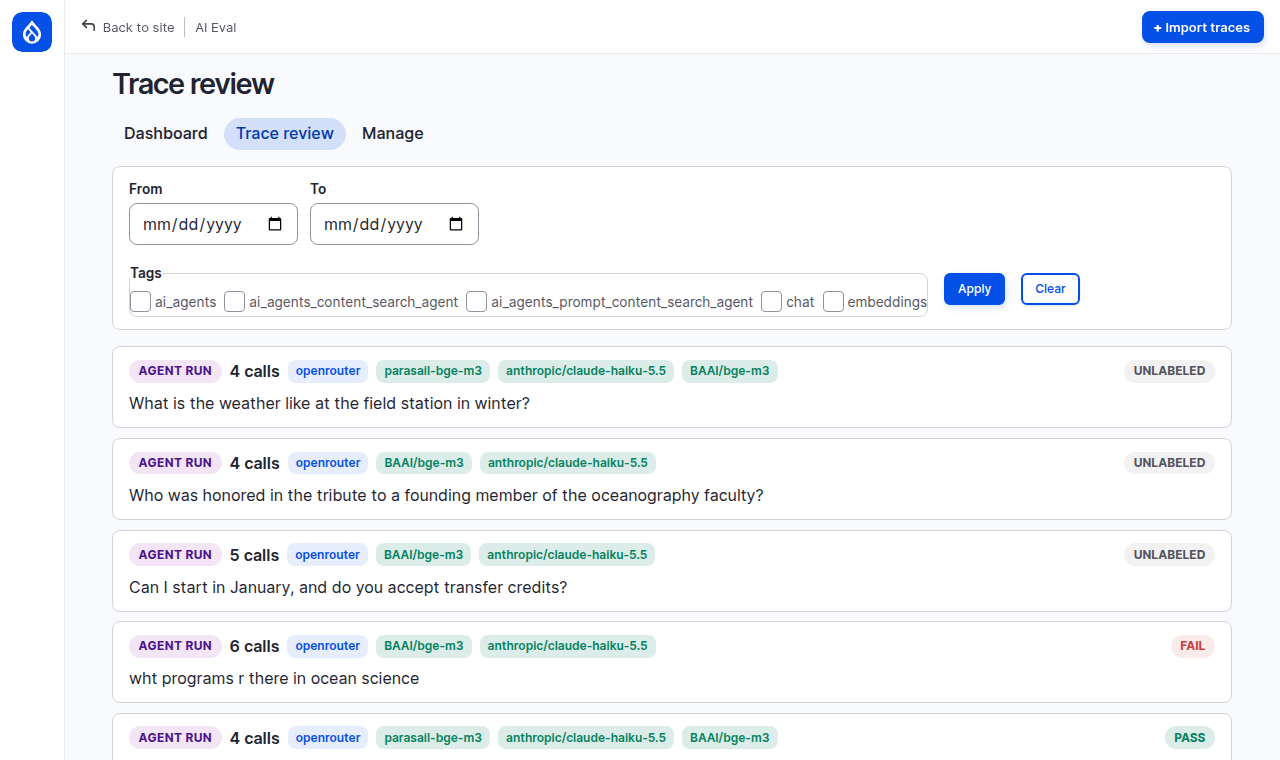
The trace review list shows one card per agent run. Each card shows the type, the number of calls, the providers and models, a label (UNLABELED until you review it) and the visitor's question, so you can pick a run without opening it.
Each agent run opens on a page with two parts:
- At the top, the verdict for the whole run: Pass, Fail, Defer, a note field (First thing that went wrong) and New failure mode.
- Below it, one card per AI call in the run, in order: the search step (embeddings), then the chat calls up to the final answer. A chat card can hold the tool calls and tool results of that step. Each card shows what was sent (USER) and what came back (RESPONSE).
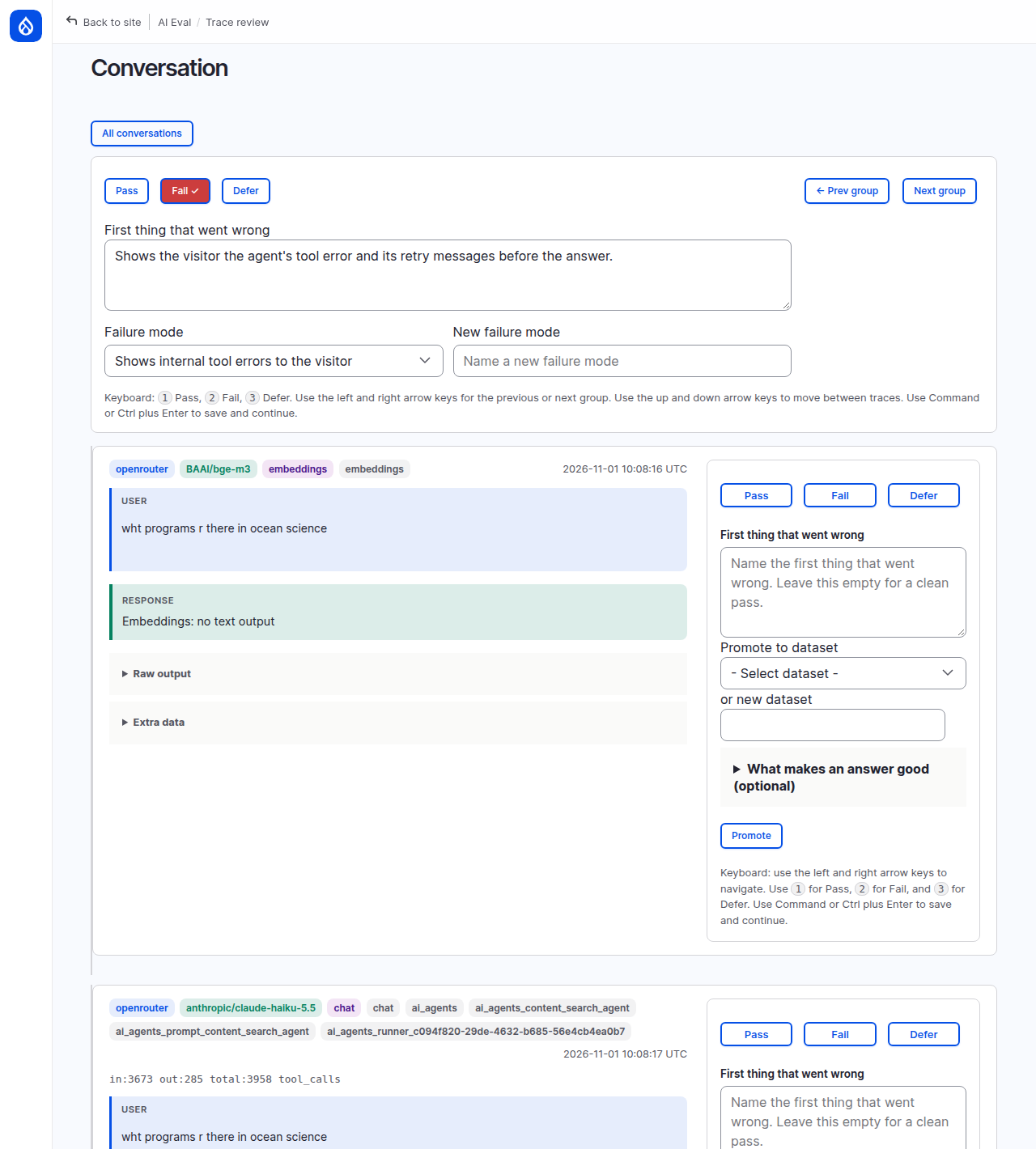
← Prev group and Next group move through the list; so do the left and right arrow keys. Use the buttons in the top bar to label the run: after the up or down arrow key moves focus to a call card, the keys 1, 2 and 3 label that one call instead of the run.
The search step has no text answer
On the demo site the first card of every run, the embeddings call, shows Embeddings: no text output as its response. That card is the search step, which returns numbers, not text. Ignore it and read the chat calls and the final answer. The card also says "This trace cannot be promoted", and a chat step that only called a tool says the same: neither has an answer to test.
3. Label what you read
For each run: read the question and the final answer, decide, and record it with the verdict bar at the top. Fill in the note and the failure mode first: the Pass, Fail and Defer buttons save as soon as you click them.
- A good answer: write a short note on why and click Pass.
- A bad answer: in First thing that went wrong, write what you saw. Name the problem in New failure mode, or pick it from Failure mode once it exists. Then click Fail.
On the demo site twelve runs were labeled. Eight passed, among them honest answers like "I don't have any information about a football team". Four failed, in three ways:
| Question | What went wrong | Failure mode |
|---|---|---|
| What time does the alumni networking reception start? | Says the start time is not given. The event page shows 5:30 pm. | Misses a fact that is on the page |
| wht programs r there in ocean science | Shows the visitor the agent's tool error and its retry messages before the answer. | Shows internal tool errors to the visitor |
| Is there visitor parking on the fall open day? | Sentences end with a bare dot where the citation number should be. | Citation numbers missing |
| What did the estuary survey find about microplastics? | Two claims end with a bare dot: the citation numbers are missing. | Citation numbers missing |
Back on the list, each card now shows its label.
Under the hood: run verdicts and call labels
The verdict bar at the top labels the whole agent run: did the visitor get a good answer? That is the open-coding verdict this tutorial uses. Each call card also has its own Pass, Fail and Defer, for a verdict on one call; you can leave them alone here. Neither kind is what an LLM judge is checked against: a judge has its own labeling screen, where every label is about the one thing that judge scores (see Trusting your judges).
A failure mode is created when you click a verdict with a name typed in New failure mode. After that it appears in the Failure mode list for every reviewer, so the same problem gets the same name.
4. Read the failure rates
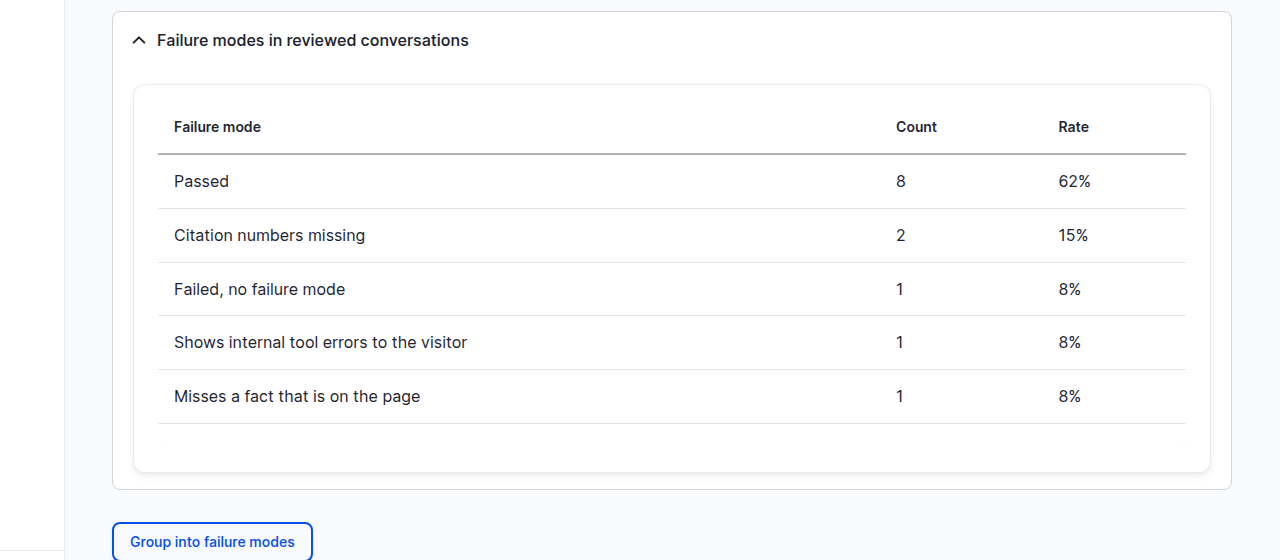
At the bottom of Trace review, Failure modes in reviewed conversations counts each failure mode.
Under the hood: what the percentages are out of
A failure rate is a mode's count divided by every conversation reviewed on the site, by any reviewer and within the tags you filtered on, passes included. Each conversation counts once, with its first label. Reviews without a failure mode get their own rows: Passed, Failed, no failure mode and Deferred (a row shows only when it has a count). On the demo site that was 8 passed and 1 failed with no mode, out of 13. So "Citation numbers missing 15%" means 2 of the 13 reviewed conversations, not 15% of the failures.
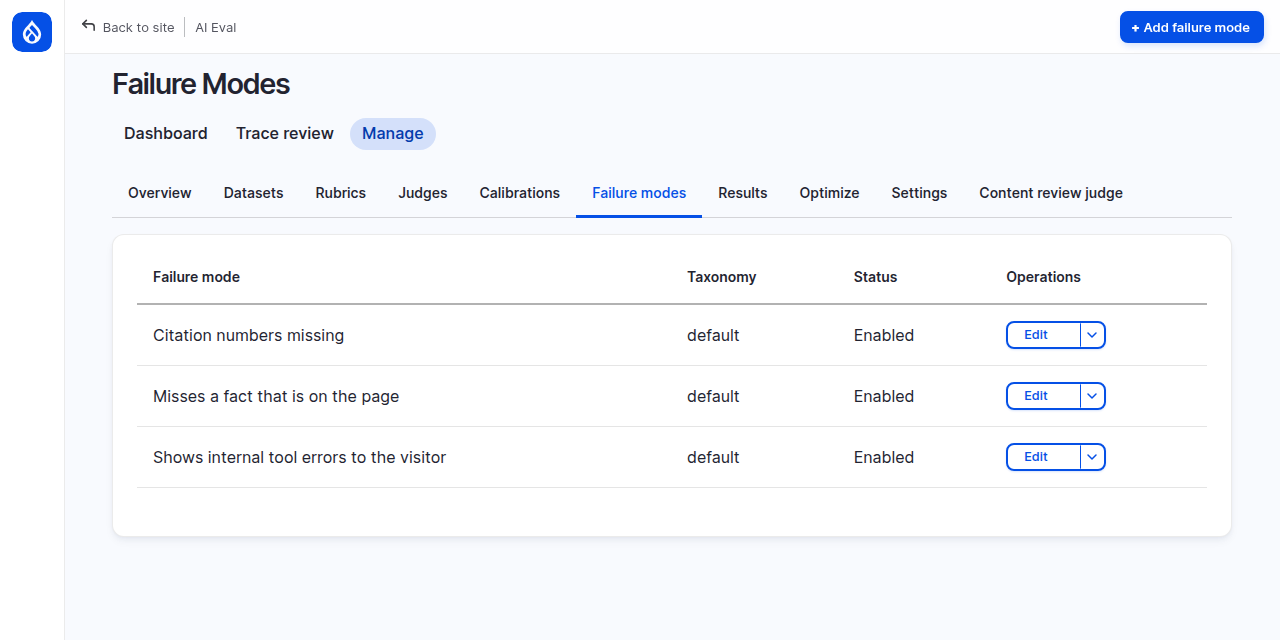
Manage > Failure modes lists the modes you created. Edit one to add a description, so the next reviewer knows exactly what it covers.
5. Turn the failures into test questions
Under the card list, Promote all fail/defer-labeled traces and conversations
to dataset copies every failed or deferred review into a dataset. Type a name
in or new dataset, for example Tester: traffic failures, and click
Promote all.
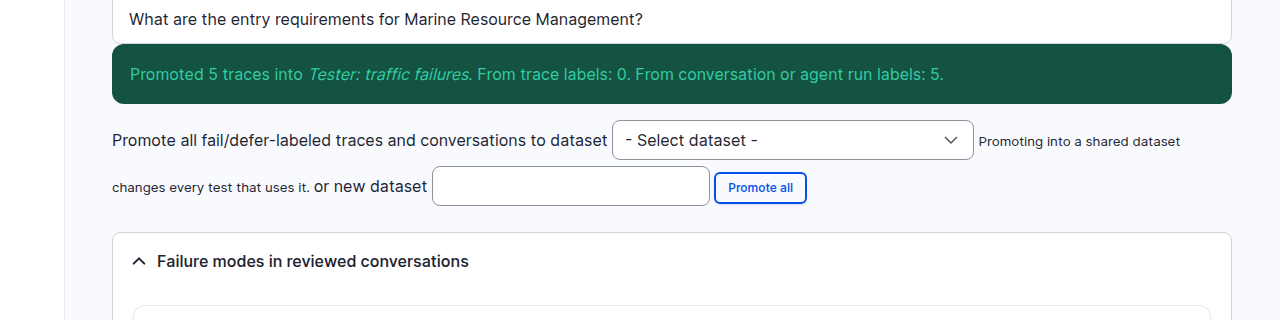
On the demo site it promoted five: the four failures from this review, plus a failed run someone had labeled before. Promote all tries every failed or deferred review on the site, not only yours. It adds one question per run and skips runs it cannot use, such as ones already promoted into that dataset.
Open Manage > Datasets and the new dataset. Each promoted question gets an
ID that starts with trace-. Its input is the first thing the visitor wrote to
the agent in that run, so the question reads like the one on the card, not like
the search step's text. The agent's final answer travels with the question in
its metadata as ai_response, and the failure mode and note from your run label
are kept too (group_failure_mode, group_note).
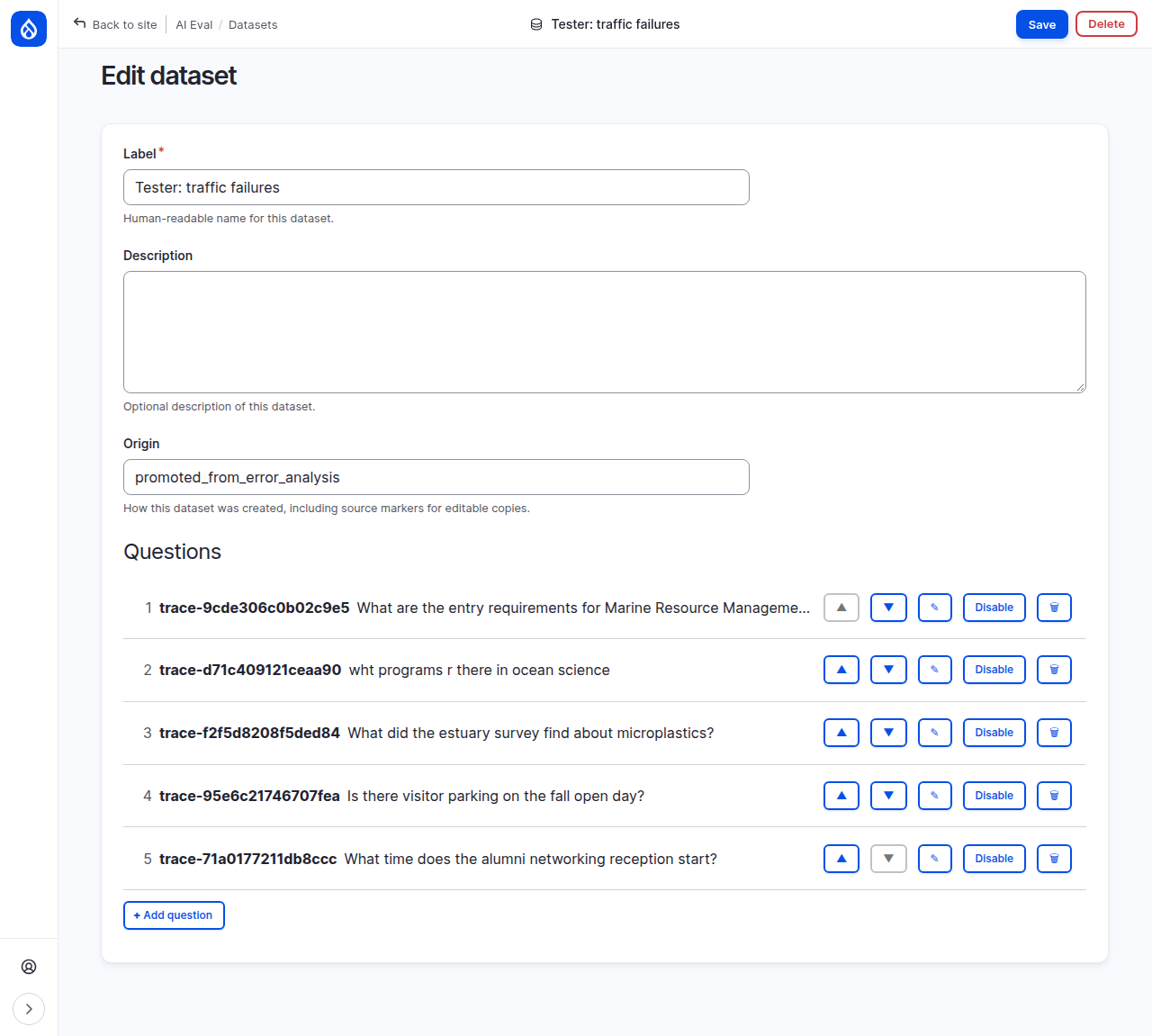
The questions have no criteria yet. Before a test can judge them, open each one with ✎ and write what a good answer says, as in Improve your test. Then point a test at the dataset.
Common mistakes
- Clicking Fail before writing the note. The verdict saves at once. Add the note, then click the verdict again to save it.
- Reading the embeddings card as the answer. It says Embeddings: no text output. The final answer is the last chat call in the run.
- Inventing a new failure mode for every failure. Reuse a mode when the problem is the same, or the counts mean nothing.
- Promoting into a dataset other tests use. The promote form warns that a shared dataset changes every test that uses it. Use a new one.
Check yourself
The import says 155 of 349 spans. Were 194 lost?
No. They were not AI calls (page requests, logins and the like), and AI Eval only keeps the AI calls.
20 conversations reviewed: 14 pass, 6 fail, 4 of them named Citation numbers missing. What rate does that mode show?
20%: 4 out of all 20 reviewed conversations. Passed shows 70% (14 of 20) and Failed, no failure mode shows 10% (2 of 20).
Why write criteria for promoted questions?
Promotion copies the visitor's question, not a definition of a good answer. Without criteria the judges have nothing specific to check the answer against.
Done when
- The trace file is imported and the batch shows on the import page.
- At least ten agent runs carry your verdict, failures with a note and a failure mode.
- You can read the failure rates and say what Passed and Failed, no failure mode count.
- A dataset holds the promoted failures.
Next steps
- Write criteria for the promoted questions and run them: Improve your test.
- Label answers for a judge and check it against you: Trusting your judges.
- Everything about import, grouping and promotion: Production traces.