Your first test
In this tutorial you test an AI feature your site already has, from nothing to a first result, using only the guided workflow in the admin UI. You write five questions, say what a good answer must contain, run them, and read what came back.
It takes about an hour. Most of that time is writing good criteria.
You will learn to
- set up a test with the guided workflow;
- write questions with criteria an AI judge can score;
- run the test and follow its progress;
- read a result: what passed, why, and how far to trust it.
Terms with a dotted underline are defined in the Glossary. Point at one to see a short definition; click or tap it to read the full entry.
How a run works
Every run follows the same path. Keep this picture in mind; each step below fills in one part of it.
flowchart LR
    Q["Question<br/>from your dataset"] --> A["Your AI feature<br/>answers it"]
    A --> J["Judges score the answer<br/>against your criteria, 0 to 5"]
    J --> S["Question score<br/>the average"]
    S --> P{"At least the<br/>pass threshold?"}
    P --> G["Gate<br/>enough questions passed?"]
Before you start
You need:
- The Administer AI Eval permission. The guided workflow needs it; reading results needs Operate AI Eval or Administer AI Eval.
- An AI feature to test: an agent from the AI Agents module, or a provider and model set up in the AI module.
- A model for the judges. Each LLM judge uses the model set on its Edit prompt tab, otherwise the site judge on the AI Eval settings page. The Review step tells you if a judge has no model.
The run calls your AI provider and may cost money. Five questions and two judges make five answers and ten judge scores. An agent often makes several model calls for one answer, and failed requests can be retried, so the number of calls can be higher.
The screenshots come from a demo site for a fictional university, Northmoor, whose Ask AI assistant answers visitor questions from the site's content. Use your own feature and your own questions; the steps are the same.
1. Start a guided test
Open the AI Eval dashboard at Configuration > AI > AI Eval
(/admin/config/ai/ai-eval) and click Create a test (guided).
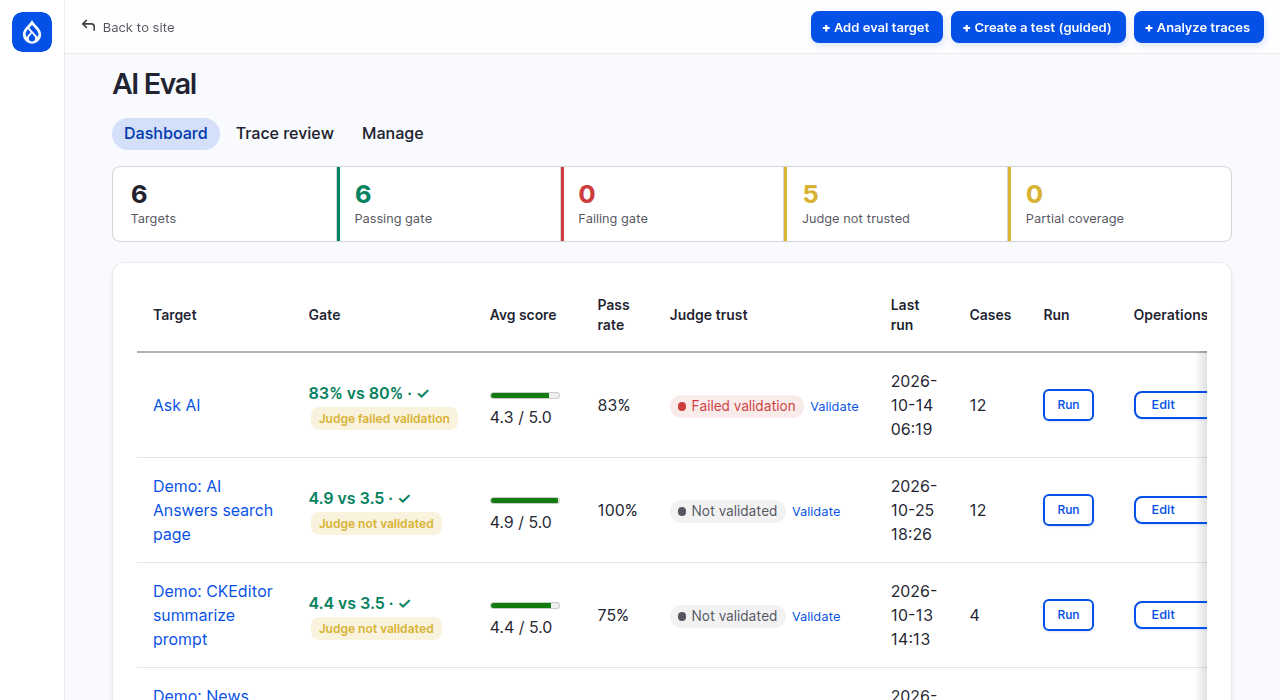
The guided workflow has three steps: AI, Examples and Review.
Under the hood: your draft
Until you save, your work is a draft that only your user can see, kept for seven days. A step is saved to the draft when you click Next, Add example or Update example.
To come back to an unsaved draft later, keep the page address: it ends in
?draft= and a code. Clicking Create a test (guided) again starts a
new, empty draft.
2. Choose what to test and how to score it
On the AI step:
- Label: a name you will recognize on the dashboard. On a shared site,
start it with your name, for example
Maria: Ask AI first test. - Evaluation mode: choose Agent to test an agent end to end, with its tools. Choose Chat to send each question straight to a provider and model.
- Agent: the agent to test. On the demo site the Ask AI assistant is the University Content Search Agent. In Chat mode this field is replaced by Provider / Model and System prompt: choose the model your feature uses and paste the feature's system prompt, so the test asks the same model the same way.
- Graders: turn on Relevance Grader and Completeness Grader. Both are LLM judges that read the criteria you write in the next step, so they need nothing else on each question. Leave the others off for now; the text under each grader says what extra fields it needs.
- Gate metric: choose
Pass rate,
then set Gate threshold to
0.8. The run passes its quality gate when at least 80% of the questions pass. - Gate type: keep Hard. The two options say what changes: with
Hard,
drush ai-eval:runexits with code 1 when this test misses its gate. With Soft, a miss does not change the exit code, but the output names it. The screens show the same Pass or Fail for both.
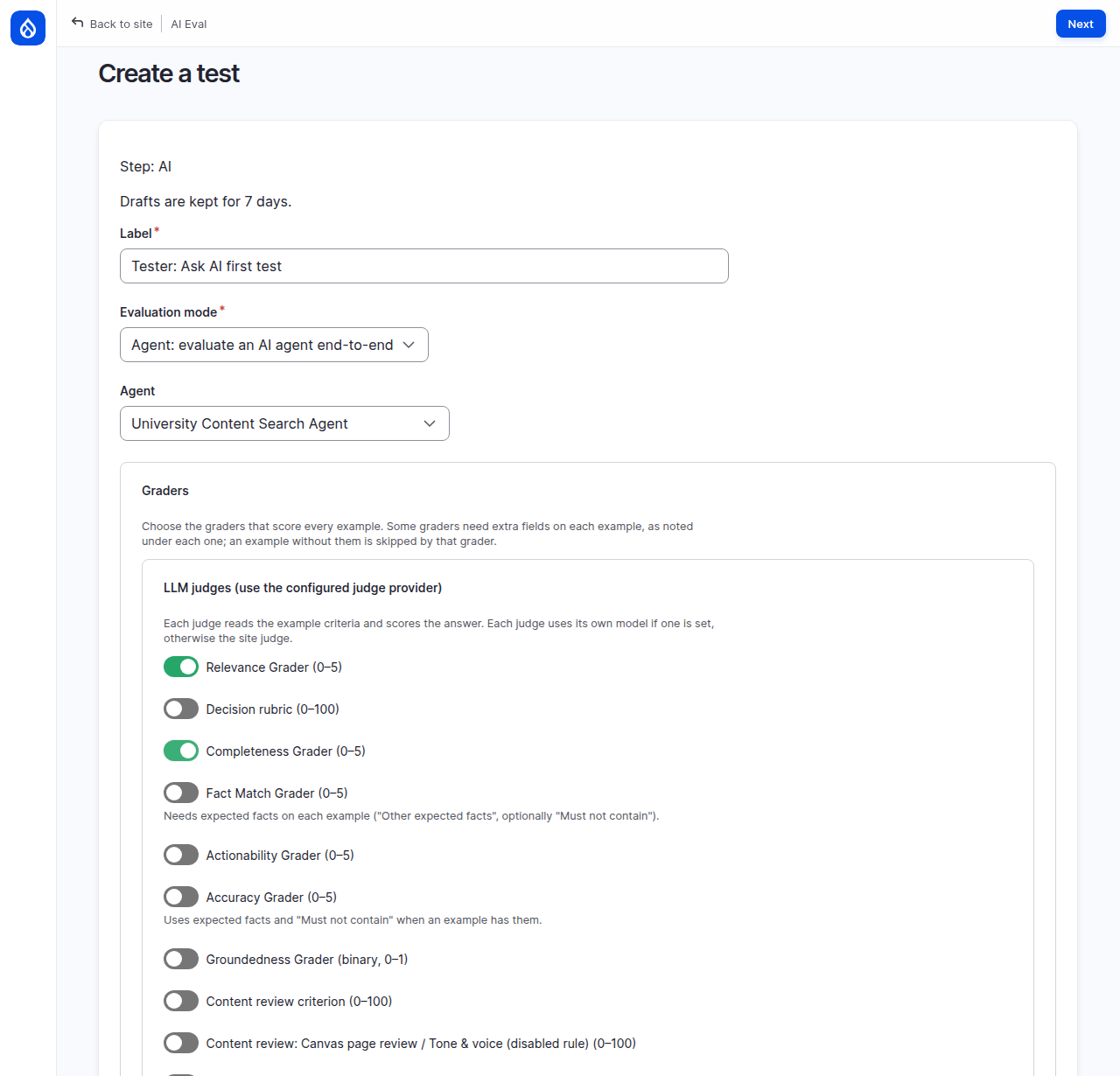
Leave Question pass threshold empty to use the site default (3.5 unless your site changed it), and leave Must-pass graders off.
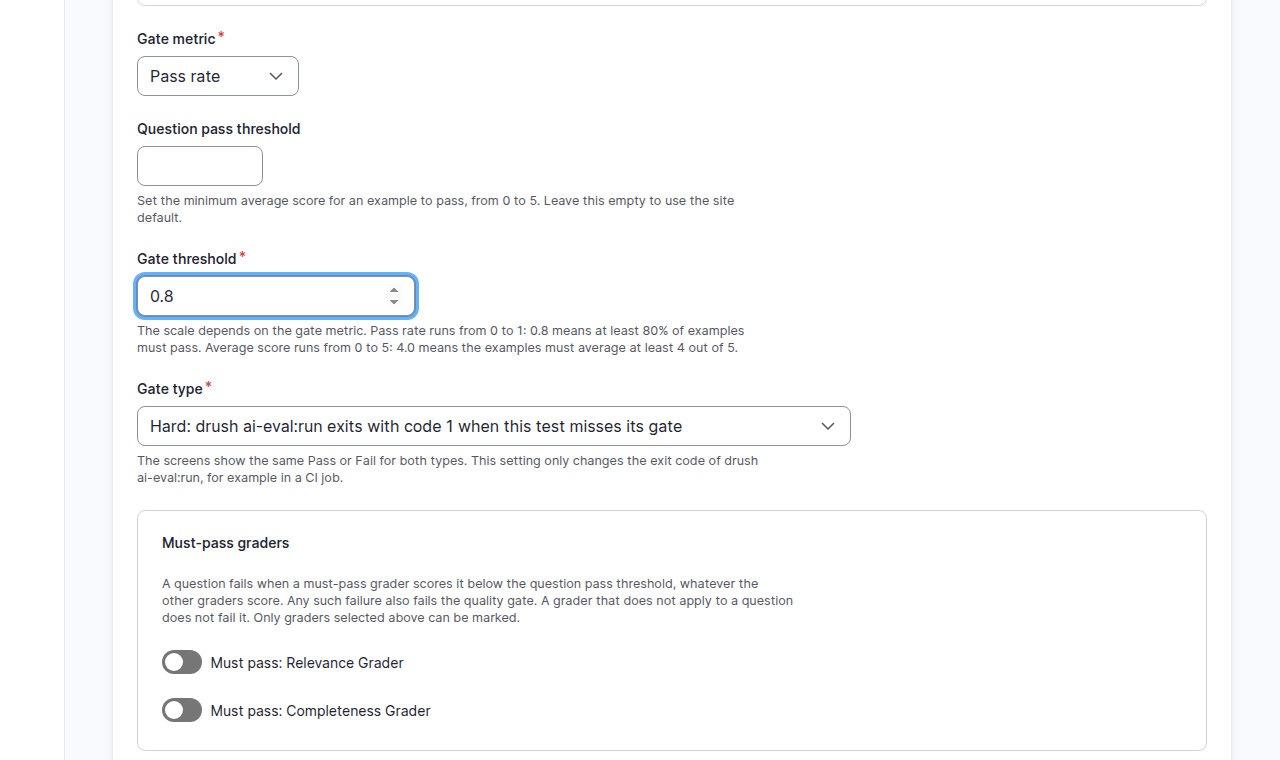
The gate threshold scale follows the metric
Pass rate runs from 0 to 1, average score from 0 to 5. When you switch the metric, the threshold changes to that metric's default (0.8 for Pass rate, 4 for Average score) if your number does not fit the new scale. Check the value after you switch.
Under the hood: what a judge does, and what the gate type changes
For every answer, each LLM judge sends its model one prompt with the question, your criteria and the answer, and asks for a score and a one-line reason. Relevance asks whether the answer addresses the question; Completeness asks whether it covers everything the criteria name. AI Eval sets the judge's temperature to 0 where the provider allows, so the same answer gets a steady score, though not always an identical one.
The gate type matters only outside the browser. When a CI pipeline runs
your tests with drush ai-eval:run, a failed
hard gate
makes the command exit with an error and stops the pipeline; a soft gate
only reports it. The admin screens show the verdict the same way for both.
Click Next.
3. Write five examples
On the Examples step, choose Create a new dataset for this test and give it a New dataset label. A dataset is the list of questions a test asks.
For each example, fill three fields and click Add example:
- Question ID: a short name, unique in the dataset, such as
vessel-tour-booking. - Input (prompt): the question, as a visitor would type it.
- Criteria: what a good answer must say, in plain language. The judges score the answer against this text, so make it specific enough that two people would agree on pass or fail.
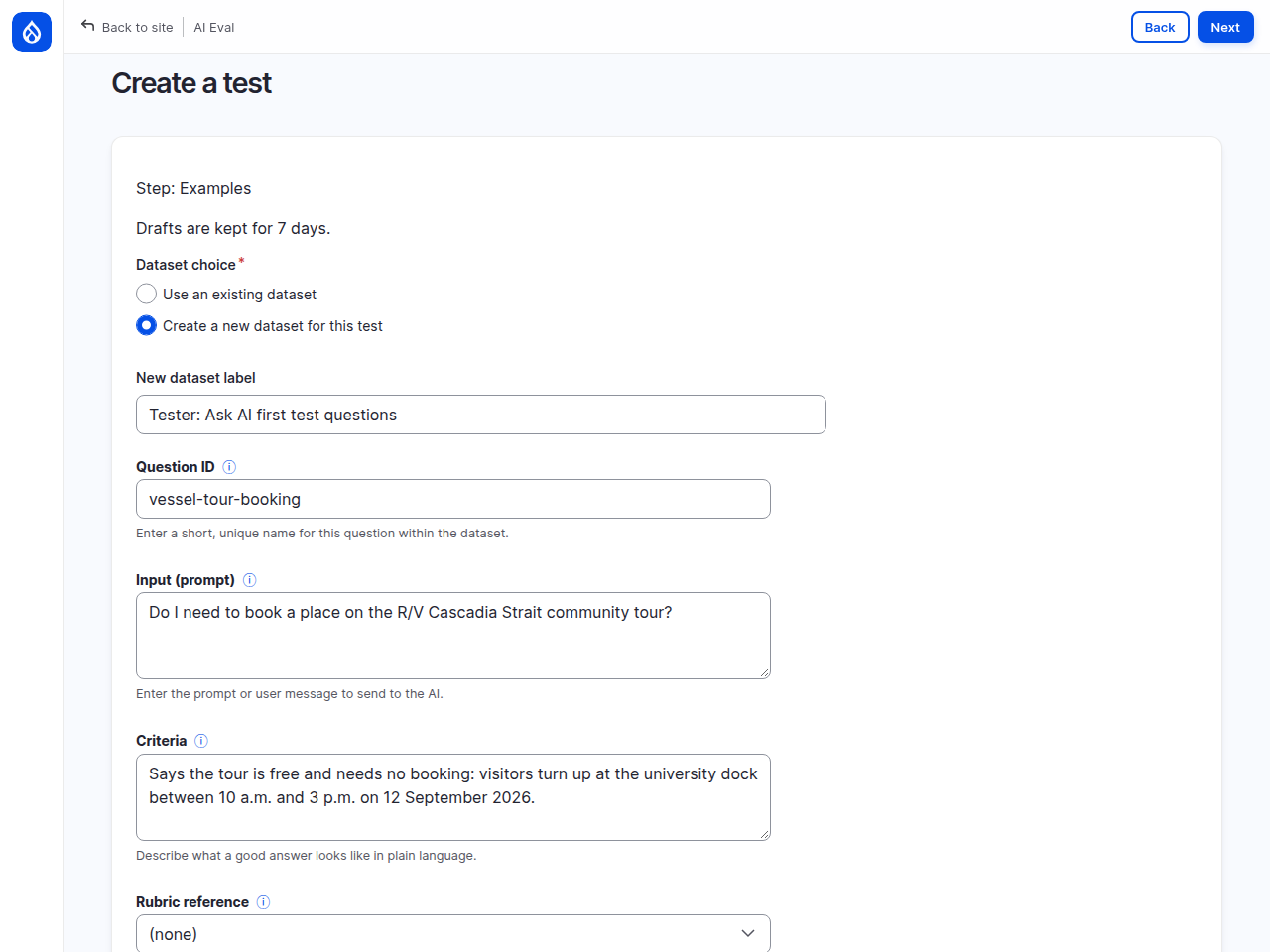
The five examples used on the demo site:
| Question ID | Input (prompt) | Criteria |
|---|---|---|
vessel-tour-booking |
Do I need to book a place on the R/V Cascadia Strait community tour? | Says the tour is free and needs no booking: visitors turn up at the university dock between 10 a.m. and 3 p.m. on 12 September 2026. |
deep-ocean-lecture-audience |
I have no science background. Is the deep ocean public lecture for me? | Says yes: the lecture on 8 October 2026, 7:00 to 8:30 p.m., is for a general audience and assumes no scientific background. |
field-station-winter-beds |
How many people can stay overnight at Prentice Coastal Field Station in winter? | Says sixteen beds, available all year since January 2026, in two insulated buildings. |
underwater-robotics-project |
What do students build in the Underwater Robotics course? | Says students design, build and test an underwater vehicle in a term-long team project, with weekly sessions in the Marine Robotics and Test Basin. |
nursing-degree |
Does Northmoor offer a nursing degree? | Says the site has no information about a nursing degree, without guessing or inventing a program. |
Some tips for your own examples:
- Take the facts from your site's content and check them there. A criterion that is wrong fails good answers.
- Include at least one question your site cannot answer, like
nursing-degree. An assistant that invents an answer is a failure you want to catch. - Ask the way visitors ask, not the way the page is titled.
Each example you add stays on the page as an editable block with Update example and Remove example. The empty form for the next example is always the last one on the page.
Common mistakes
- Criteria that only restate the question. "Answers the question about the tour" gives the judge nothing to check. Name the facts.
- Criteria with more than one fact when only one matters. Each extra fact is one more way to lose points. Keep the facts you would really complain about if they were missing.
- Testing as an administrator. The test runs as you unless an example
names a
caller.
An editor can see pages that visitors cannot, so the feature may answer
better for you than for them. To test what anonymous visitors get, set
Caller user ID to
0on each example.
When all five are added, click Next.
4. Review and run
The Review step lists everything the test will use. Check that it shows your agent, the two graders, Examples: 5 and Run gate: Pass rate at least 80%. The line Every selected LLM judge has a model to run on confirms that each judge has a provider and a model set. It does not call them, so a wrong model name or a provider that is out of credit only shows up when the run starts.
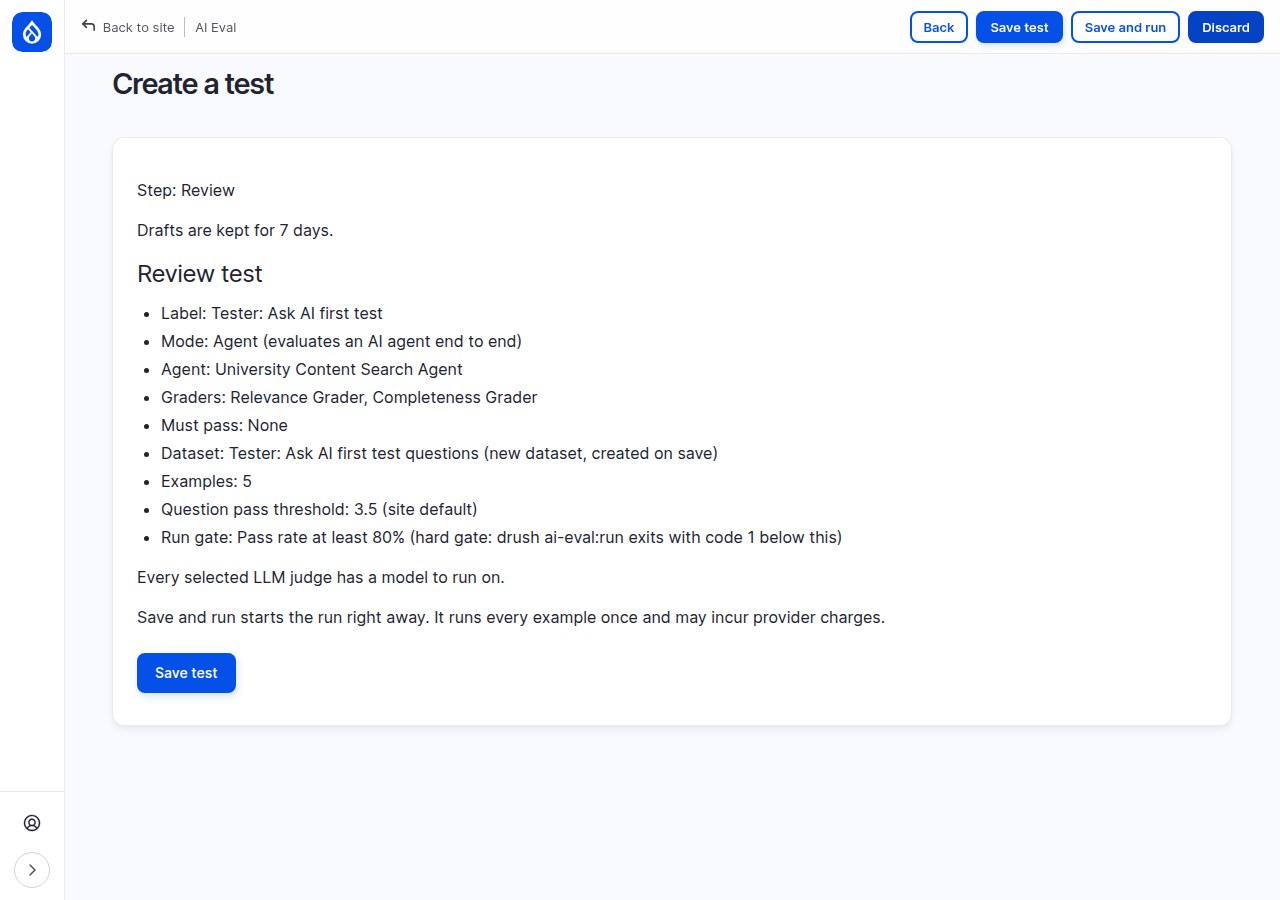
Click Save and run. AI Eval saves the test and starts the run straight away.
5. Wait for the run
Save and run opens the test's workflow page. Under Run the test it shows the progress, for example Running 4 / 5, and the line Closing this page pauses the test. Return to this page to continue it.
Keep the page open. If you close it, the run waits until you open the workflow page or the dashboard again. On the demo site the five questions took under three minutes.
Under the hood: why the page has to stay open
Each time the open page checks progress, the server asks one question and scores its answer. That keeps every request short, so a long run never hits a web server time limit. The cost is that a browser run needs an open page. Runs started from Drush, for example in CI, do not.
In agent mode the agent gets each question as chat messages, the same way the AI Assistant sends a visitor's conversation (since 1.1.0-alpha6). Agent scores can therefore differ from runs you made before that change.
The agent may call several tools before it answers, such as the site's search. AI Eval keeps the final answer, the model that wrote it and the tokens used. The two judges in this test read only that final answer.
When the run ends, the Run history table shows it as Complete with its score and gate, and View results opens the result.
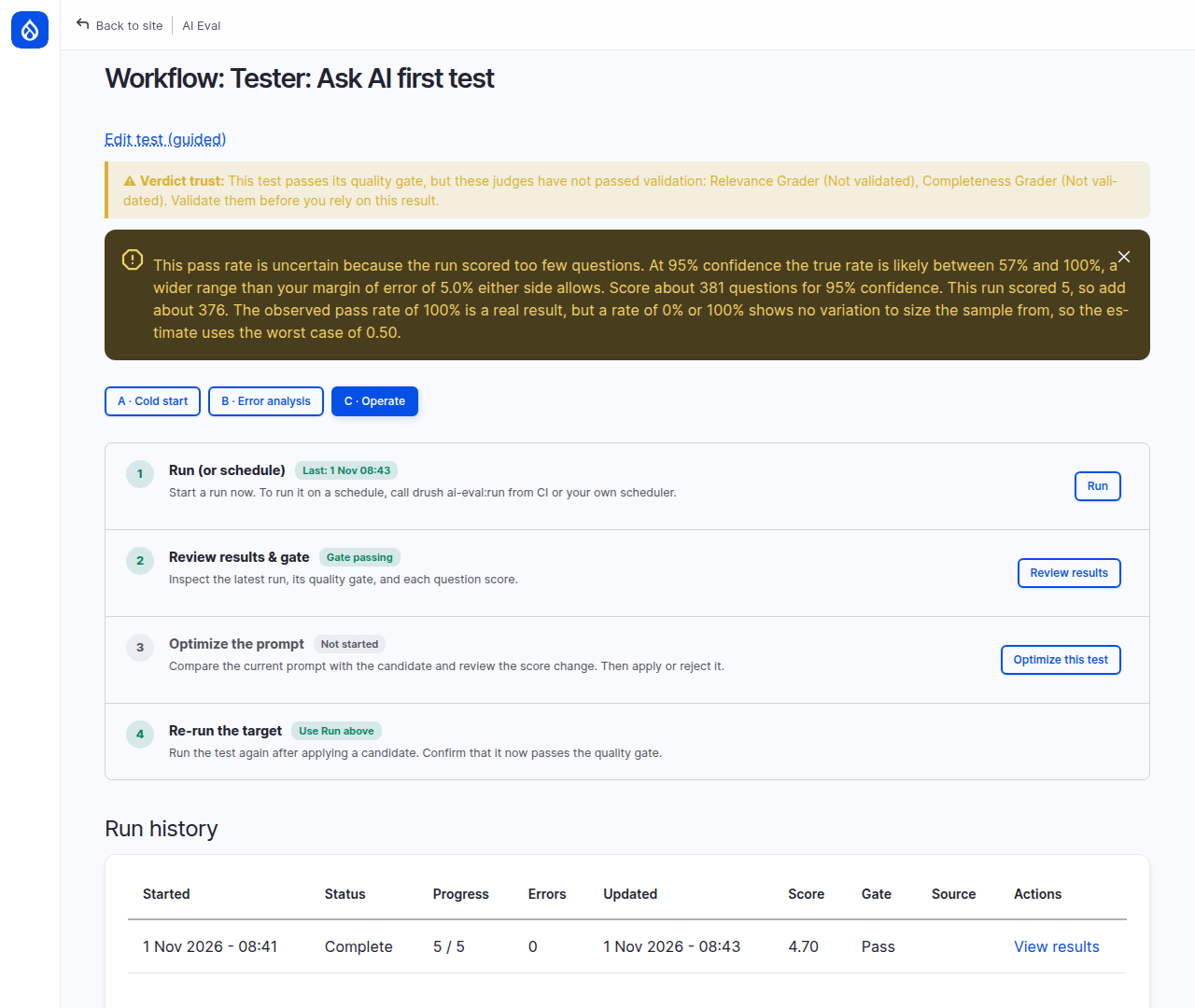
The yellow Verdict trust line says the judges have not passed validation yet. That is expected on a first test; step 6 explains what it means.
6. Read the result
Click View results. The result page leads with the answer to "did it work?". On the demo run it read:
- 5 of 5 examples met your expectations: how many questions passed.
- Gate: passed: the run cleared the 80% pass-rate gate.
Your own numbers depend on your questions and your feature. A failed gate on a first run is a normal result: it tells you where to look.
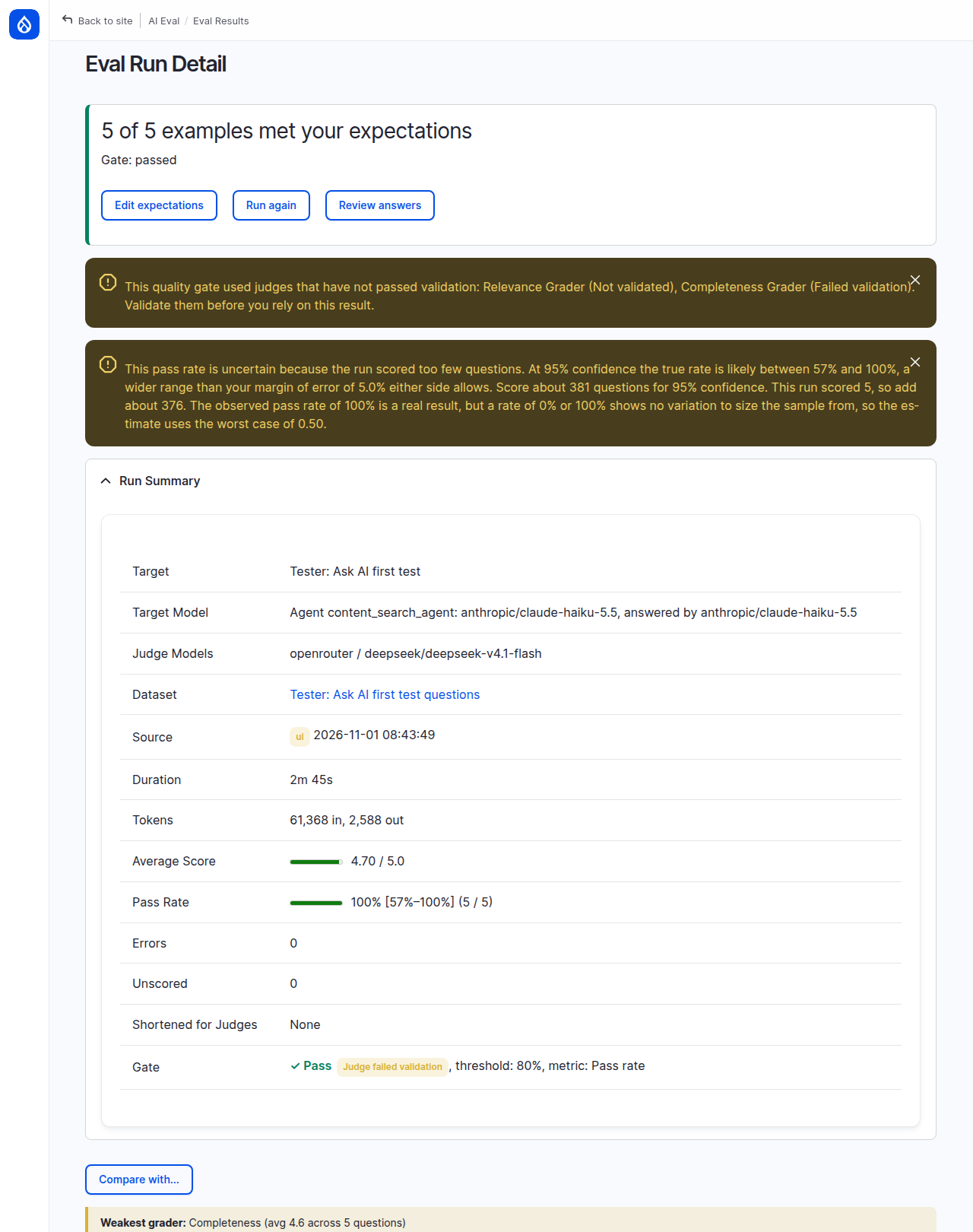
On the demo run two warnings sat under it. Read any warnings before you trust the number:
- This quality gate used judges that have not passed validation. The Relevance and Completeness judges are LLMs. Until you check them against your own pass and fail labels (judge validation), you do not know how often they agree with you. Trusting your judges shows how.
- This pass rate is uncertain because the run scored too few questions. Five questions say little: the page gives the range the true pass rate probably lies in (57% to 100% here) and how many questions would narrow it. The Pass Rate row of the Run Summary shows the same range in brackets.
The Run Summary names your test by its label and shows the Gate as the metric by name, here "Pass rate", with the threshold. It also names the agent's model, the judge model, the tokens used and how long the run took. Under it, a third note may say that judge independence is unknown; in agent mode AI Eval often cannot tell which model family wrote the answer.
Under Question Results, each question has its score, its result and one score per grader (Rel for Relevance, Comp for Completeness). Failed questions are listed first, under Needs attention. Click a question to open it: you see your criteria, the agent's full answer and each judge's reason.
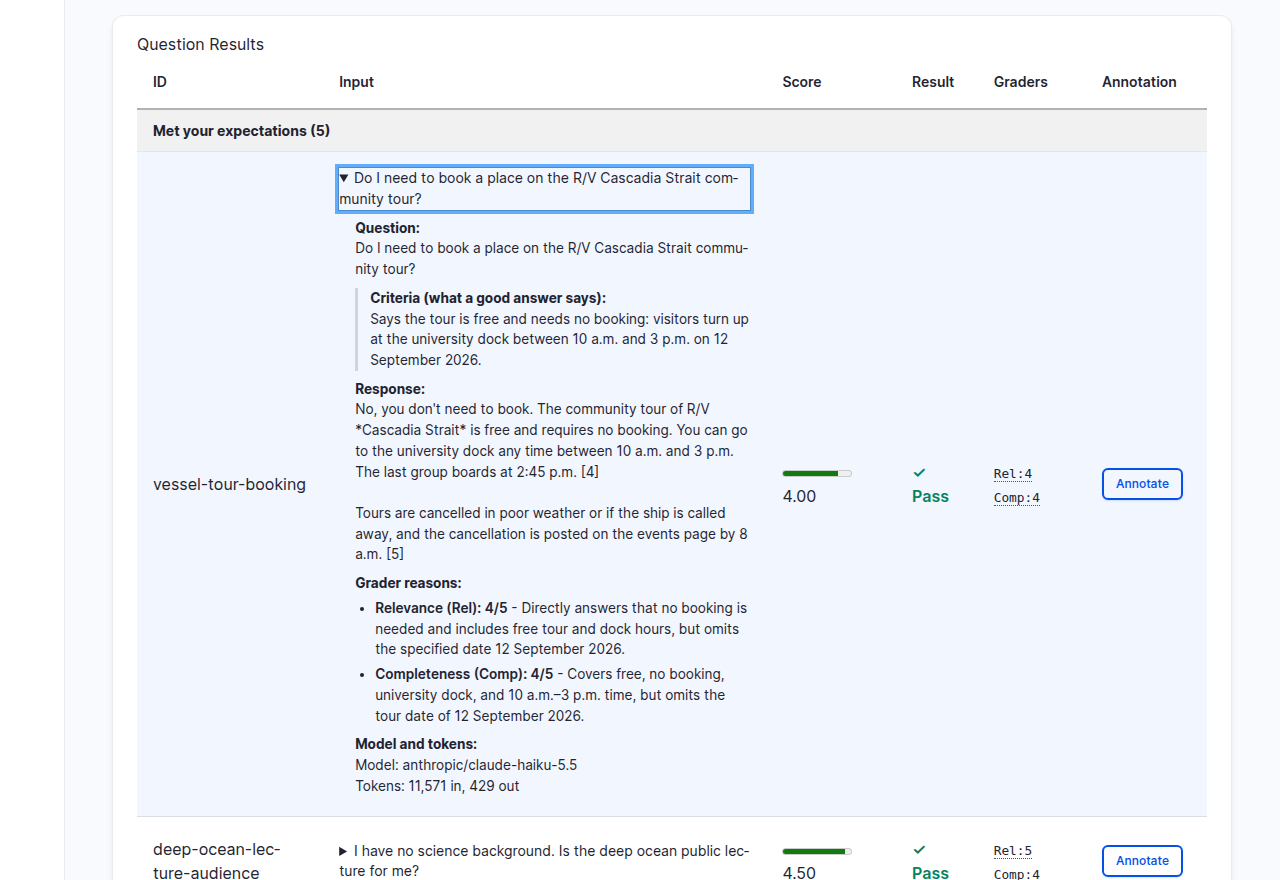
On the demo site every question passed, but vessel-tour-booking scored 4 out
of 5. Both judges give the same reason: the answer says the tour is free, needs
no booking and runs from 10 a.m. to 3 p.m., but leaves out the date,
12 September 2026. That is the kind of detail this page is for. Decide whether
the date matters to you. If it does, the criteria are right and the assistant
has something to improve. If it does not, take the date out of the criteria.
Under the hood: from judge scores to the verdict
- Each judge scores the answer from 0 to 5. Graders on other scales are converted to 0 to 5 first.
- The
question score
is the average of those scores:
vessel-tour-bookinggot 4 and 4, so 4.00. - The question passes when its score is at least the question pass threshold, 3.5 here. 4.00 passes.
- The pass rate is the share of measured questions that passed: 5 of 5. A question whose grader errored is not measured and is left out.
- The gate compares the pass rate with your threshold: 100% is at least 80%, so the gate passes. If fewer than half the questions could be measured, the gate fails whatever the rest scored.
Scoring and quality gates has the full rules.
Check yourself
A question scores Relevance 4 and Completeness 2. The pass threshold is 3.5. Does it pass?
No. Its score is the average, (4 + 2) / 2 = 3.0, which is below 3.5. One good score cannot carry a poor one past the threshold.
A run of 10 questions: 8 pass, 1 fails, and 1 errored because a judge timed out. Does an 80% pass-rate gate pass?
Yes. The errored question is not measured, so the pass rate is 8 of 9, about 89%, which is above 80%. The result page reports the error separately, so check why the judge timed out.
Your first run passes 5 of 5. Can you tell your team the feature is ready?
Not yet. With five questions the true pass rate could be anywhere from 57% to 100%, and the judges have not been checked against your own labels. Add questions and validate the judges first.
Done when
- Your test is on the dashboard under your label.
- Its run is Complete in the run history.
- You can say how many questions passed and whether the gate passed.
- For the lowest-scoring question, you can say in one line why the judges scored it the way they did.
Next steps
- Add questions until the pass-rate range is narrow enough to act on: Datasets.
- Check whether the judges agree with you before you rely on them: Trusting your judges.
- Run the test again after a change, and compare two runs: Running evaluations.
- Change the test later with Edit test (guided) on its workflow page: Creating a test step by step.