Check a judge against your own labels
Every result so far carried a warning: the judges have not passed validation. In this tutorial you find out whether a judge agrees with you. You label real answers yourself, let the judge score the same answers, read where it disagrees, correct it, and check again.
It takes about two hours, most of it labeling. You need the Validate AI Eval judges permission, which also lets you label traces for judge validation. Promoting a trace into a dataset needs Annotate AI Eval results or Administer AI Eval. You also need imported traces to label, for example visitor questions from From real traffic to tests. Validation calls the judge's model once per labeled answer.
You will learn to
- choose the answers a judge is checked on with domain tags;
- write a labeling rule and give gold labels;
- run a validation and read TPR and TNR and the disagreements;
- correct the judge with scoring guidance and compare two validations.
Terms with a dotted underline are defined in the Glossary. Point at one to see a short definition; click or tap it to read the full entry.
How a judge earns trust
flowchart LR
    T["Imported answers<br/>in the judge's domain"] --> L["You label them<br/>pass or fail"]
    L --> V["Validation: the judge<br/>scores the same answers"]
    V --> M["Compare: TPR and TNR"]
    M -->|"both at least 0.90, all scored,<br/>10+ pass and 10+ fail"| OK["Trusted"]
    M -->|"otherwise"| FIX["Read the disagreements,<br/>adjust the judge"]
    FIX --> V
1. Open the judge
Open AI Eval > Manage > Judges. The table lists every judge with its model, when it was last validated and its trust state. All of them start as Not validated. Click Validate on the judge you want to check. This tutorial checks the Completeness Grader, which scores whether an answer covers everything the question asked.
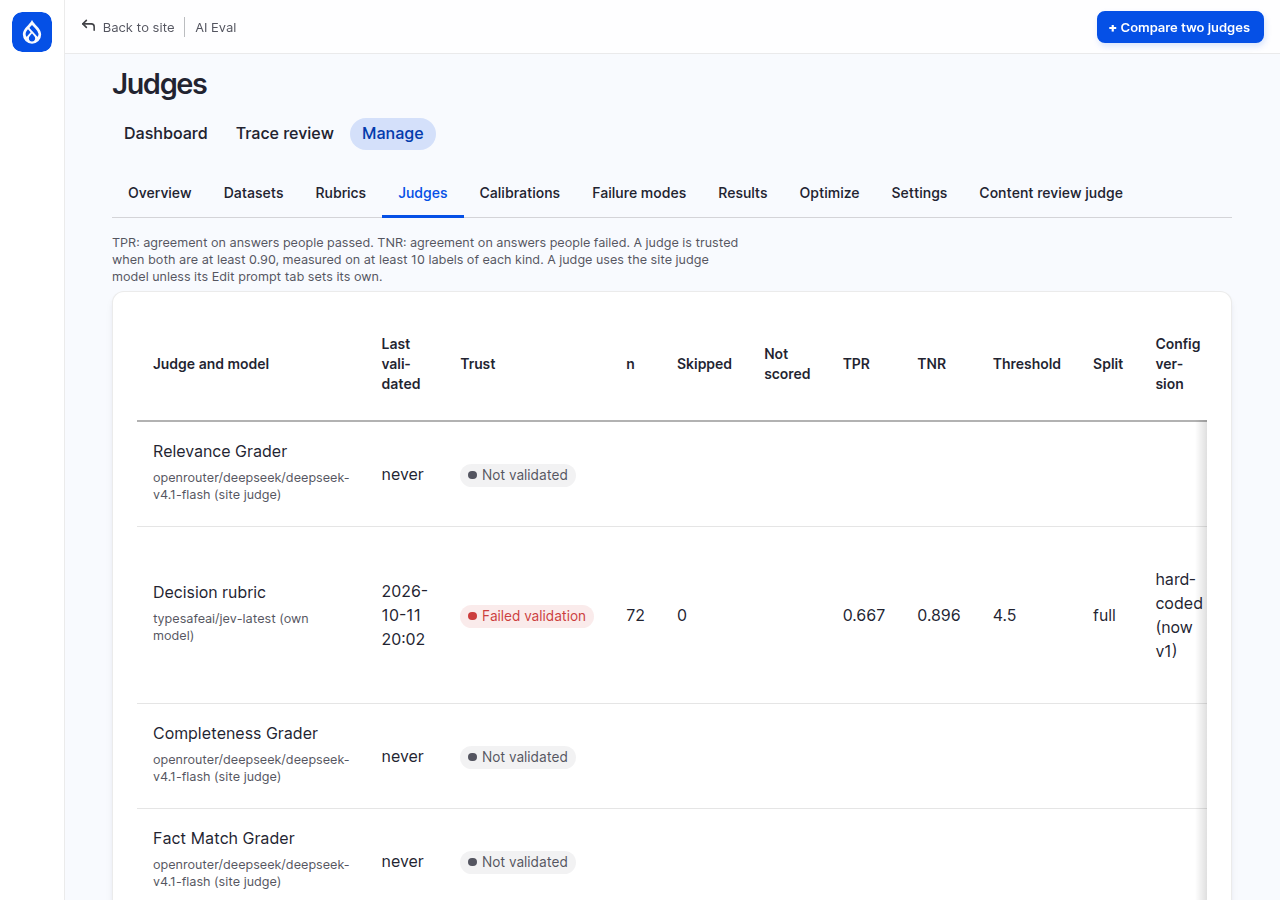
The judge's page has four tabs: Validate, Edit prompt, Compare runs and Label traces.
2. Give the judge its domain
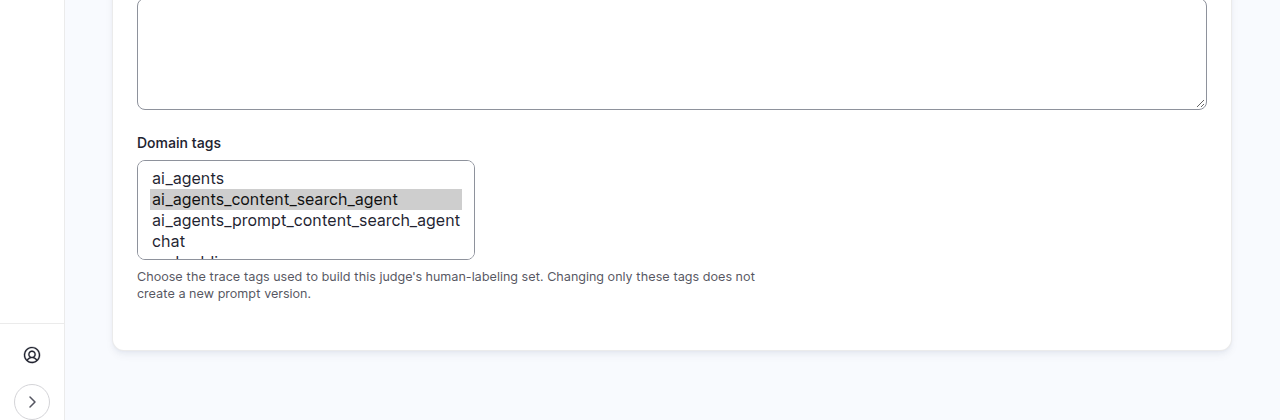
Click Edit prompt. Near the bottom, Domain tags chooses which imported
answers this judge is labeled and validated on. The visitor questions on the
demo site carry the tag ai_agents_content_search_agent: choose it and click
Save override. The message confirms "Saved domain tags for
completeness_grader."
Under the hood: why a judge has a domain
A judge for the Ask AI assistant should be checked on Ask AI answers, not on everything the site ever imported. The tags limit the labeling screen and the validation to that slice. Changing only the tags does not make a new prompt version, so it never undoes an earlier validation.
3. Write your rule, then label
Before you label anything, write down the rule you will apply. Labels made without a rule drift, and a judge cannot agree with a moving target. The rule used on the demo site, for completeness:
Pass only when every part of the question is answered. If a part is missing, for whatever reason (even "the site has no information"), fail it.
Click Label traces. The screen shows one AI call at a time: the visitor's question (USER), what the agent read (TOOL), and what it answered (RESPONSE), with Pass, Fail, Defer and a note on the right. At the top, Gold set coverage counts the labeled answers in this domain, yours and other people's, against the site's target (30 on the demo site, the default). Under the call, Previous, Next and Next unlabeled move through the calls, and Deferred: N counts the calls you put aside.
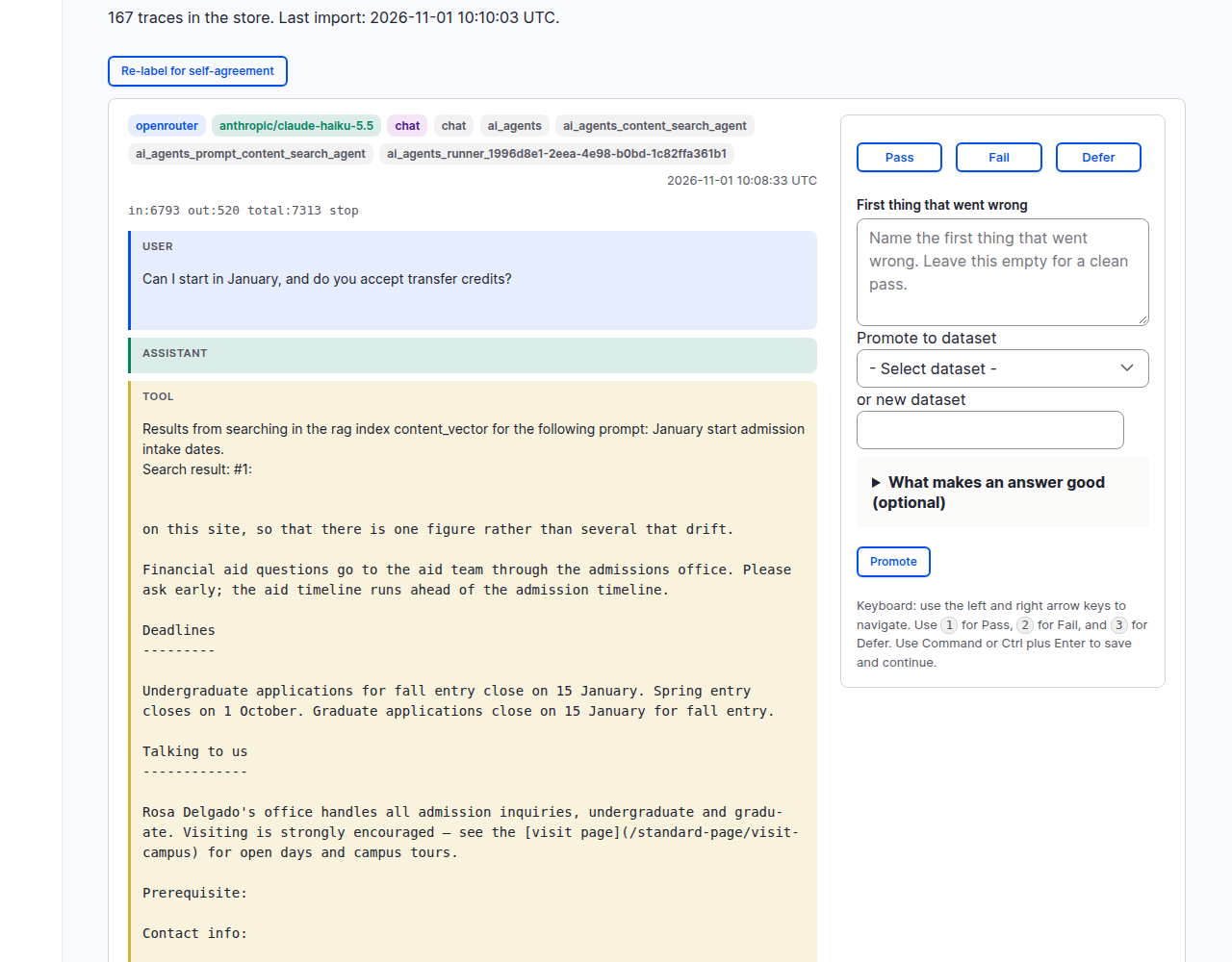
The screen serves only final answers. Steps where the agent only called a tool have no answer to judge, so they are left out: on the demo site the pool is 38 answers. Each visitor question can still show up more than once, because an agent may answer more than once in a run. For each call, apply your rule, write a short note and click Pass or Fail. The screen then moves to the next call you have not labeled.
Defer saves a "come back to this" label and moves on, the same way. A deferred call does not count toward coverage. When no call is left unlabeled, the screen says "All answers are labeled or deferred." with the number deferred, and a Review deferred answers button opens the first one.
Label until you have at least 10 passes and 10 fails; a judge cannot become trusted with fewer. On the demo site: 12 passes and 11 fails, coverage 23 / 30.
Under the hood: gold labels are about one thing
A gold label carries the judge's dimension, here completeness. A
complete answer that cites the wrong page is still a pass for this judge:
another judge checks accuracy. That is why labels from trace review, which
judge the whole answer, are not used to validate an LLM judge.
4. Run a validation
Click Validate. The form has four settings:
- Gold labels: keep All labels.
- Hold-out split: keep full, which scores every label.
- Threshold: the judge score that counts as a pass, from 0 to 5. Enter
3.5to follow the demo. The form lists the question pass threshold of the tests that use this judge, but that applies to the average of all their graders, so for your own judge choose the score you would call a pass on this one dimension. - Split seed: leave it empty.
Click Run validation and keep the page open. The judge scores one labeled answer per step; with 23 labels it took about four minutes.
Return to continue an unfinished validation
Leaving the page pauses progress. Open this judge's validation page again to continue the active run using the labels saved when it started. The page also offers Cancel if you want to stop it.
5. Read the report
The report starts with the verdict and a confusion matrix. On the demo site: Failed validation.
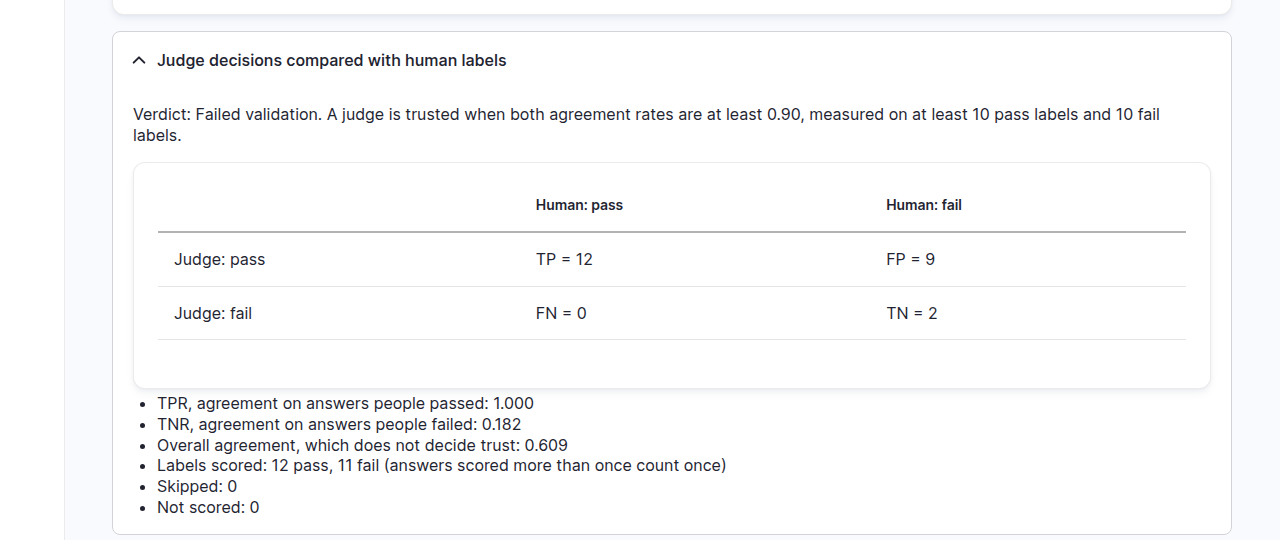
Read it as two questions:
- TPR 1.000: of the 12 answers you passed, the judge passed all 12.
- TNR 0.182: of the 11 answers you failed, the judge failed only 2.
So the judge is lenient: it lets incomplete answers through. The Disagreements section shows which ones, with your note next to the judge's reason.
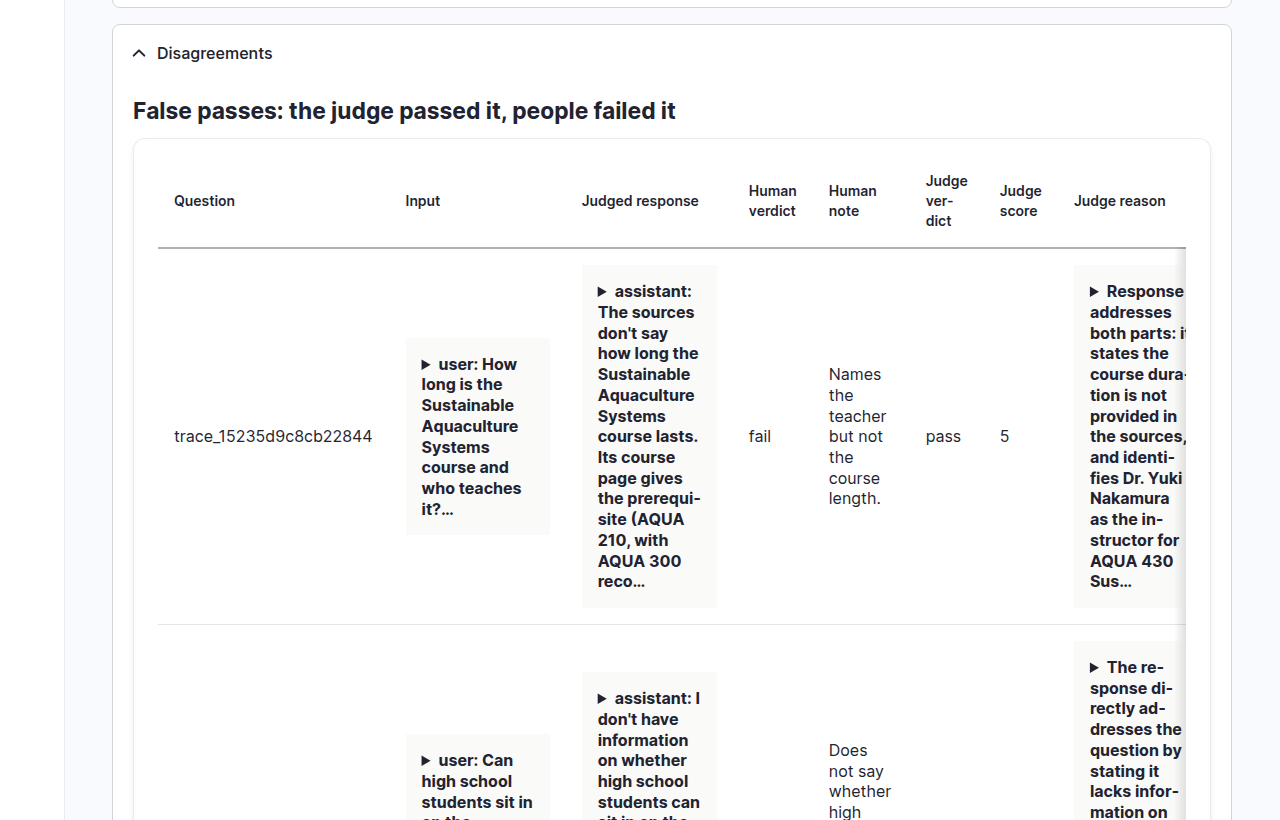
On the demo site every false pass was an answer that said the site had no information for part of the question. The judge's reasons say things like "explains the sources lack this information ... covering the available data points". It counts "I don't know" as covering the question; your rule does not.
Under the hood: why two rates and not one
The report also shows overall agreement (0.609 here), but it does not decide trust. A judge that passes everything agrees with every pass you gave: with mostly good answers, its overall agreement looks high while it catches nothing. TPR and TNR keep the two kinds of mistake apart. A judge is trusted when both reach 0.90, every selected answer was scored, and at least 10 distinct pass and 10 distinct fail answers were scored.
The report also checks length: whether longer answers score higher with the judge but not in your labels. Here both lean the same way, so this sample does not show that warning sign.
6. Correct the judge
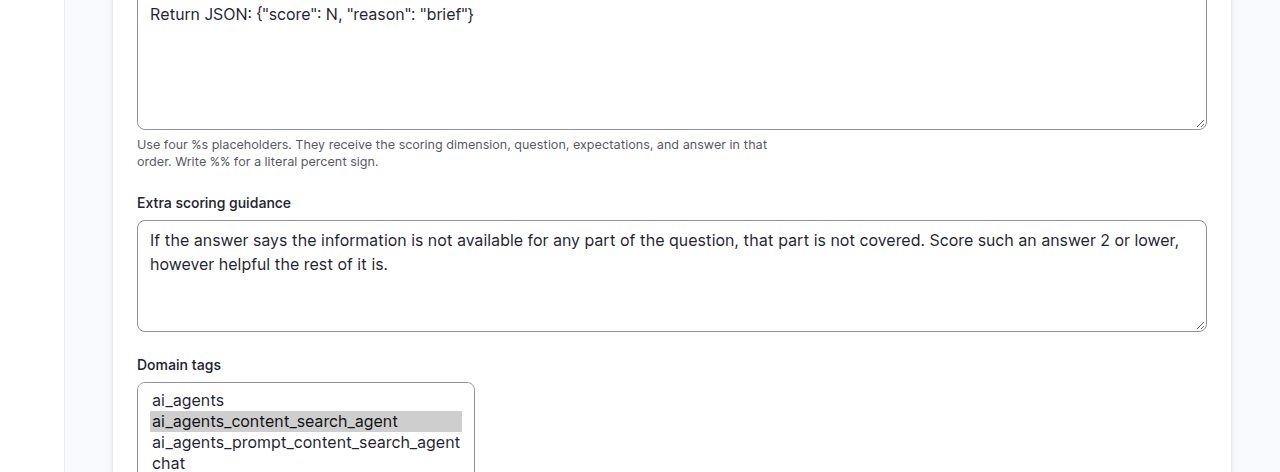
Click Edit prompt. In Extra scoring guidance, describe the pattern the judge gets wrong, in plain words:
If the answer says the information is not available for any part of the question, that part is not covered. Score such an answer 2 or lower, however helpful the rest of it is.
Click Save override. The message reads: "Saved override version 1 for completeness_grader. Validate the judge again: a trust verdict earned on an older prompt shows as out of date."
7. Validate again and compare
Run the validation again with the same settings, and keep the page open. On the demo site the second report read Trusted.
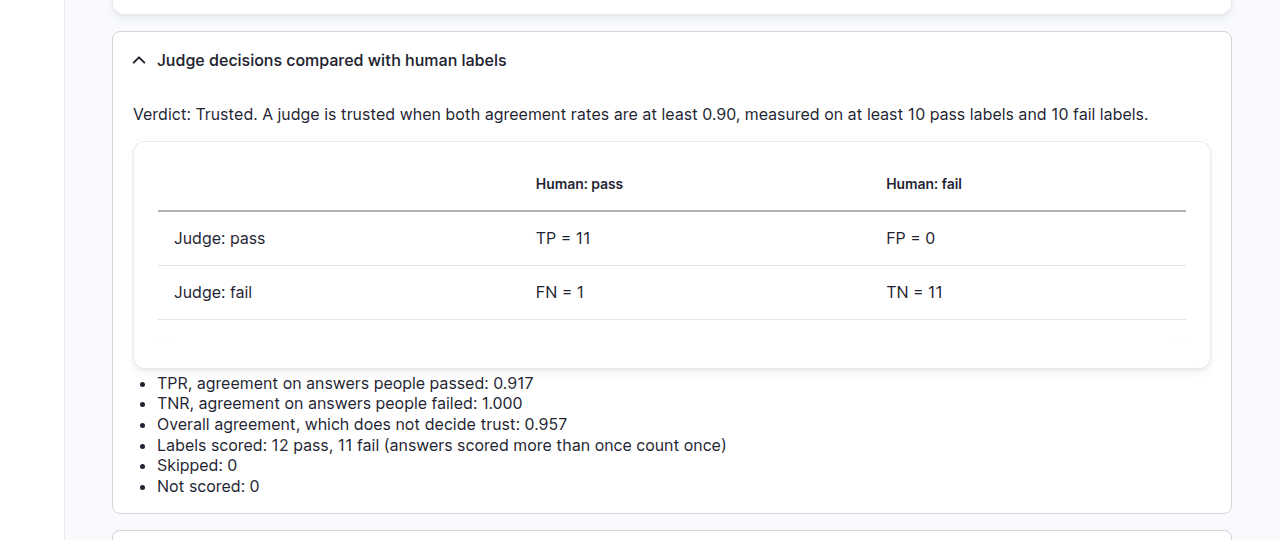
One disagreement was left: the open day question, which you passed and the judge failed because "the sources don't list specific items to bring". Under your own rule the judge is right, and the label is wrong. Reading disagreements checks your labels as much as the judge. Note the mistake: a second, blind labeling pass, covered in More ways to trust a judge, measures how often this happens and catches it.
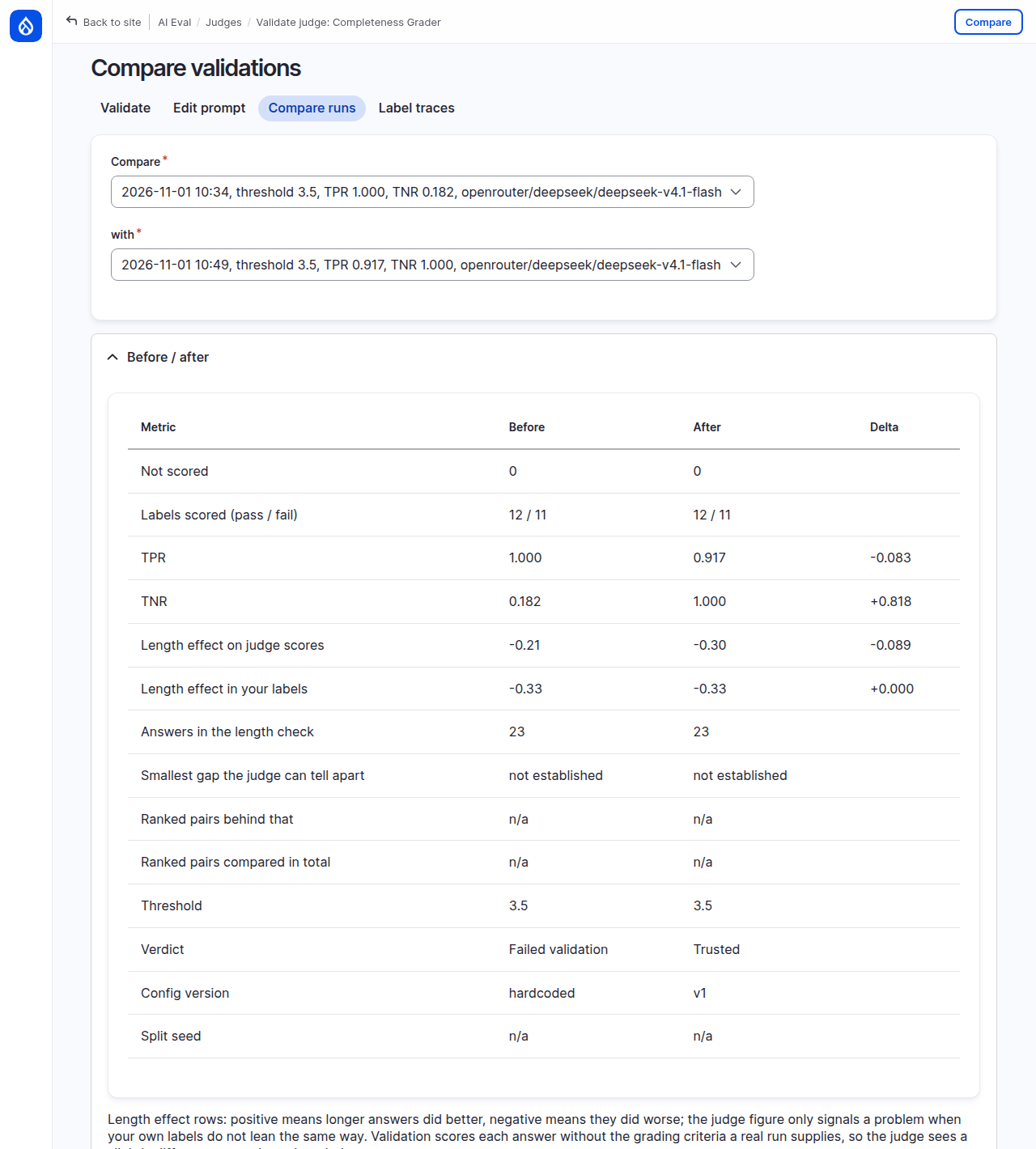
Click Compare runs to see both validations side by side: TNR went from 0.182 to 1.000, TPR from 1.000 to 0.917, and the verdict from Failed validation to Trusted, on prompt version v1.
Under the hood: what this trust is worth
The guidance was written after reading these 23 answers, then checked on the same 23. That shows the guidance fixes the pattern you saw; it does not prove the judge is right on answers it has not seen. Before you rely on it, label new answers you have not used for tuning and validate on them. The 70/30 split does not help here: it scores a random 30% of the same labels, which you have already read.
Validation also scores each answer without the criteria a real test run supplies, so the judge sees a slightly different prompt here than in a run. The report says so in a note.
Common mistakes
- Labeling without a written rule. Your labels drift and the rates measure your drift, not the judge.
- Fewer than 10 of each kind. The judge cannot be trusted on fewer, whatever the rates say.
- Tuning and testing on the same labels only. Check on new, unread answers before you rely on the result.
Check yourself
A judge has TPR 0.98 and TNR 0.55. What does it do wrong?
It lets bad answers through: it fails only about half of the answers you failed. It rarely fails good ones.
Overall agreement is 0.92. Can the judge still fail validation?
Yes. If most labels are passes, a judge that passes nearly everything agrees often overall while its TNR stays low. Trust needs both rates.
You edit the judge's prompt. What happens to its trust?
It shows as out of date. The prompt is a new version, so it needs a new validation.
Done when
- The judge has a domain tag and at least 10 pass and 10 fail gold labels.
- Two validations exist, and you can say for each what the judge got wrong.
- Compare runs shows the effect of your guidance.
Next steps
- Measure how consistent your own labels are, compare two judges, and calibrate scores: Trusting your judges.
- The full validation reference, including hold-out splits and seeds: Trusting your judges.