Improve your test
In Your first test you ran five questions once. Here you change the test the way you will in real work: fix a criterion, add a question, turn one off, add a rule that code can check, run again and compare the two runs.
It takes about an hour. You need the test from the first tutorial and the Administer AI Eval permission. With a test of your own, use your own question IDs; the counts in the screenshots will differ.
You will learn to
Terms with a dotted underline are defined in the Glossary. Point at one to see a short definition; click or tap it to read the full entry.
What changes between the two runs
flowchart LR
    A["Run A<br/>first tutorial"] --> C1["Edit one criterion"]
    C1 --> C2["Add one question"]
    C2 --> C3["Turn one question off"]
    C3 --> C4["Rubric check on<br/>one question"]
    C4 --> B["Run B"]
    A -.compare.-> B
Each change leaves a mark you will find on the compare page at the end.
1. Open the dataset
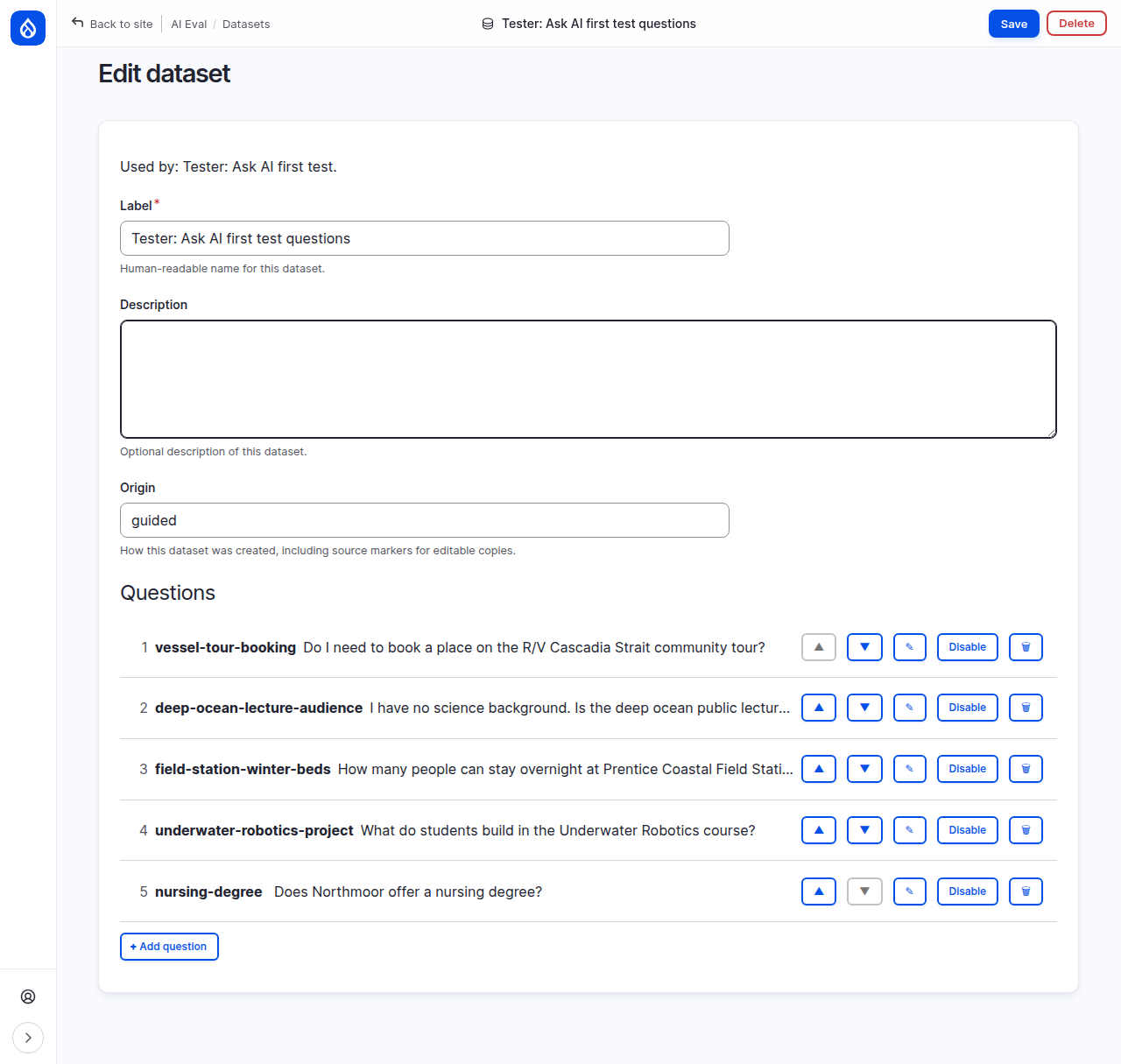
Go to AI Eval > Manage > Datasets (/admin/config/ai/ai-eval/datasets). The
list shows each dataset, how many questions it has and which tests use it.
Click the dataset of your test; on the demo site it is
Tester: Ask AI first test questions.
The dataset page lists the questions in run order. Each row has ▲ and ▼ to move it, ✎ to edit it, Disable to turn it off and 🗑 to delete it.
Under the hood: one dataset, many tests
A dataset is stored on its own, and tests point to it. The line Used by at the top names every test that uses this dataset. A change here changes the next run of each of those tests. Results that are already stored keep the scores they had, and each result records a fingerprint of the dataset it ran on, so you can always tell which version a result used.
2. Fix a criterion
The first tutorial ended with a decision: vessel-tour-booking lost a point
because the answer left out the date. On the demo site the date is not what
visitors care about, so the criterion changes.
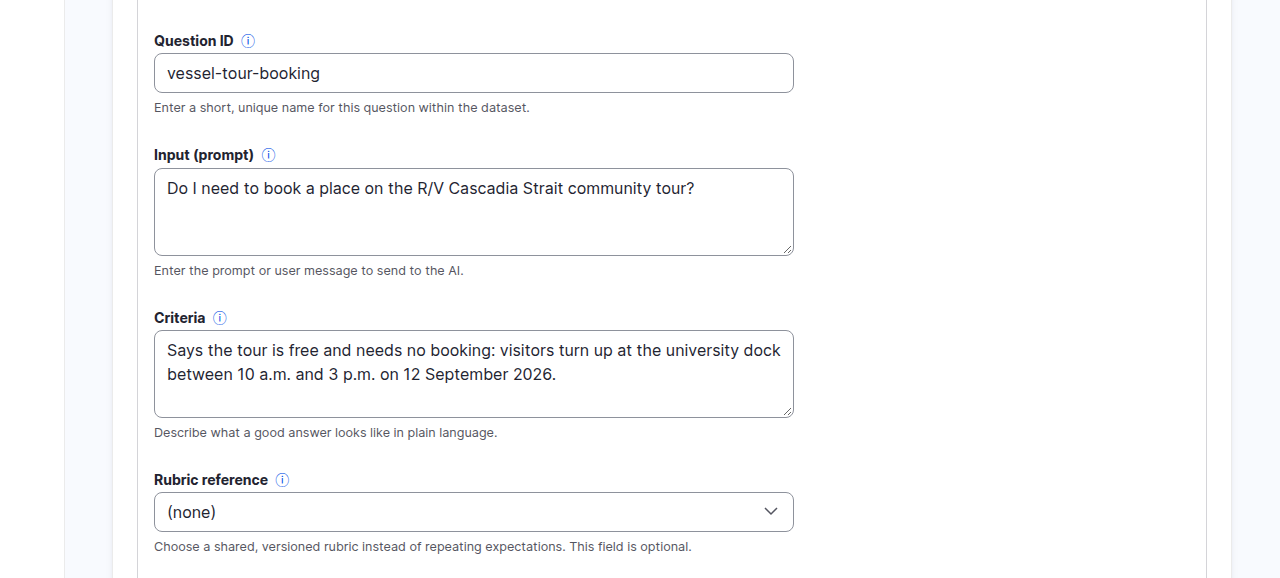
Click ✎ on the vessel-tour-booking row. The question opens in an editor
under the row. In
Criteria,
remove "on 12 September 2026", then click Save at the bottom of the
question editor.
Two Save buttons
The question editor has its own Save and Cancel. The dataset page has another Save for the dataset's label and description. Save the question with the button inside the editor.
3. Add a question
Click Add question under the list and fill three fields, as in the first tutorial:
| Field | Value on the demo site |
|---|---|
| Question ID | alumni-reception-students |
| Input (prompt) | Can current students go to the alumni networking reception, and what time does it start? |
| Criteria | Says final-year undergraduates and graduate students are invited, and the reception starts at 5:30 p.m. on 17 October 2026. |
Click Save in the question editor. The new question joins the end of the list.
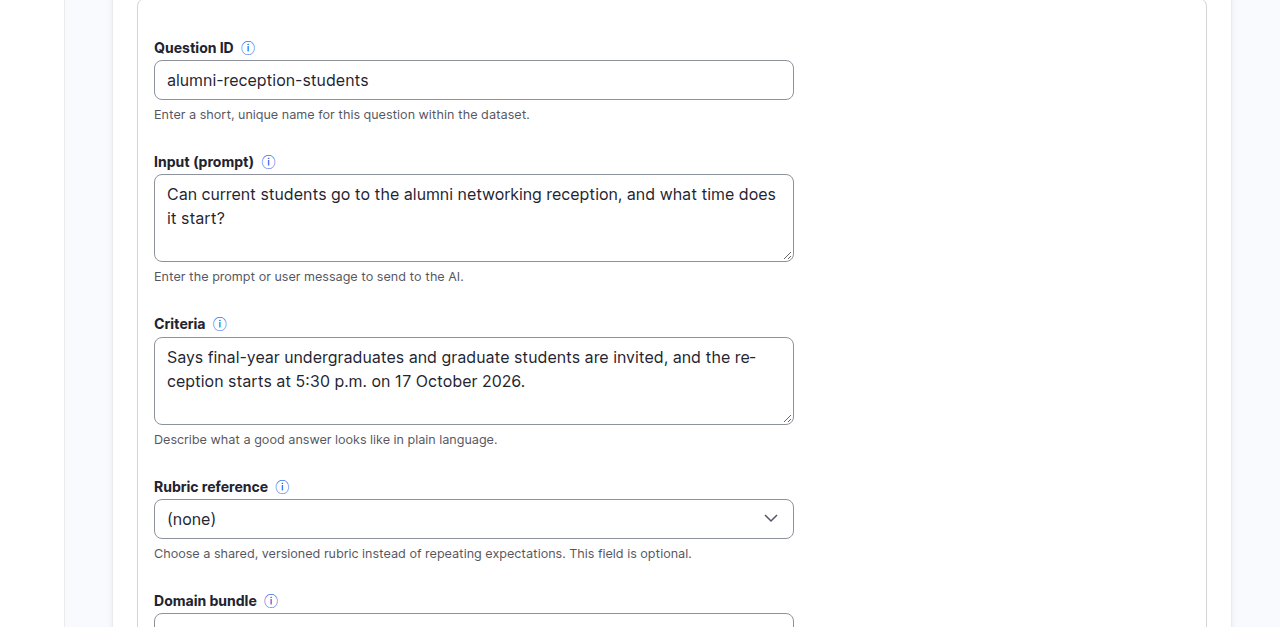
A question that asks two things at once is a good test: an assistant often answers the first part and drops the second.
4. Turn a question off
Click Disable on the underwater-robotics-project row. The question stays
in the list and its button changes to Enable. Runs skip it until you
enable it again; nothing is deleted.
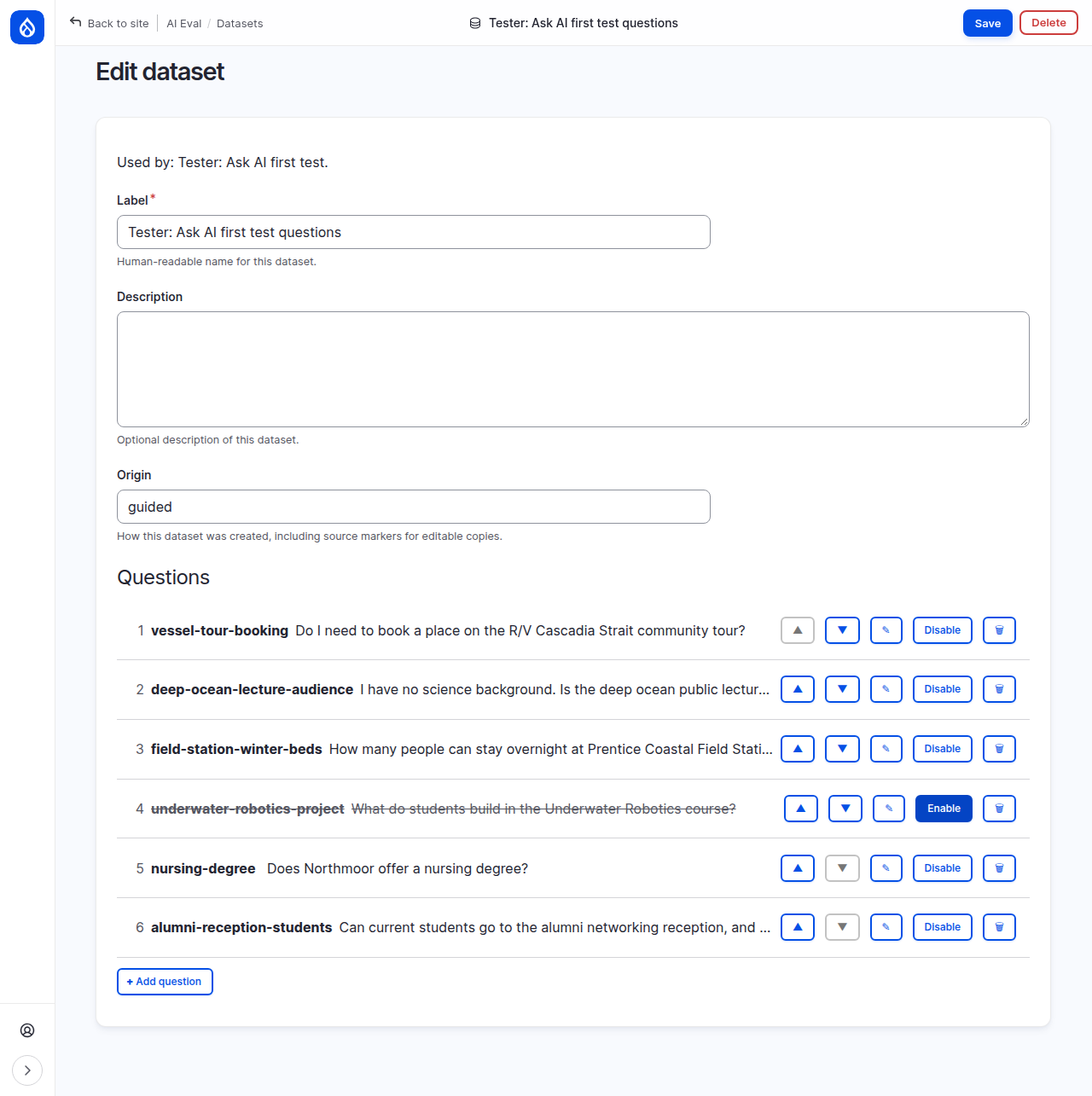
Turn a question off when it is wrong or out of date and you want to fix it later, or when you want a quick run on part of the dataset.
5. Write a rubric
The judges read meaning. Some rules are better checked by code: a phrase that must or must not appear. A rubric check does that, and gives the same answer every time.
Go to AI Eval > Manage > Rubrics and click Add rubric. Fill in:
- Rubric ID:
tester_says_no_info. Lowercase letters, numbers and underscores; keep it the same when you make a new version later. - Version:
1.0. - Label:
Tester: says it has no information. - Scoring: combine:
all_pass(every check must pass).
Click + Add check. A check row appears. Keep Must contain any of these,
give it an ID such as says_no_info and a description, and leave
Case sensitive off. A new check has no phrase field yet. Click
Add phrase, then type no information in the field that appears.
To add a second phrase, press Enter in the phrase field. A new empty
phrase field opens below it and takes focus. (Clicking Add phrase does the
same.) Type don't have. The answer then passes the check when it contains
either phrase.
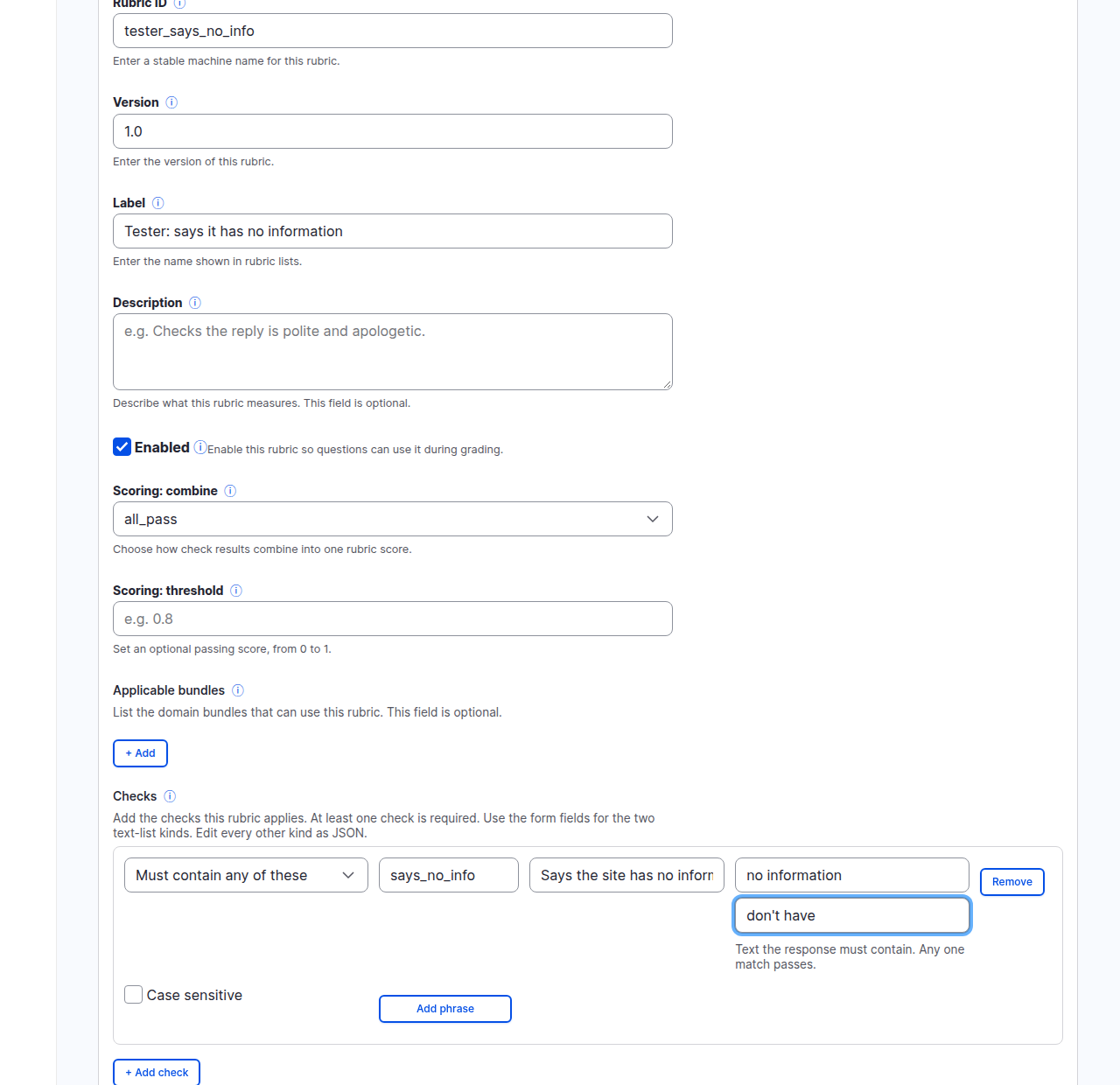
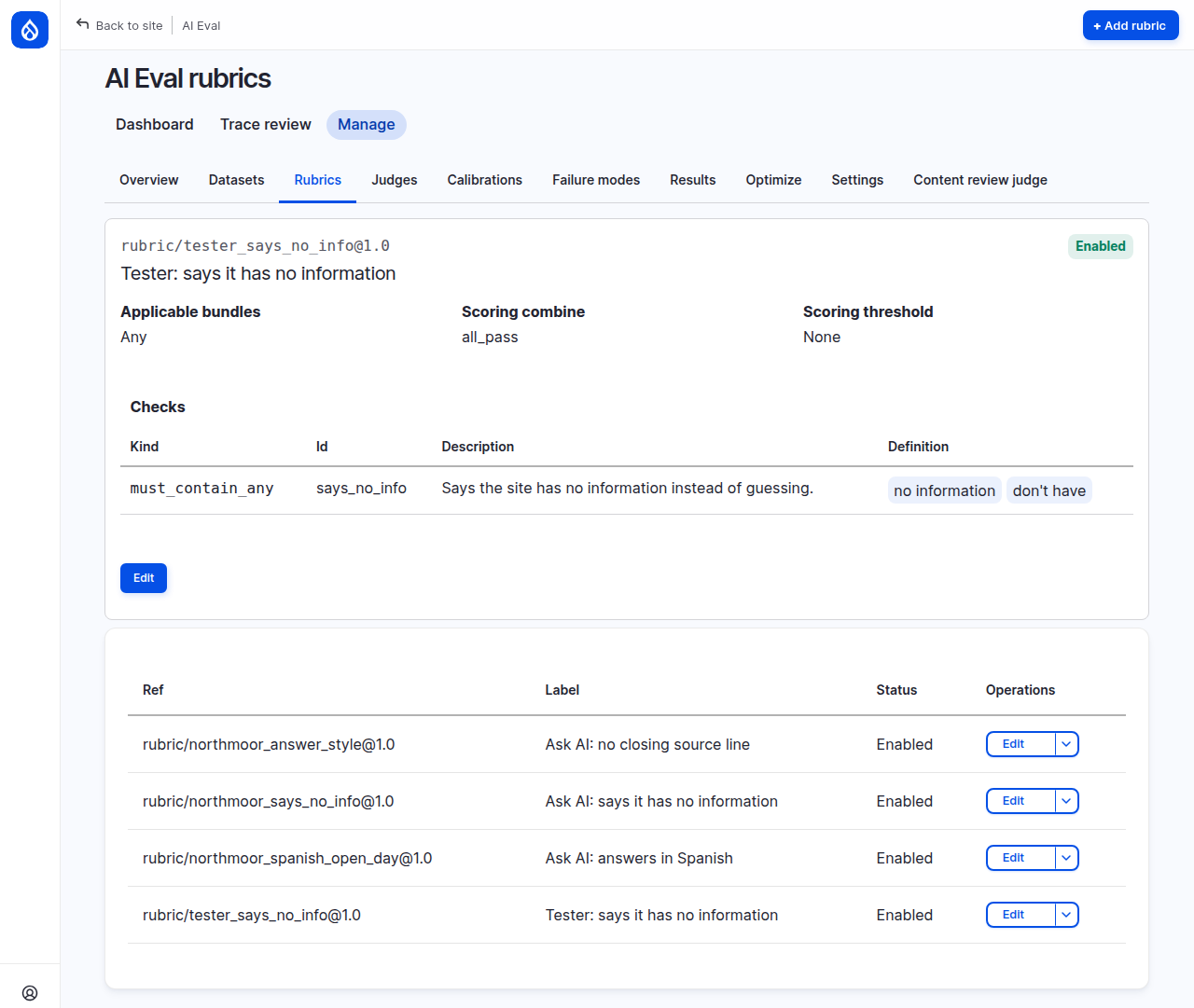
Click Save. The page shows the saved rubric with its check and both phrases. Enter in a phrase field does not save the rubric; the Save button does.
Under the hood: how the check scores
The check looks for each phrase in the answer, ignoring upper and lower case unless Case sensitive is on. With all_pass, the rubric scores 1 when every check passes and 0 when one fails. The Rubric Checks Grader turns that into 5 or 0 on the usual 0 to 5 scale.
Text checks are exact, cheap and never change their mind, but they only see the words. An answer that says "I couldn't find anything about that" fails a check for "no information", even though it means the same. Pick phrases from real answers, and let the judges cover meaning.
6. Point a question at the rubric
Back on the dataset page, click ✎ on nursing-degree. In
Rubric reference, choose
Tester: says it has no information (rubric/tester_says_no_info@1.0) and
click Save in the question editor.
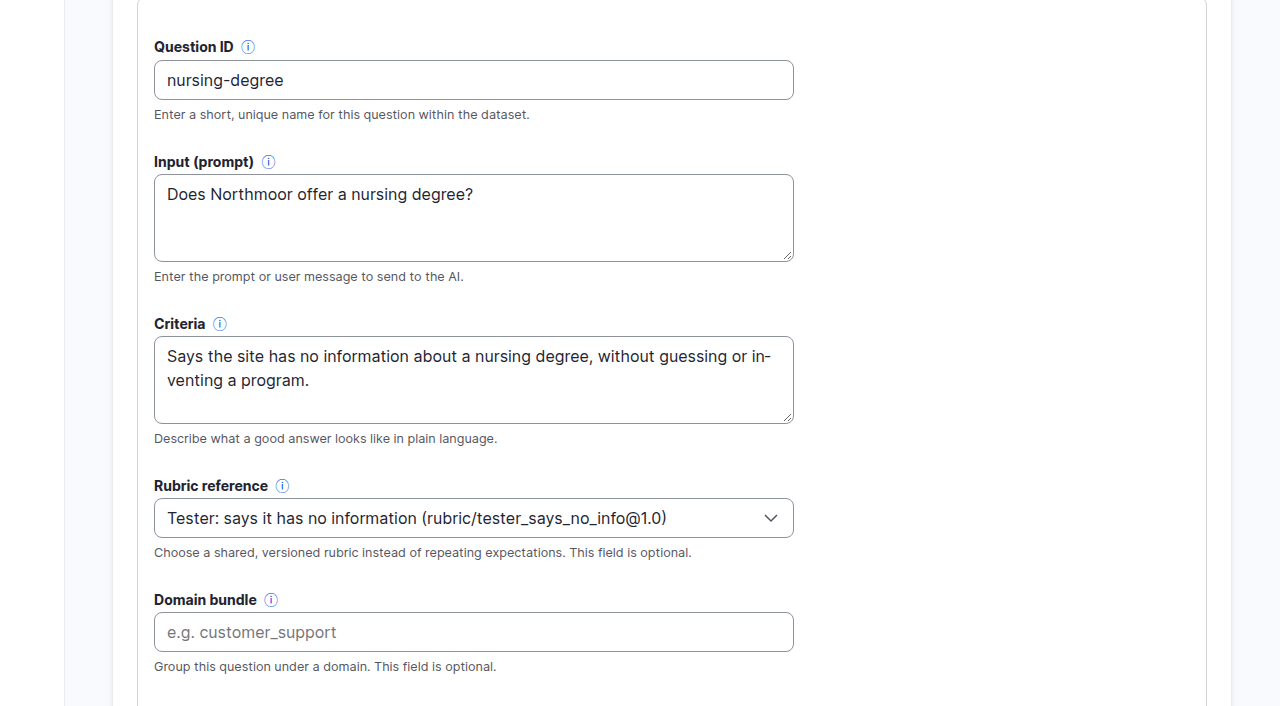
Only this question uses the rubric. The others have no rubric reference.
7. Add the grader and run again
Open the test's workflow page (from the dashboard, click the test's name) and click Edit test (guided). The guided workflow opens on your saved test.
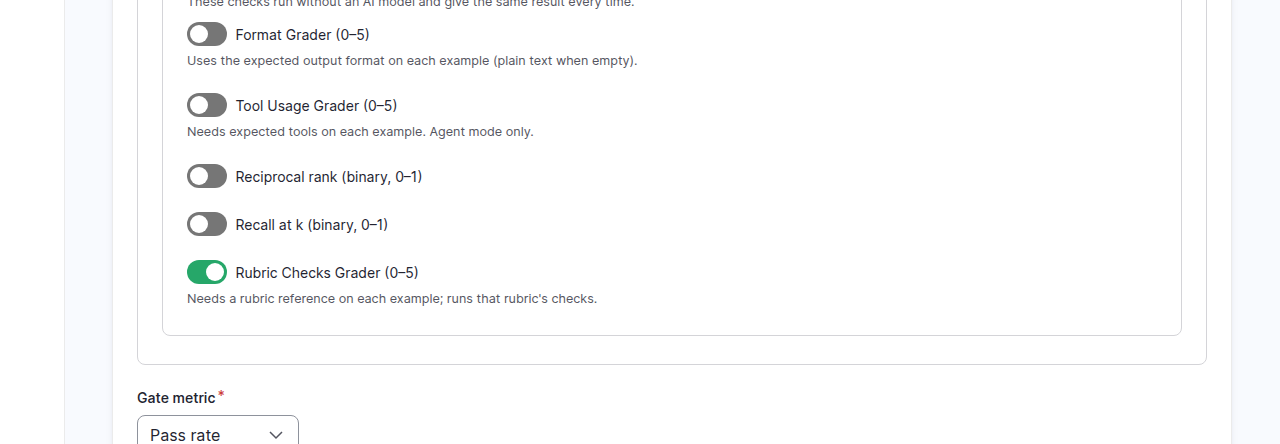
- On the AI step, turn on Rubric Checks Grader under Deterministic checks, then click Next.
- The Examples step shows your dataset. Its questions are read-only here; you already changed them in the dataset editor. Click Next.
- On Review, check that Graders lists all three graders and that
Examples says
5: six questions, one of them off. Click Save and run.
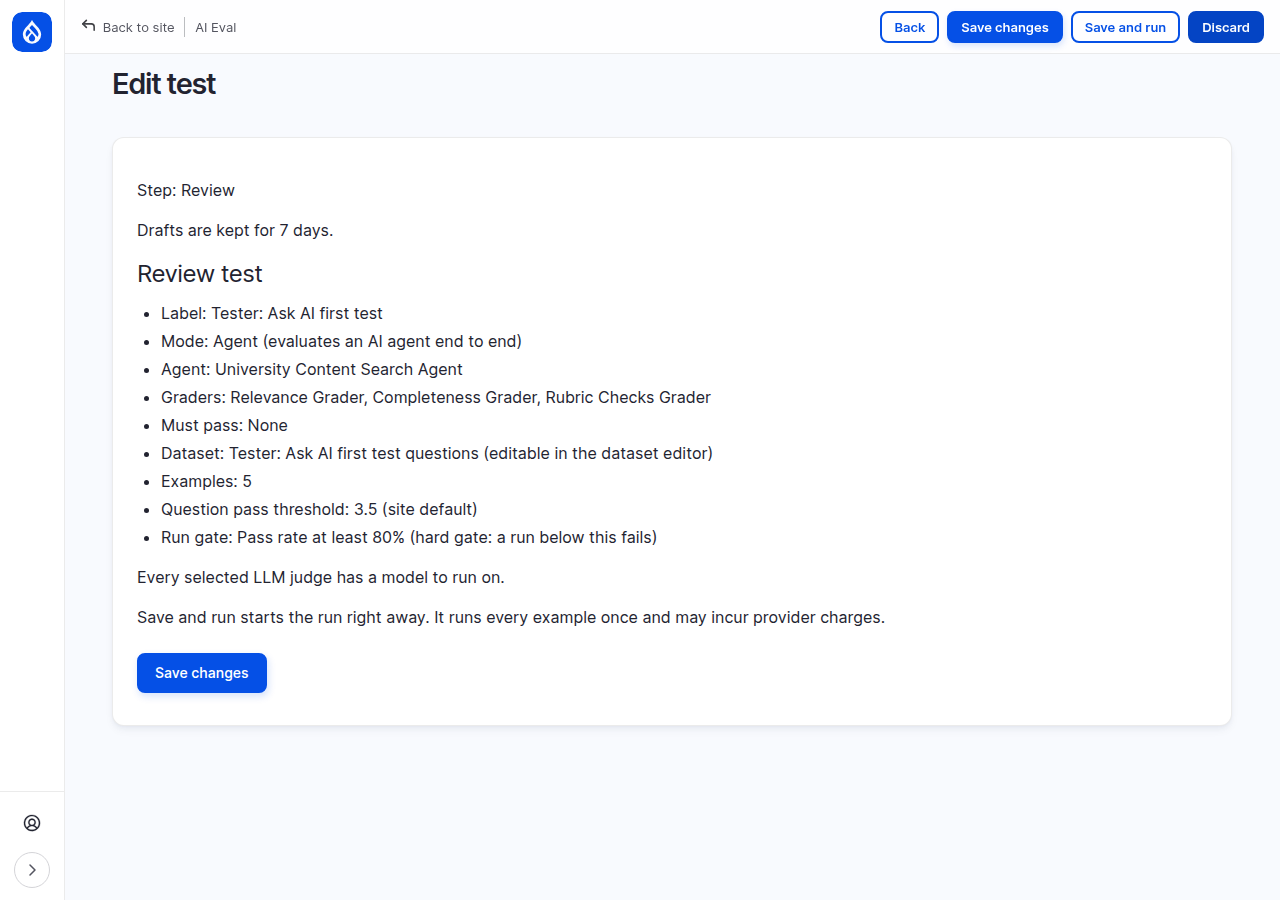
Keep the workflow page open until the run history shows the run as Complete, then click View results.
8. Read the second result
On the demo site the second run read 4 of 5 examples met your expectations and Gate: passed: 80% passed, and a gate of 80% passes when the pass rate is exactly 80%. The Run Summary now has a Rubric row naming the rubric the run used.
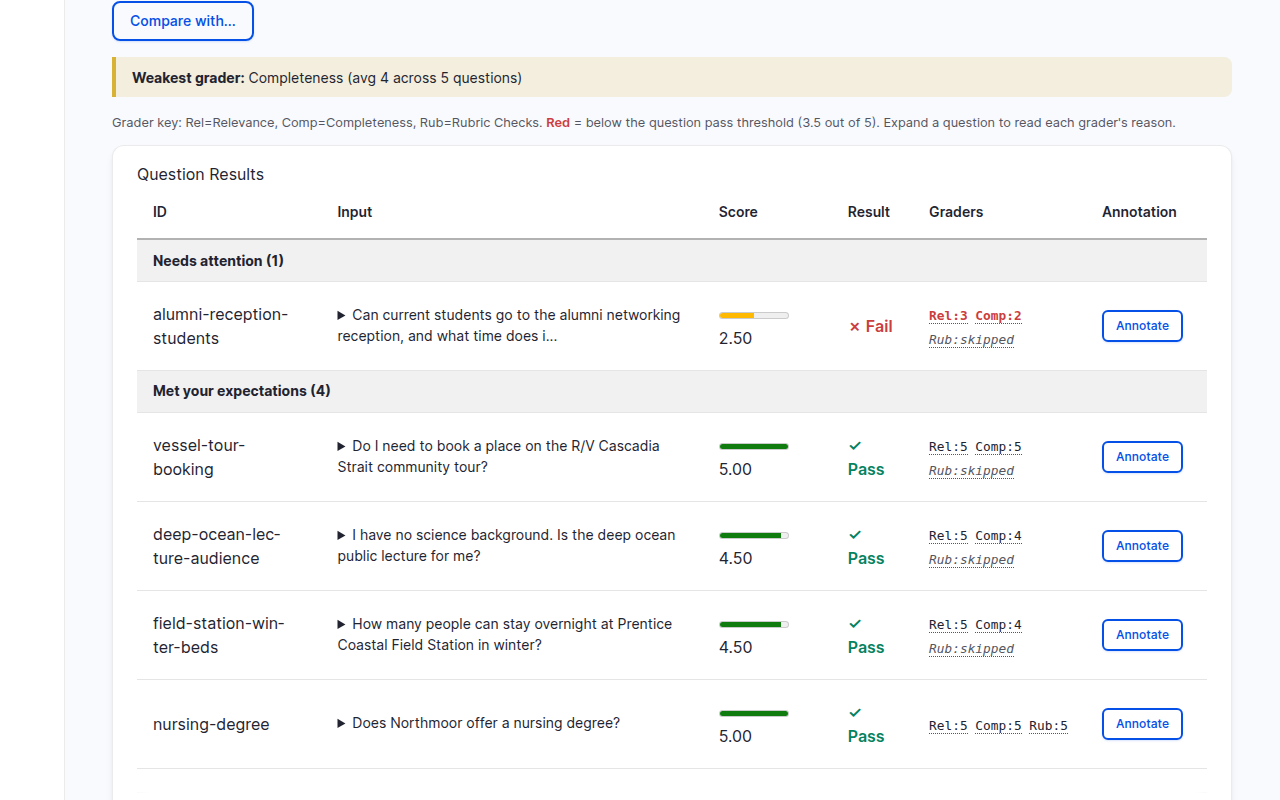
In the question table, each row now has three grader scores:
nursing-degreeshows Rub:5: the answer contained one of the phrases.- Every other question shows Rub:skipped. They have no rubric reference, so the Rubric Checks Grader does not apply to them and is left out of their question score. A skipped grader never counts as a zero.
alumni-reception-students, the new question, failed with 2.50.
9. Compare the two runs
Click Compare with... under the run summary and pick the earlier run. The compare page puts run A (earlier) and run B (later) side by side.
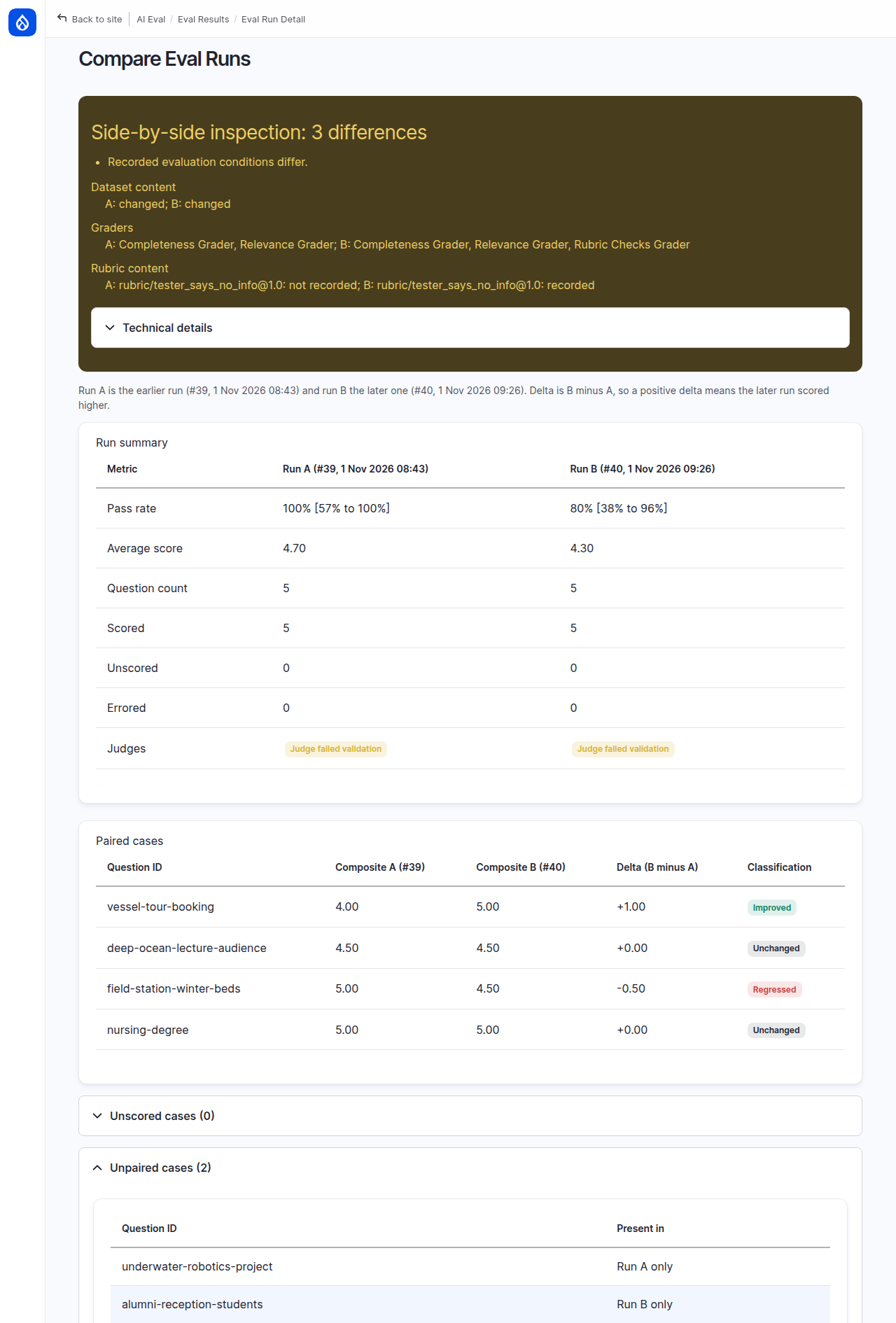
Read it from the top:
- Side-by-side inspection: 3 differences. The conditions of the two runs differ in three ways, listed by name: Dataset content (marked "changed"), Graders and Rubric content. Each one is one of your changes. The raw values sit in Technical details, which starts closed.
- Run summary: pass rate and average score of each run.
- Paired cases: the questions both runs asked, with the change in score.
vessel-tour-bookingwent from 4.00 to 5.00, Improved. The page reports the change, not its cause; the criterion you fixed is the likely reason, and the judges' reasons on the question confirm or rule it out. - Unpaired cases:
underwater-robotics-projectis in run A only (you turned it off) andalumni-reception-studentsin run B only (you added it).
Under the hood: the fingerprints, and why an unchanged question moved
The long strings under Technical details, next to dataset_sha256 and
rubric_sha256, are fingerprints. The list above them shows only
"changed" for the dataset and "recorded" or "not recorded" for the rubric.
When a run starts, AI Eval computes one from the questions
the run will ask, in their order; it computes one for each rubric when the
rubric is loaded for grading. If a single character changes, the
fingerprint changes, so two runs with the same fingerprints asked exactly
the same questions.
On the demo site field-station-winter-beds went from 5.00 to 4.50 and is
marked Regressed, although you did not change it. The agent's answer
and the judges' scores can vary from run to run. One run is one sample:
before you call a change real, look for it on more than one question or in
more than one run.
10. Read why the new question failed
Back on the result, click the question text (or the triangle in front of it)
in the alumni-reception-students row to open it.
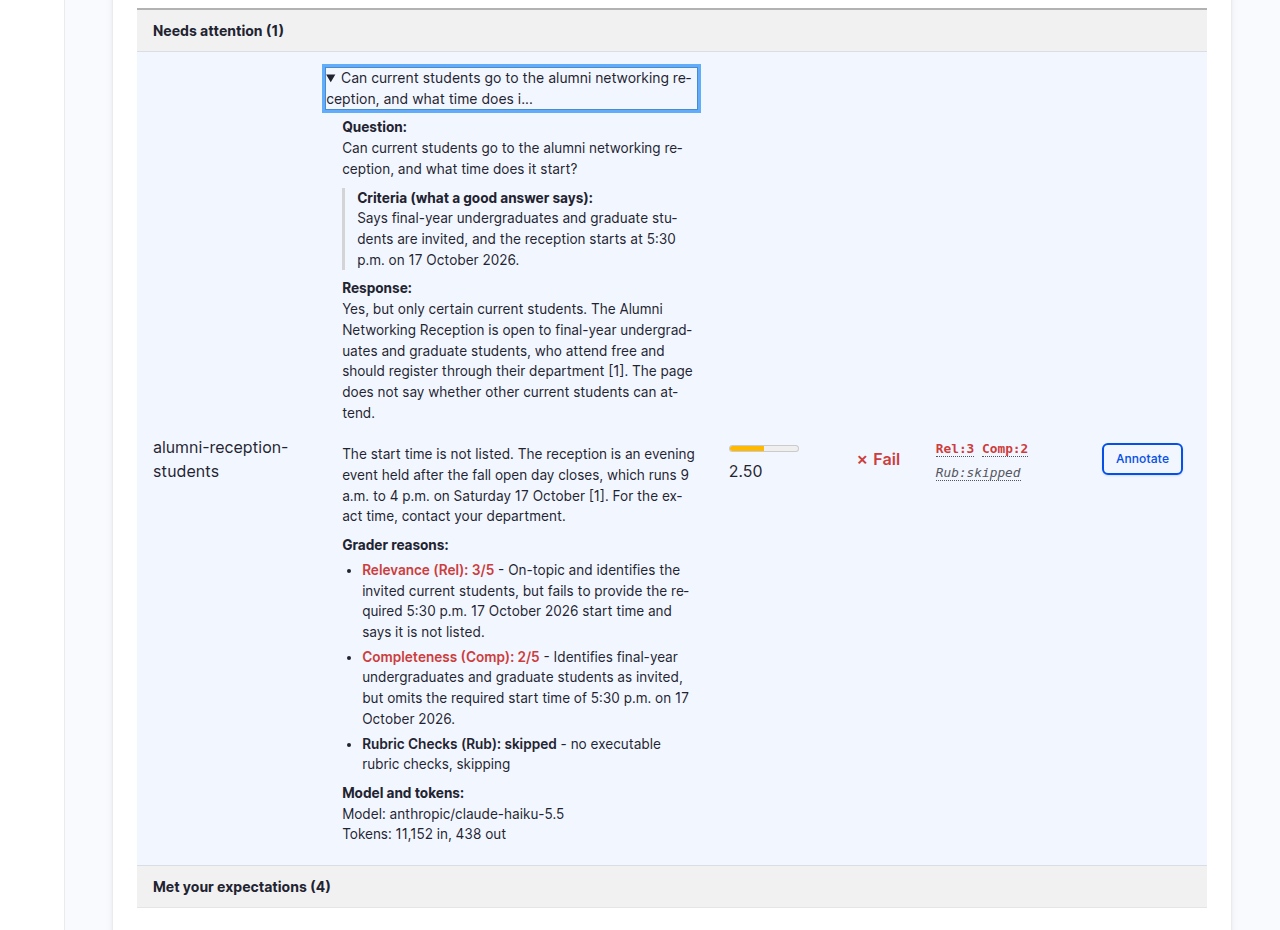
The agent said the right people are invited, then said the start time is not listed. Both judges marked it down for the missing 5:30 p.m. start time, and the Rubric Checks Grader skipped it. The reception's event page does show 5:30 p.m. to 8:00 p.m., so the criterion is right and the answer is wrong. This is the kind of failure a test exists to find: the next step is to work out why the assistant missed a time that is on the page.
Common mistakes
- Editing a dataset another test uses. Check Used by first. If someone else's test uses it, agree the change with them, or give your test its own dataset.
- Reading one score change as a trend. A 0.5 move on a question you did not touch is usually noise.
- A rubric phrase that only fits one wording. Look at a few real answers before you choose phrases.
Check yourself
A question has Relevance 4, Completeness 4 and Rub:skipped. What is its score?
4.00. The skipped grader is left out, so the score is the average of 4 and 4. It does not count as a zero.
Run B has a different dataset fingerprint from run A. What does that tell you?
The questions the runs asked were not the same: at least one was edited, added, removed, turned off or on, or moved. Compare the paired questions, and read the unpaired ones separately.
Seven of ten questions pass and the gate is 0.7. Does the gate pass?
Yes. 70% meets a threshold of 70%; a gate passes when the measured figure is at least the threshold.
Done when
- Your dataset has one edited, one added and one disabled question.
- A rubric with one check exists and one question points to it.
- The test has run twice, and the second result shows Rub scores.
- On the compare page you can say what changed between the runs, and which of your edits each change most likely comes from.
Next steps
- More check kinds, weights and versions: Rubrics and checks.
- Bigger datasets, imports and shared datasets: Datasets.
- Find out whether the judges agree with you: Trusting your judges.