Viewing Replay Data
Replay lets you load past workflow execution data and step through it visually on the canvas. This is invaluable for understanding how a workflow actually behaved and for debugging issues.
Loading replay data
- Select an event node on the canvas (click on it).
- Click the Review flow button in the panel header. (If the model has unsaved changes, the modeler first offers to Save and review flow.)
- Review opens for that event: the modeler starts the live listener and fetches the execution history from the backend automatically.
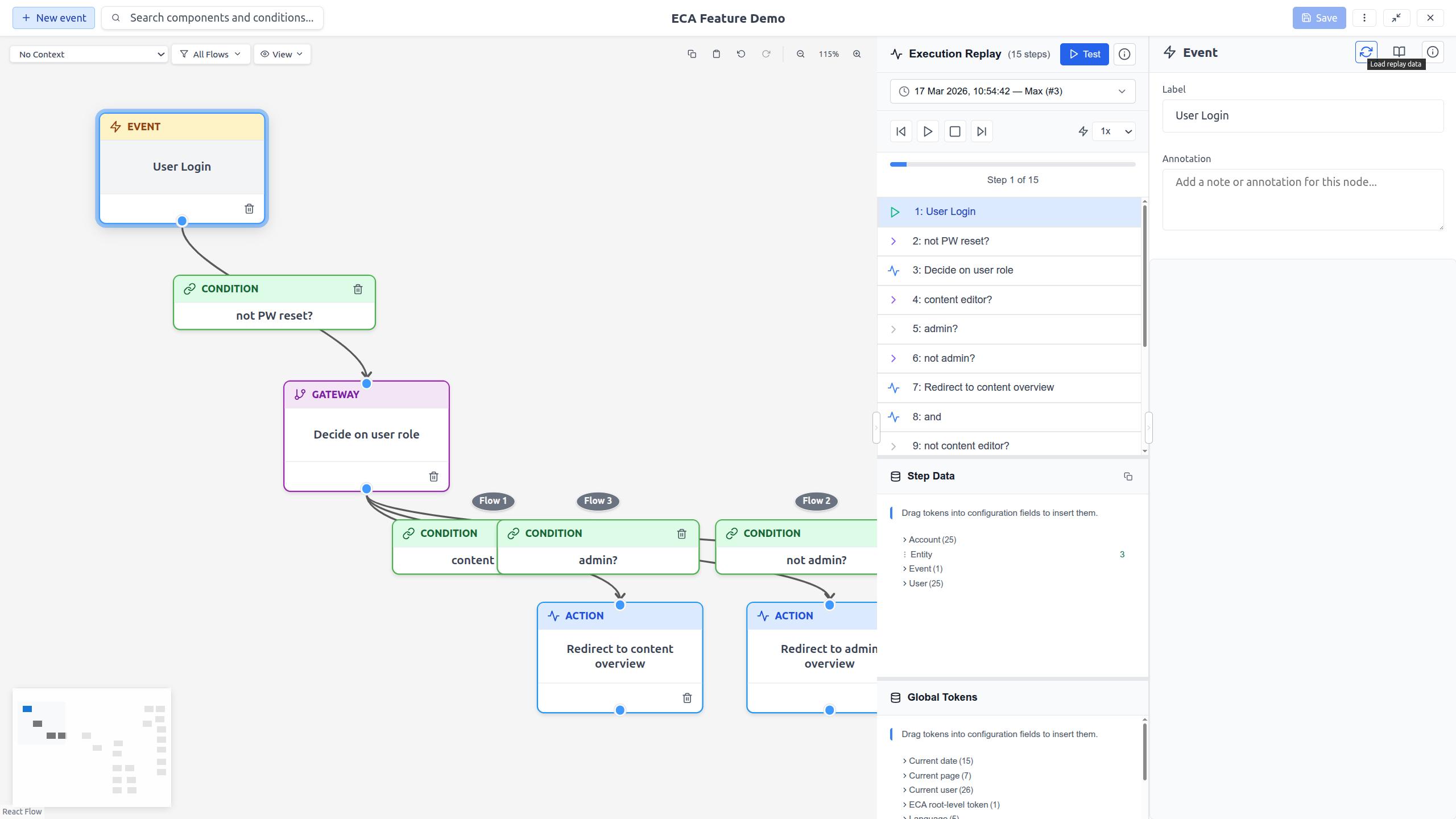
Multiple executions
If the event has been triggered multiple times, Review flow mode shows an entry selector dropdown at the top. Each entry includes:
- Timestamp: When the execution occurred.
- User: Who triggered it.
- URL: The page URL at the time of execution.
Click an entry to view its execution steps. The dropdown is only shown when there are two or more entries.
Navigating steps
Review flow mode shows a list of execution steps. Each step represents one action in the workflow execution:
| Step type | Icon | Meaning |
|---|---|---|
| Started | Play icon | The workflow began executing at this event. |
| Execute | Arrow icon | An action was executed. |
| Add successor | Green check | A condition passed; execution continued. |
| Ignore successor | Red X | A condition failed; this path was skipped. |
| Access denied | Lock icon | Execution was blocked by permissions. |
Manual navigation
- Click a step: Jump to that step. The corresponding node or edge is highlighted on the canvas, and the step's data expands inline underneath the step row.
- Forward/Back buttons: Move one step at a time.
Auto-playback
- Play: Start automatic playback through all steps.
- Speed: Choose 0.5x, 1x, or 2x playback speed.
- Pause: Stop auto-play at the current step.
- Stop: Exit replay mode entirely and clear all highlights.
Canvas visualization
During replay, the canvas shows visual indicators:
- Node highlighting: The active step's node is highlighted.
- Edge indicators: Floating circles at edge midpoints show condition results:
- Green circle with checkmark: Condition passed.
- Red circle with X: Condition failed.
The canvas automatically pans to keep the current step's element in view, while preserving your zoom level.
Bidirectional sync
The replay system syncs in both directions:
- Click a step in Review flow mode --> the canvas highlights the corresponding element.
- Click a node on the canvas --> Review flow mode jumps to the first matching step.
Live session
Entering Review flow on a saved model with replay/test capability starts listening for execution data and loads any available history automatically -- no extra clicks needed.
Step data
Review flow mode shows a single list: the execution steps. The data captured at the selected step appears inline, directly underneath that step row, so there are no stacked sub-sections to resize. See Review flow > Step data for details.
Empty state
When no replay data is loaded, the panel shows guidance messages explaining how to load data or run a test, depending on what capabilities are available.