Tokens & Data
During workflow execution, components produce and consume tokens -- named values that carry data through the workflow (e.g., the title of a content item, the current user's email, a computed value). The modeler lets you inspect these tokens and use them in configuration forms.
Viewing token data
Step data
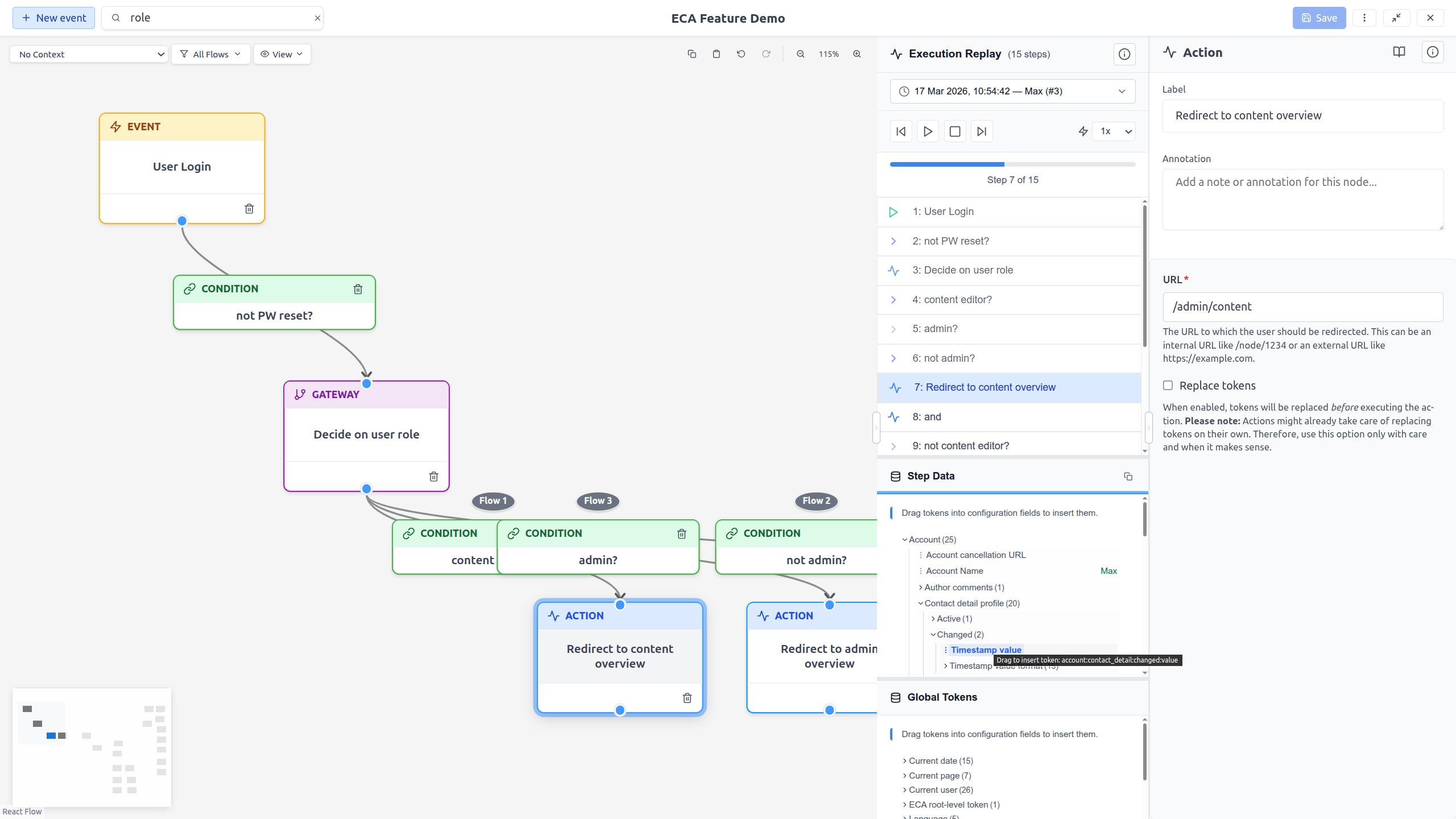
When you select a replay step in Review flow mode, the step expands and the token values available at that point in the execution are rendered inline underneath that step row.
Token data is displayed as a collapsible tree:
- Top-level entries: Token names with their current values.
- Nested entries: Complex tokens that contain child tokens (e.g., an entity token with properties like title, status, author).
- Values: The resolved value at the time of execution.
Global and template tokens
Site-wide tokens that do not depend on the workflow execution - such as
[site:name], [current-date:long] or [current-user:name] - are not listed
in Review flow mode. Neither are the extra tokens that a model marked as a
template provides. Both sets appear only in the [ token picker, under its
Global tokens and Template tokens categories, so they are offered
exactly where you insert them.
Inserting tokens with the [ picker
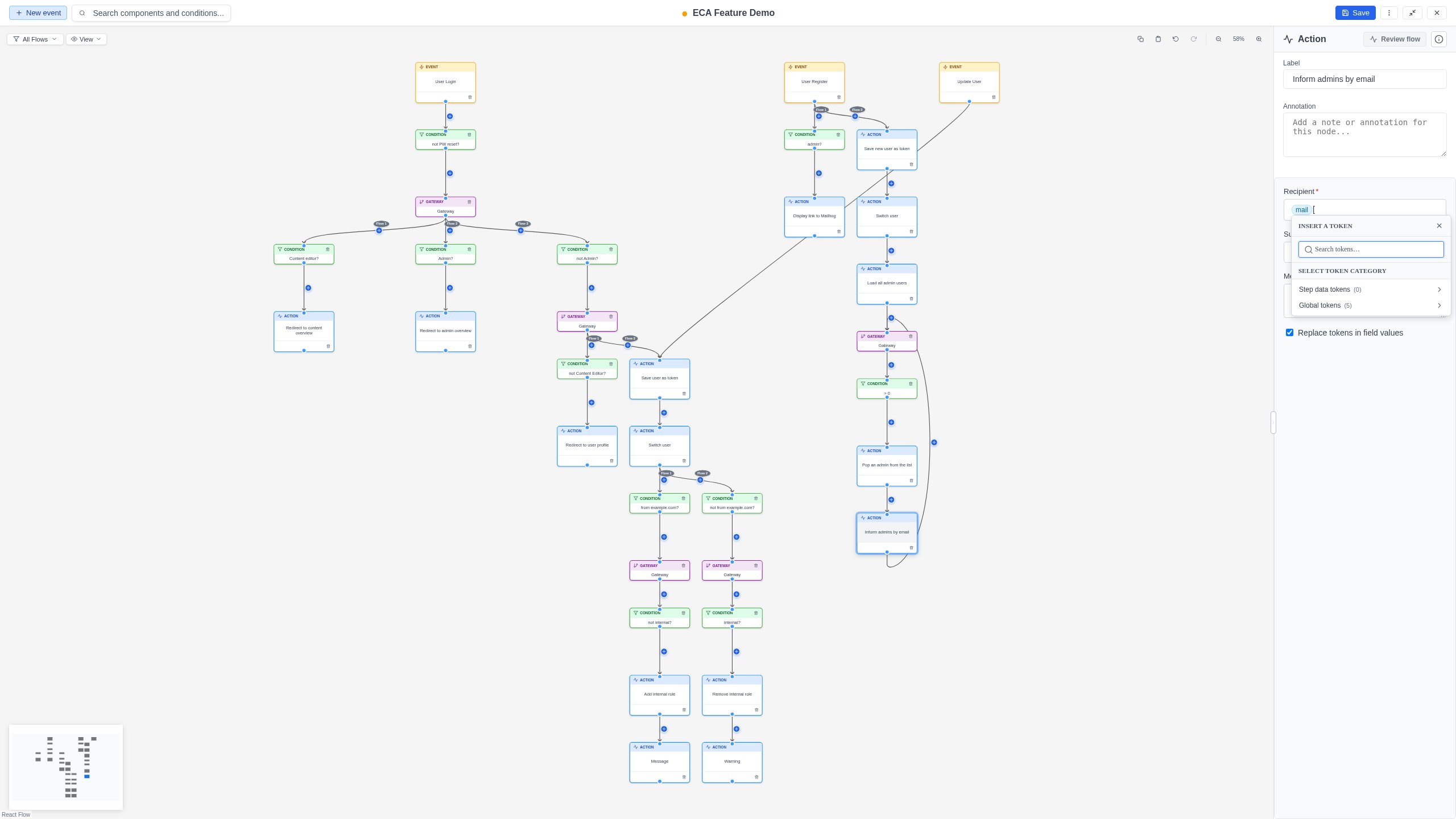
The quickest way to insert a token is to type [ directly inside a
token-supporting configuration field. A categorized picker opens at the cursor:
- Place the cursor in a token-supporting field and type
[. - Choose a category -- Step data tokens, Global tokens, or Template tokens (categories with a count are shown when available).
- Drill into a category to browse its (possibly nested) tokens.
- Click Use → on a token (or press Enter) to insert it as a token
pill at the
[position.
To narrow the list, type in the Search tokens box at the top of the picker; it filters the tokens by label or token string across every category. Press Escape to close the picker -- focus and the cursor return to the field where you left off.
Review the flow for richer tokens
When no step data is cached yet, the picker still offers Global and Template tokens and nudges you to Review the flow -- entering Review flow mode captures step-data tokens specific to your workflow's execution.
The picker is fully keyboard navigable (arrow keys to move, Enter to use, Escape to close) and the active option is announced to assistive technology.
Which fields accept tokens
Whether a field accepts tokens depends on two things:
- Per-field setting: The component's developer marks specific fields as token-enabled.
- Replace tokens checkbox: If the form includes a "Replace tokens" checkbox and it is enabled, all fields accept tokens.
Editing tokens in fields
After a token is placed in a field, it appears as a styled pill. You can:
Edit a token
- Hover over the token and click the pencil icon that appears.
- Or place your cursor next to the token and press
Ctrl+E(Cmd+Eon Mac). - An inline editor opens where you can modify the token path.
- Press Enter or click Save to apply changes.
- Press Escape or click Cancel to discard changes.
Move a token
Drag a token pill within the same field to reposition it. The token is removed from its original position and inserted at the drop location.
Remove a token
Select the token pill and press Delete or Backspace to remove it.
Tips
- Use tokens to make your workflows dynamic -- avoid hardcoding values that may change.
- Global tokens are useful for site-wide values like the site name or current date.
- Step data tokens are specific to the execution context -- they show exactly what values were available at each step.