Live Testing
Live testing lets you trigger a workflow execution directly from the modeler and see the results immediately, without leaving the editing interface.
Prerequisites
- The model owner must have configured a test endpoint (
test_url). - The model must be saved (new unsaved models cannot be tested).
- The model must not contain any placeholder nodes (temporary nodes with dashed amber borders that have not been assigned a real action or gateway).
- An event node must be selected on the canvas.
Starting a test
- Select an event node on the canvas.
- Click the Review flow button in the panel header. Entering Review automatically starts the live listener for that event (and loads any history), so the waiting state appears directly — there is no separate Test button to click.
- Trigger the event on your site; its captured execution appears in the Review view automatically.
Unsaved changes
If you click Review flow while the model has unsaved changes, a confirmation dialog appears:
- Save and review flow: Saves the model first, then starts the session.
- Cancel: Returns to editing.
The save happens automatically before the session begins, ensuring the backend listens against the latest version of your model.
Note
If the model contains placeholder nodes, saving is blocked and the test cannot proceed. Replace all placeholders with real actions or gateways first.
Test execution flow
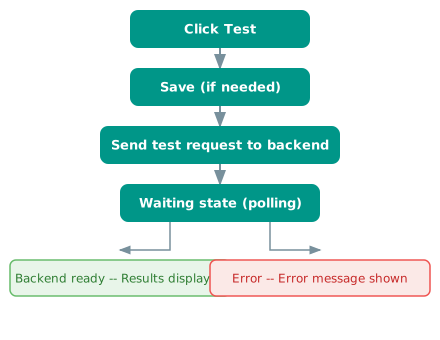
Waiting state
While the test is in progress, Review flow mode shows:
- A spinning icon indicating the test is running.
- A phase-aware message:
- "Starting test..." during initial request.
- "Waiting for test execution..." during polling.
- Instructions: "Trigger the selected event on your Drupal site so that the workflow gets executed and the results are captured."
- A Cancel button to abort the test (shown during the polling phase).
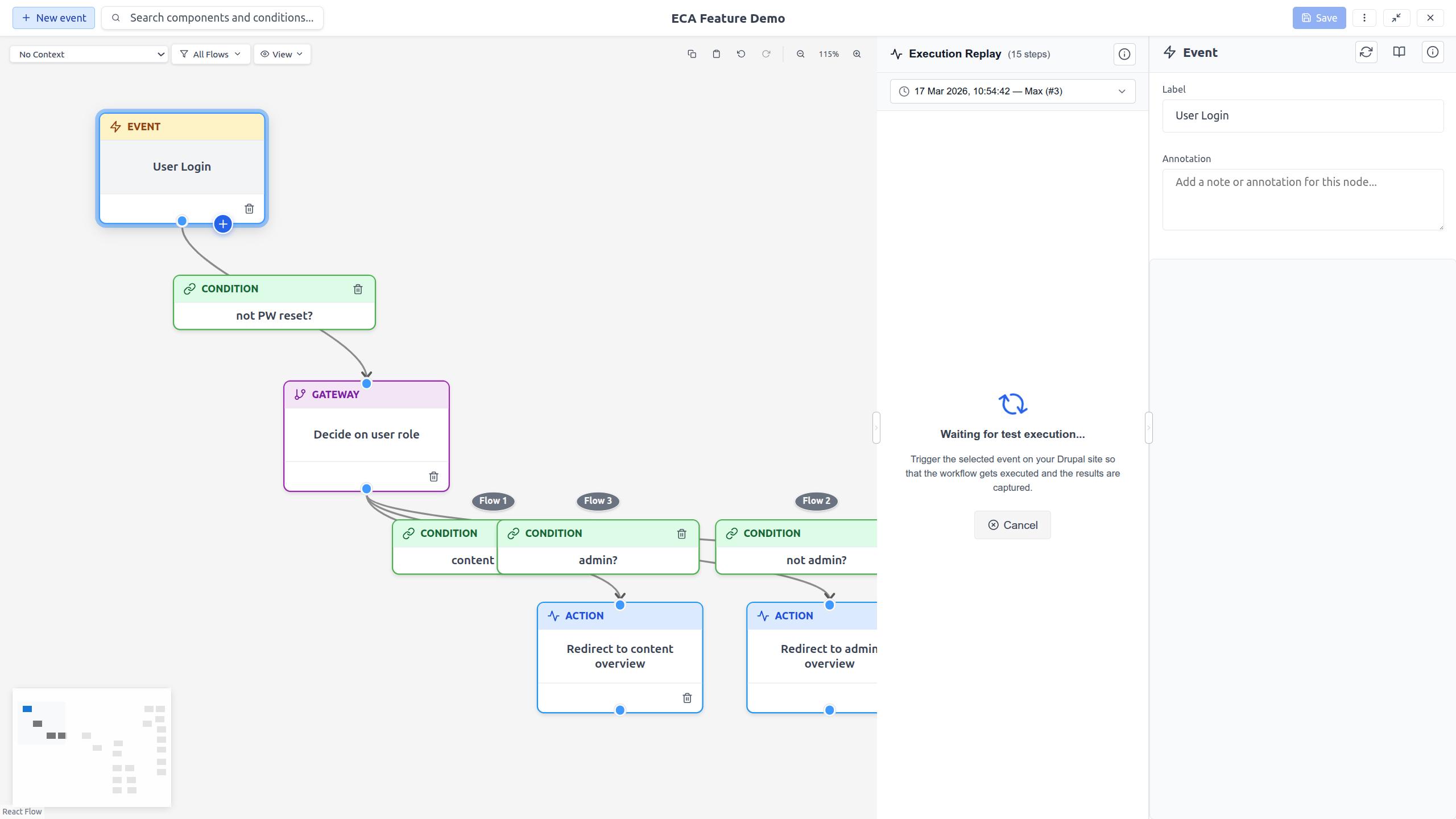
Manual triggering
Depending on the event type, you may need to manually trigger the event on your Drupal site. For example, if the event is "Entity is created", you need to create a piece of content in another browser tab. The modeler polls the backend until the execution is captured.
Viewing results
When the test completes successfully, the results are loaded into Review flow mode as execution steps. You can then:
- Step through the execution to see what happened.
- Inspect token values at each step.
- See condition results on edges (green/red indicators).
The test result appears as a single execution entry, so the entry selector dropdown is not shown.
Error handling
If the test fails, an error message is displayed in the toolbar's message area. Common errors include:
- Backend configuration issues.
- Permission problems.
- Timeout (the event was not triggered within the polling period).
Canceling a test
Click the Cancel button in the waiting state to abort a running test. This stops the polling and returns Review flow mode to its normal state.