Review flow mode
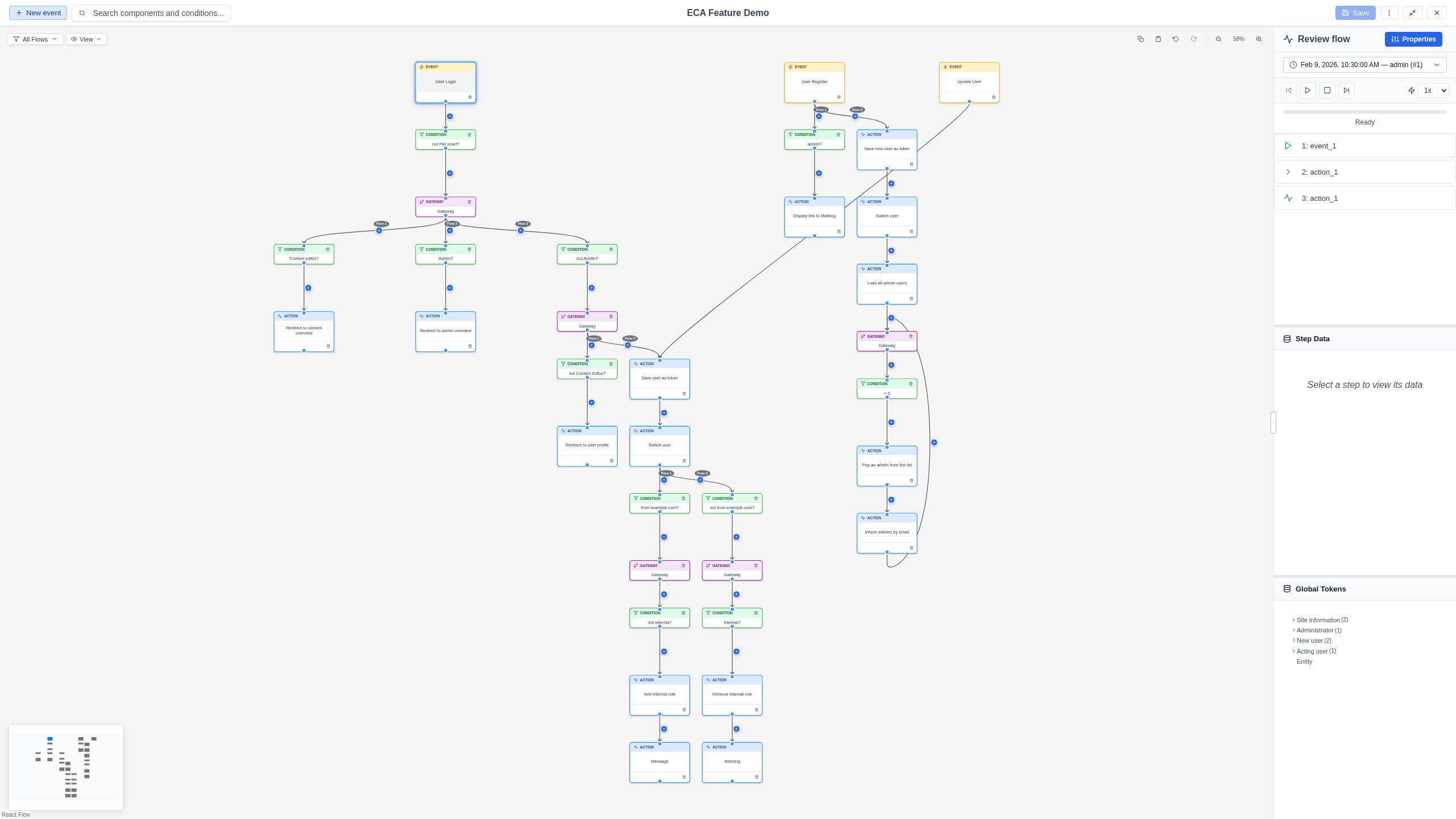
Review flow is one of the two coexisting views of the unified Property Panel. Start it from a selected event node by clicking the Review flow button in the panel header to visualize past workflow executions and run live tests directly from the modeler -- all in the same right-hand panel (there is no separate replay column). In Review flow mode the panel header holds a single control: a Back button (a left arrow with the label Back) that returns to the selected component's properties. The replay session stays active while you are in the Properties view.
Availability
To start a session, the Review flow button appears for a selected event node only when the model is saved and has replay or test capabilities configured. For new (unsaved) models it is not shown, since there is no execution history to display and testing requires a saved model -- clicking it with unsaved changes first prompts you to save (see Property Panel > Unsaved changes). Once a session is active, the Review flow button is available from any selected component so you can return to the running replay.
Starting a session
- Select an event node on the canvas.
- Click the Review flow button in the panel header.
- The session opens for that event: the live listener starts and historical execution data loads automatically.
The session is linked to that event for its whole lifetime. Switching to the Properties view and back never restarts the listener or reloads history.
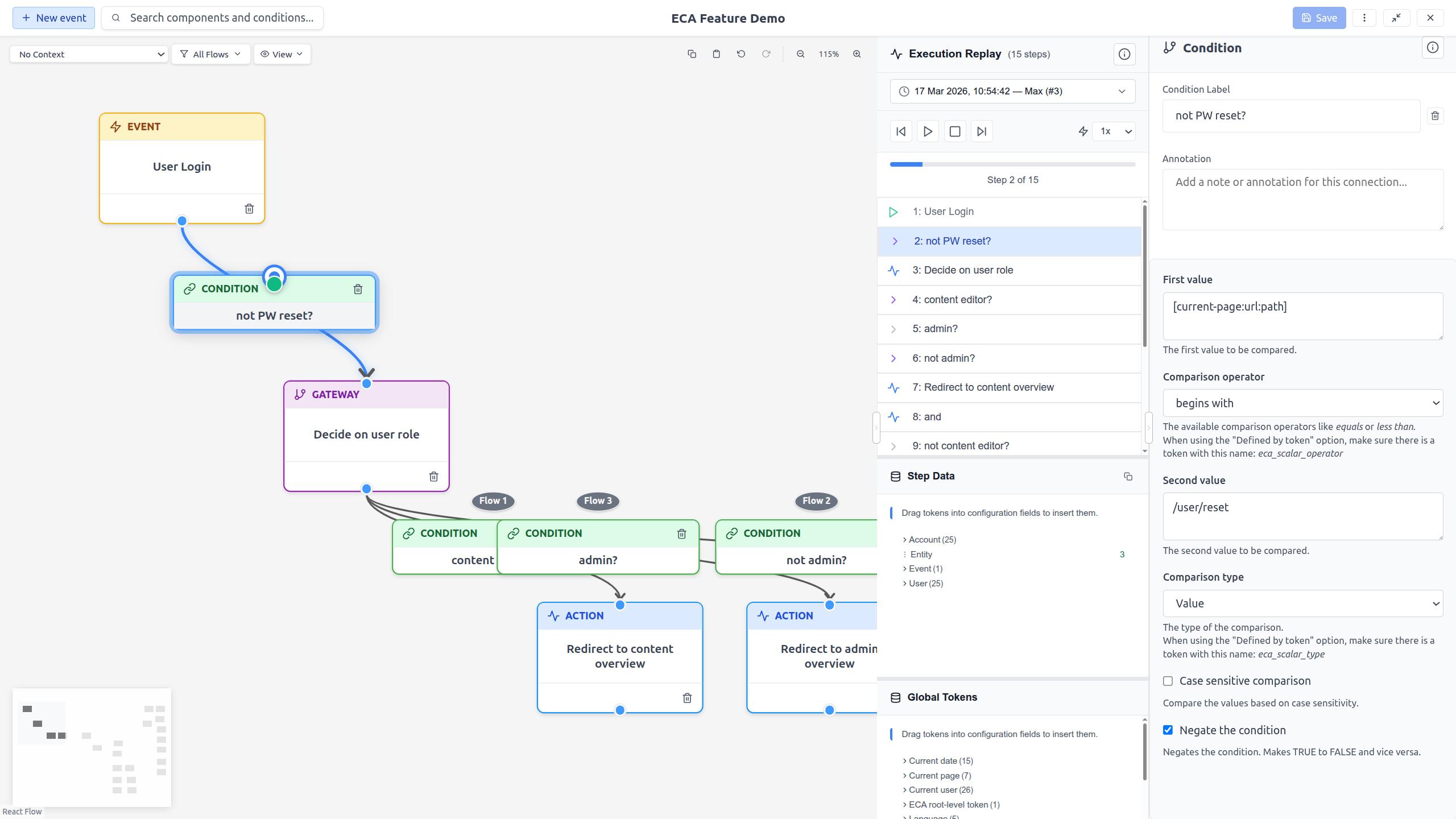
If multiple executions exist, an entry selector dropdown lets you switch between them. Each entry shows a timestamp and metadata about the execution.
Switching back to properties
The Review flow header contains exactly one control: the Back button. Click it to return to the properties of the currently-selected component - the replay session, the selected entry, and the current step are all kept.
You can also toggle between the two views from the keyboard with
Alt+Shift+R (Option+Shift+R on macOS). See
Keyboard Shortcuts for the full list.
Navigating execution steps
Once replay data is loaded, Review flow mode shows a single list: the execution steps. Nothing is stacked below it.
- Step list: Each execution step is listed with an icon indicating its type (started, execute, condition passed, condition failed).
- Click a step: The step expands to reveal its step data inline, and the corresponding node or edge is highlighted on the canvas.
- Forward/Back buttons: Navigate sequentially through steps.
Playback controls
- Play: Automatically steps through the execution at the selected speed.
- Pause: Stops auto-play at the current step.
- Speed: Choose 0.5x, 1x, or 2x playback speed.
- Stop: Exits replay mode entirely.
Visual indicators
During replay, the canvas shows:
- Highlighted nodes: The current step's node is highlighted.
- Edge indicators: Circular indicators appear at edge midpoints:
- Green with a checkmark for conditions that passed.
- Red with an X for conditions that failed.
Step data
Selecting a step reveals the token values available at that point in the execution inline, directly underneath that step row. The values are displayed in the same collapsible tree as before, and only one step is expanded at a time. The panel body is no longer split into vertically resizable sections.
Insert tokens into forms
Type [ in a token-supporting configuration field to browse and insert
tokens from the step data, global, and template sources. See
Tokens & Data for details.
Global and template tokens
Site-wide global tokens (like [site:name] or [current-date:long]) and the
tokens of a model marked as a template are not listed in Review flow mode.
They are offered where you actually need them: type [ in a
token-supporting configuration field and pick them from the picker's
Global tokens and Template tokens categories.
See Tokens & Data for details on using tokens.
Empty state message
When no execution data has been captured yet, Review flow mode shows a short prompt — "No execution data yet" with the guidance "Trigger the event on your site and its execution will appear here automatically." The live listener starts when you enter Review, so once the event runs its execution appears here without any further action. There is no separate reload or Test button.