The widget
The widget DOC to HTML replaces the standard editor of a text_long or text_with_summary field. The field looks the same, with one addition: a collapsed section named DOC to HTML file.
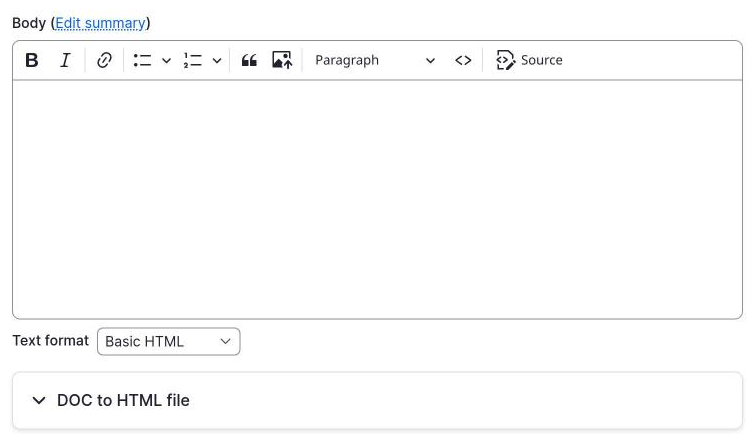
Add the widget
- Go to Structure > Content types > [type] > Manage form display.
- For the text field, choose the widget DOC to HTML.
- Open the settings with the gear icon, adjust them, and click Update.
- Click Save.
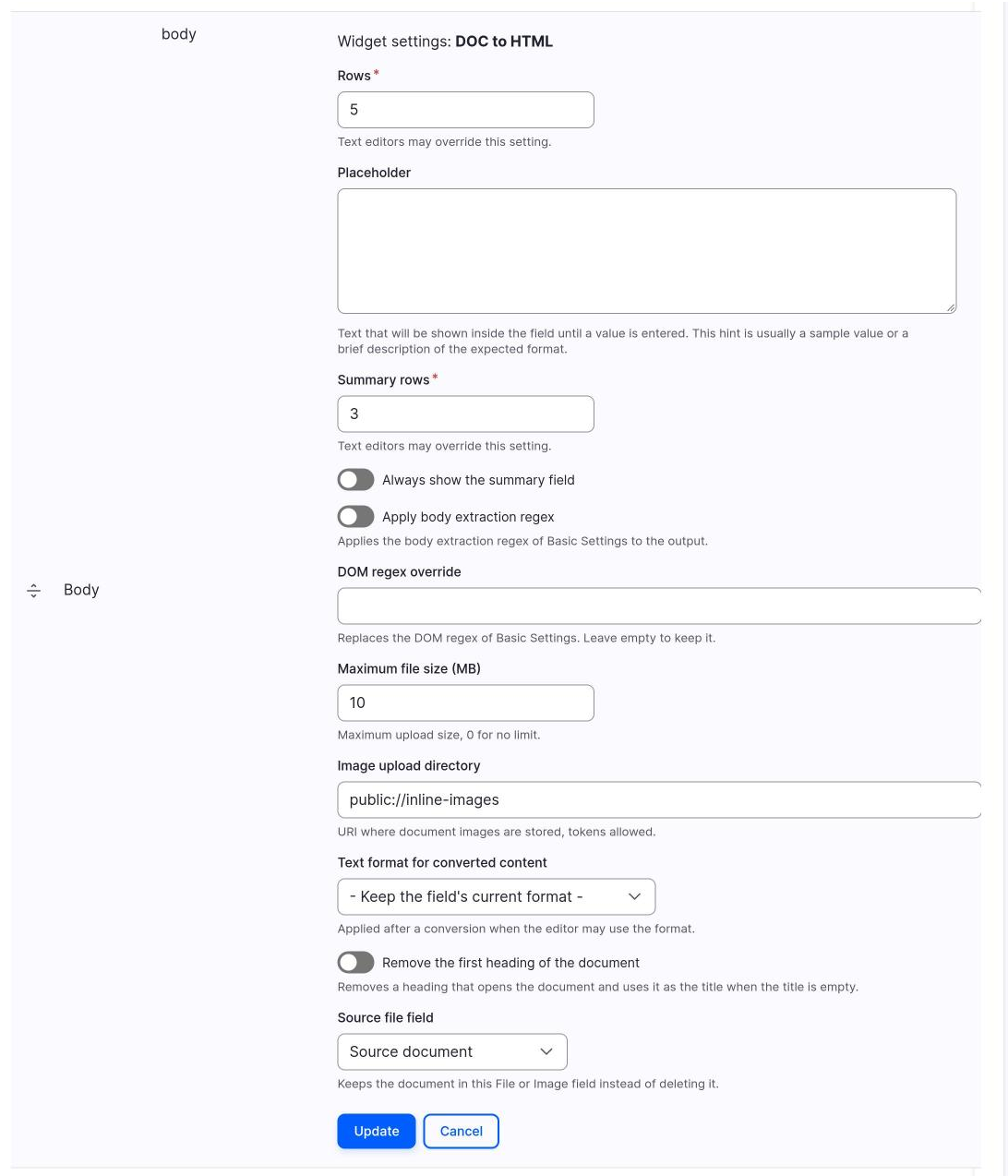
Widget settings
| Setting | Meaning |
|---|---|
| Apply body extraction regex | Applies the body regex from Basic Settings to the converted HTML. Default off. |
| DOM regex override | A preg_replace expression for this field only. Empty uses the default saved from the Test Wizard. See Suggested DOM regex rules. |
| Maximum file size (MB) | Upload limit. Default 10. 0 removes the limit. |
| Source file field | A File or Image field on the same bundle that receives the original document. See Keeping the source document. |
| Text format for converted content | A text format, or Keep the field's current format (default). |
| Image upload directory | Where images from the document are saved. Default public://inline-images. Tokens are allowed. See Images. |
| Remove the first heading of the document | Removes the heading that opens the document and uses it as the title when the title is empty. Default off. See below. |
The widget settings summary lists the main settings. On a field that exists in several bundles, Source file field is a text box where you type the machine name, because there is no single bundle to list the file fields of.
Text format
The widget does not narrow the formats the field already allows. After a conversion it sets the format you chose, but only if the current user may use it. If not, the current format stays and the user sees a message.
Choose a format that allows the tags in your documents. The text format filters are the main protection when the text is displayed.
Remove the first heading
Many documents start with their title, and the node has a title field too. With Remove the first heading of the document on, a conversion removes the first h1 to h6 element of the text, but only when no text comes before it. The text of the heading is not lost: when the title of the node is empty, the widget fills it with that text, cut to 255 characters, and shows the message "The empty title was set from the first heading of the document." A title you already typed is not changed.
The setting is off by default, so a site that updates changes nothing. The text of the removed heading is also available to code as removed_heading in the conversion result, see Services.
Since 2.1.0
This setting does not exist in 2.0.x. See Versions.
Convert a document
- Open the section DOC to HTML file.
- Upload a document. Only the enabled file types are accepted.
- Click Convert.
- Check the text in the field and fix what you need.
- Save the node.
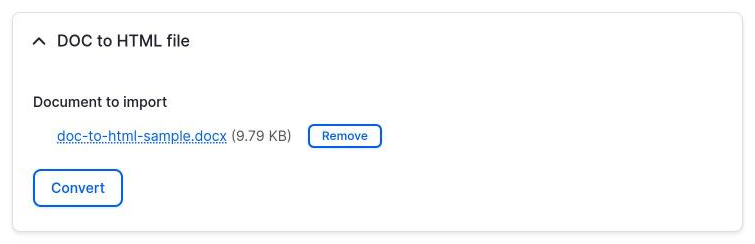
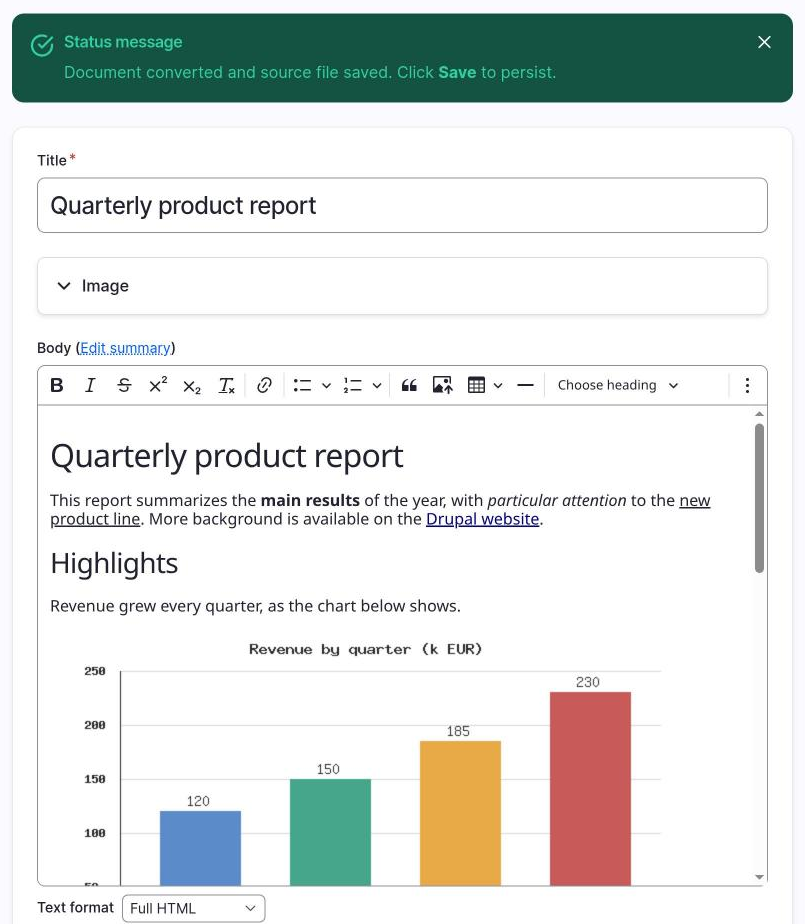
Convert fills the field in the form and rebuilds the form. It does not save the node, so other fields you edited are not lost. Nothing is stored until you click Save.
If the field already has text, Convert replaces it.
Users without the permission
Users without use doc to html widget see a normal text area. The section is not shown, and Convert checks the permission again on submit. See Permissions.
What happens to the HTML
After LibreOffice finishes, the module runs these steps in order:
- Reads the HTML file and converts it to UTF-8 if the option is on.
- Extracts the body with the regex, if the widget enables it.
- Keeps what is inside the
bodytag. This step always runs, so the style and title of the LibreOffice head never reach the text. - Moves the images into managed files.
- Removes
script,iframe,object,embed,style,meta,title,link,headandbaseelements,on*attributes and links with a protocol that is not allowed. A link with such a protocol keeps its text. An image with one is removed, with a warning. This step cannot be turned off. - Removes the first heading, if the widget setting is on.
- Applies the DOM regex. See Suggested DOM regex rules.
- Dispatches the post convert event and the post convert hook. See Hooks and events.
Since 2.1.0
In 2.0.x the HTML went through the steps in a different way and was not sanitized. See Versions.
To show the converted text in a themed wrapper, use the formatter, see Theming.