Managing items
Add, move, duplicate and delete act on the items of an entity reference field on the host entity. Each one appears only when the parent field's formatter enables it, and each has its own permission. All four also require update access to the host entity.
| Link | Permission | What it does |
|---|---|---|
| Add before / Add after | frontend editing add items |
Inserts a new or existing item next to this one |
| Move up / Move down | frontend editing move items |
Swaps this item with its neighbour |
| Duplicate | frontend editing duplicate items |
Copies this item and inserts the copy after it |
| Delete | frontend editing delete items |
Removes this item from the field |
Adding
The round buttons above and below an item open the add panel. It lists every bundle the field accepts.
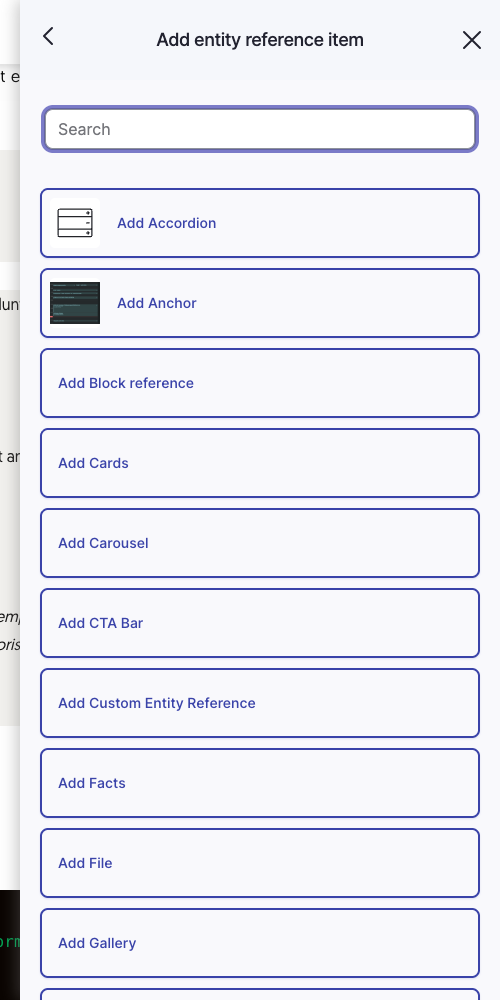
Choosing a type opens its form in the sidebar. Saving inserts the new item at the chosen position.
The search box appears once the list is longer than the Filter add items threshold setting (10 by default), and can be turned off entirely with Enable filtering of new items.
The panel can also add an existing entity by reference, rather than creating a new one, where the field allows it.
Moving
The up and down arrows swap the item with its neighbour and save the host entity. With ajax content update on, the field re-renders in place.
Duplicating
Duplicate copies the item and inserts the copy directly after the original.
What gets copied depends on the field:
- For a plain entity reference field, the copy is a second field item pointing at the same target entity. Nothing is cloned, because two items may legitimately reference one entity.
- For a paragraphs field, the paragraph itself is cloned into a new entity. Paragraphs belong to their host, so two items can never share one.
The clone and the host save run in one database transaction. If the host save fails, the clone is rolled back rather than left orphaned.
Deleting
Delete asks for confirmation before anything happens.
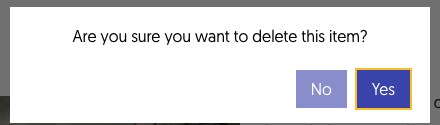
Confirming removes the item from the field and saves the host entity.
Tall elements
An element taller than the viewport can scroll its action links out of sight. The Keep action links in viewport setting offers two answers, both experimental:
| Option | Behaviour |
|---|---|
| No | Links stay at the top of the element |
| Duplicate action links at the bottom of the element | A second copy appears at the bottom, for elements taller than the Height setting |
| Make action links sticky | The links follow the viewport while the element is on screen |
Which item an action applies to
Action links carry a delta query parameter naming the position in the field, alongside the target
entity ID in the path. The two are checked against each other before anything is written.
This matters when a field holds the same entity at more than one position, which duplicating a plain reference item creates on purpose. Without the delta, a move would pick the wrong occurrence and a delete would remove every one of them.
If the check fails, the action is refused. That happens when the link is stale, meaning the content changed between the page rendering and the click, or when the URL was tampered with. Reload the page and try again.
Note
This does not protect against two editors saving the same entity at the same moment. Each request reloads the host entity fresh, so a link that has gone stale is caught, but two overlapping saves still end with the later one winning.