Content listing and views
The dedicated listing
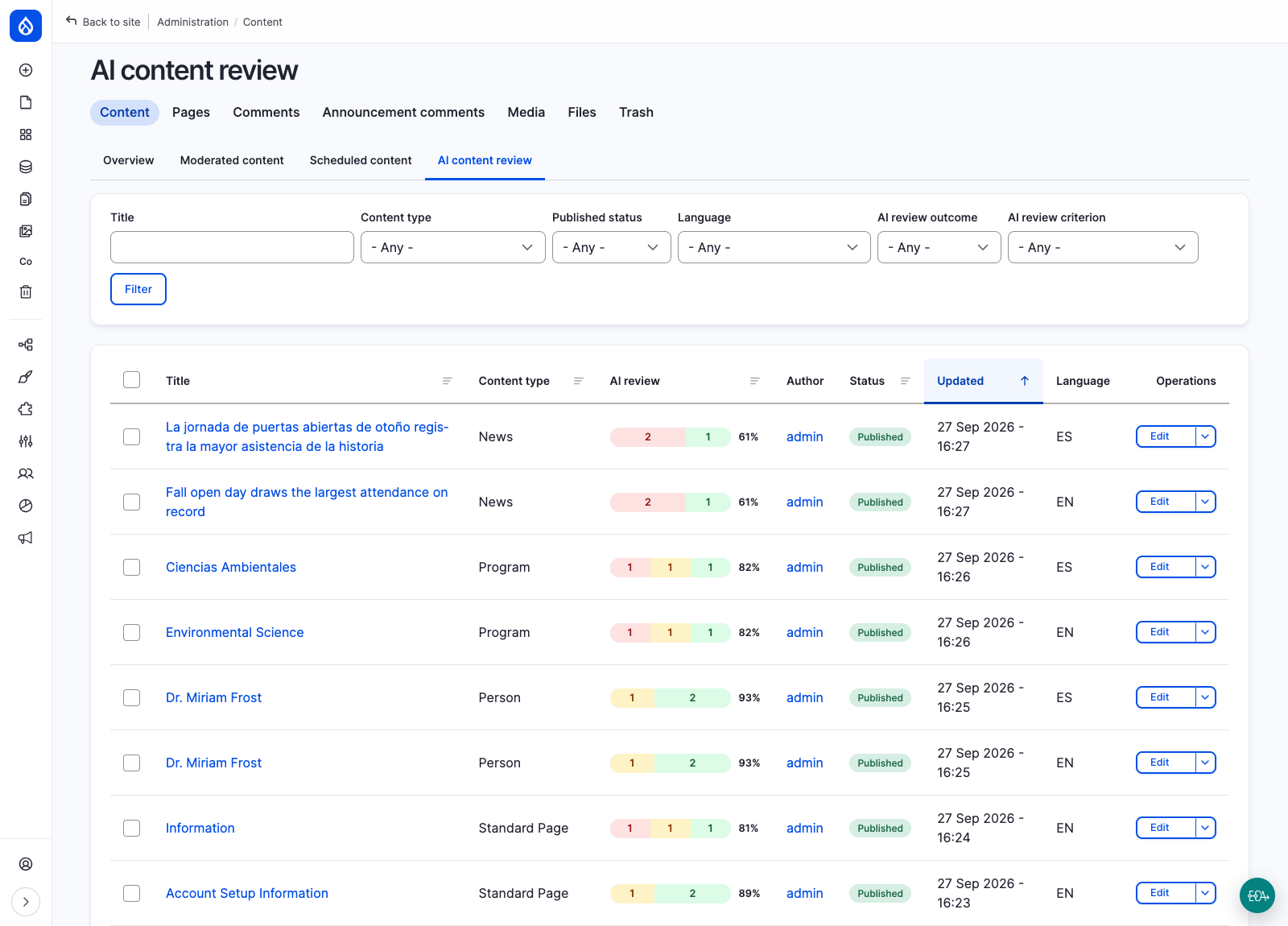
The module ships a view at /admin/content/ai-review, shown as a secondary tab under Content
next to Moderated content and Scheduled content. The AI review column is also added to the
core content view at /admin/content, so the summary is visible where editors already work. The
dedicated listing is where it can be sorted and filtered.
Viewing either requires the View AI review records permission.
The summary pill
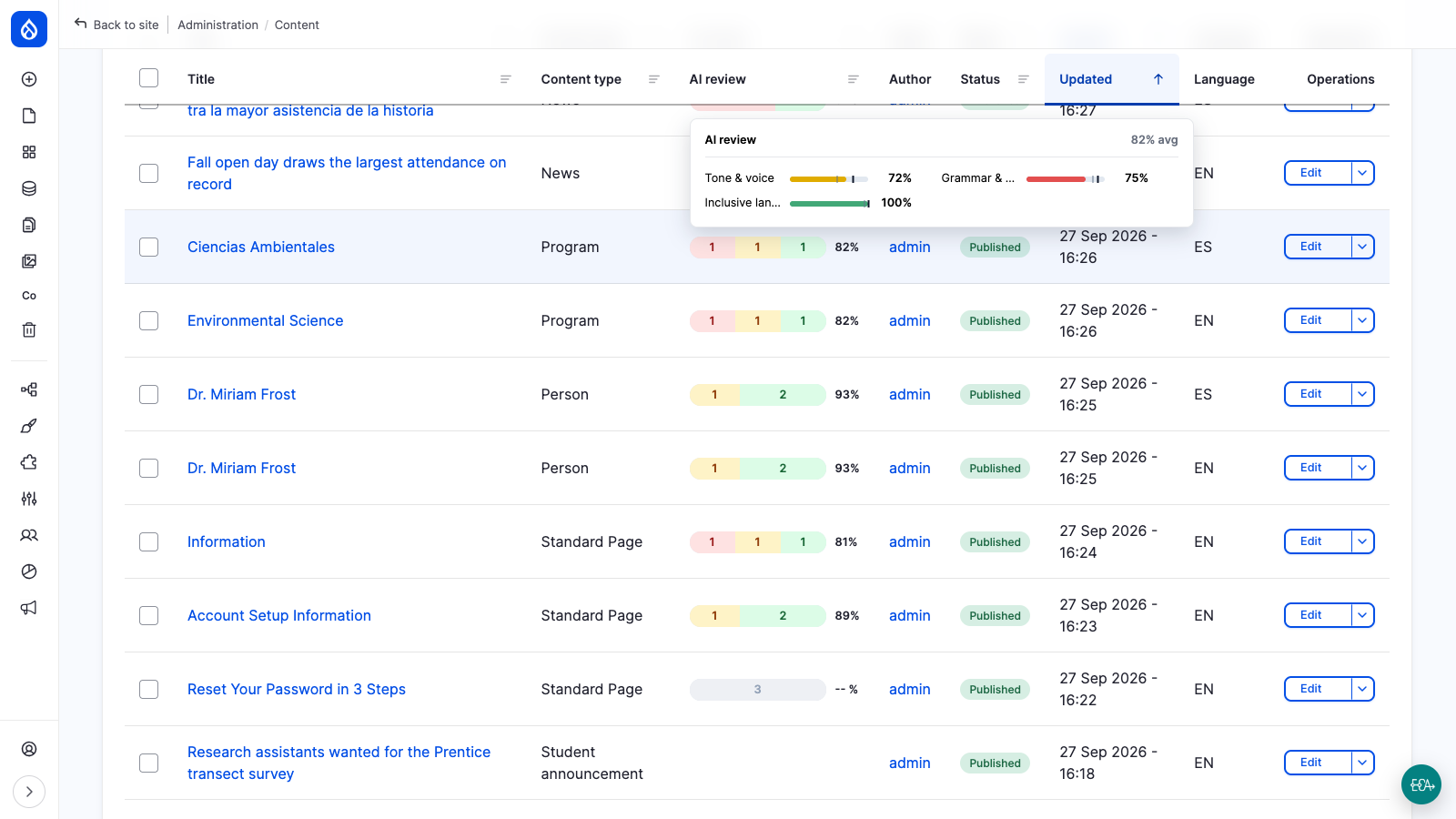
Each row carries a segmented pill summarising the latest review results for that entity:
- One segment per outcome (fail, warn, pass, not reviewed), sized in proportion to how many criteria fall into it and labelled with that count, so the pill reads without relying on colour.
- An aggregate score, averaged across the criteria that currently have one.
Hover the pill, or move keyboard focus to it, to open a drill-down listing every configured criterion with its own score and a gauge marking that criterion's pass and warn thresholds.
Rows whose bundle no Review Rule targets render an empty cell.
Sorting and filtering
Click the AI review column header to sort by aggregate score.
| Filter | What it does |
|---|---|
| AI review outcome | Failing, Warning, Passing or Not reviewed. Each row is bucketed by its worst criterion. |
| AI review criterion | The criteria your Review Rules configure. On its own it keeps the rows that criterion applies to. |
Used together, the criterion filter scopes the outcome to that criterion, so Inclusive language plus Failing answers "show me everything failing inclusive language" rather than "everything failing anything".
Both ship as single selects, because a Views multi-select renders as a tall list box that sits awkwardly in a listing. Both handlers accept several values, so to ask for Failing and Warning at once, edit the view and turn on Allow multiple selections on the exposed filter. The results are the union of the selected buckets.
Criteria are matched on their configuration rather than their name, so renaming a criterion does not disturb a saved filter. Changing what a criterion asks the AI does move it, which is the same change that retires its existing records.
Everything is computed live from the review records, so sorting and filtering stay correct across the whole result set rather than the current page. The pill always shows every criterion, including while the criterion filter is narrowing the rows.
Adding the column to your own views
The AI review field, the AI review outcome filter and the AI review criterion filter are available to any view based on Content. In the Views UI, pick them from the Content category under Fields or Filter criteria. The field has no settings of its own: it reads criteria and thresholds straight from your Review Rules.
Two limits worth knowing:
- All three handlers are registered for Content (
node_field_data) only. They are not available on views of other entity types. - Uninstalling the module removes just that field from your view and leaves the rest intact.
Installation and removal
The view ships in config/optional, so it installs automatically wherever Views and Node are
present and is skipped elsewhere. Existing sites receive it through drush updatedb. Uninstalling
the module removes the dedicated view and takes the column back out of the core content view.