Appearance
Layout Builder
In Layout Builder, a search page is a section with a Search Web Components layout and blocks placed in its regions. Search Web Components: Layouts provides two layouts. Each wraps its regions in a search root, which the blocks search through:
- Search Components: One Column has one region, Main content.
- Search Components: Two Column has three full-width rows at the top, a left and a right column of five regions each, and three full-width rows at the bottom.
Add a section with one of these layouts and place the blocks in its regions. A core layout, e.g., Two column, has no search root, so a block placed in it is not connected to a search and does nothing. The exception is Search Box, which sends the visitor to a search page from anywhere, e.g., a header.
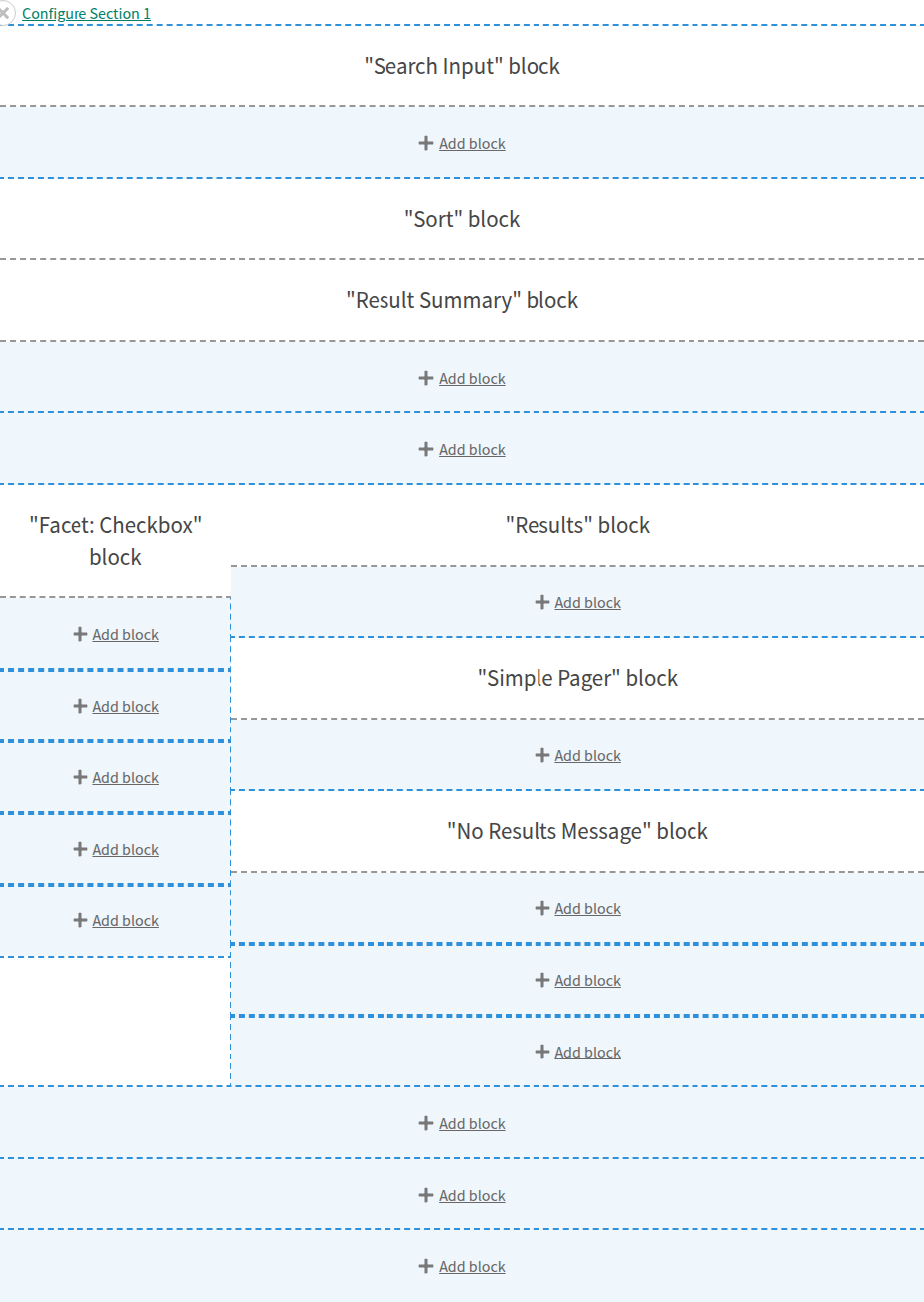
Regions
| Rows and columns | Regions |
|---|---|
| Top rows | Top First, Top Second, Top Third |
| Left column | Left First, Left Second, Left Third (dialog), Left Fourth, Left Fifth |
| Right column | Right First, Right Second, Right Third, Right Fourth, Right Fifth |
| Bottom rows | Bottom First, Bottom Second, Bottom Third |
An empty region prints nothing. Column widths splits the left and right columns, from 15%/85% to 85%/15% with the left first. On screens narrower than 40em the right column shows below the left one.
Section settings
Both layouts have these search root settings:
- Decoupled Search Endpoint: the endpoint this search uses. Remote/Other shows Endpoint URL (manual entry) for the URL of an endpoint on another site.
- Additional search params: a filter added to every search. Visitors cannot see or remove it. Write it as a query string, e.g.,
?f[type]=recipe. It is not included in the page URL. - Default results per page: set it to the endpoint's Limit. For the page sizes, see Page sizes.
- Default result display: the key of the listing layout the page starts with, e.g.,
list. For the listing layouts, see Listing layouts. - Update the page url with parameters from the search: on by default. When it is off, the page URL stays the same while visitors search, and the search root ignores search parameters in the URL the page is opened with. A search cannot be bookmarked or shared, and a Search Box cannot send keywords to the search page.
- Screen reader announcements: what screen readers hear after each search. Two or more results, One result, No results, and Search failed each show their default as a placeholder. A11y: Do not announce searches turns the announcements off. Use it on a page that announces the result count itself.
The filter dialog
On a phone, the left column shows above the results, so a column of facets pushes the results down the page. The two-column layout can hide one region, Left Third (dialog), behind a button on narrow screens instead, the filter dialog. Place the facets in Left Third (dialog) and a Dialog Toggle block in another region, e.g., Top Second. On a narrow screen the toggle is a button that opens the facets in a dialog. On a wider screen the region shows in the left column, and the toggle shows its Above breakpoint text.
- Use the third section in the left column as a toggleable dialog turns the filter dialog on.
- Dialog breakpoint: the widest screen, in pixels, on which the region opens as a dialog.
768uses the dialog on phones and small tablets.-1always uses a dialog and0, the default, never does. - Dialog close button text: the text of the dialog's close button.
- Dialog close button position: top, bottom, both, or none.
- Render dialog as a modal: whether the open dialog blocks the page.
An open dialog behaves in one of two ways:
- Without Render dialog as a modal, the dialog opens over the page and the page stays usable. The visitor can check a facet, see the results change behind the dialog, and close it with the close button or Escape.
- With it checked, the dialog is modal. Keyboard focus stays inside it, the page behind it cannot be used until it is closed, and screen readers hear each search inside the dialog. Check it when the theme styles the dialog to cover the page, so a visitor is not tabbing through results they cannot see.
The blocks
The blocks are in the category Search Components. Each block renders one component. For the available settings, see the component's page in Storybook. For the settings of the four facet blocks, see Facets. Did You Mean needs the Spellcheck submodule, see Install.
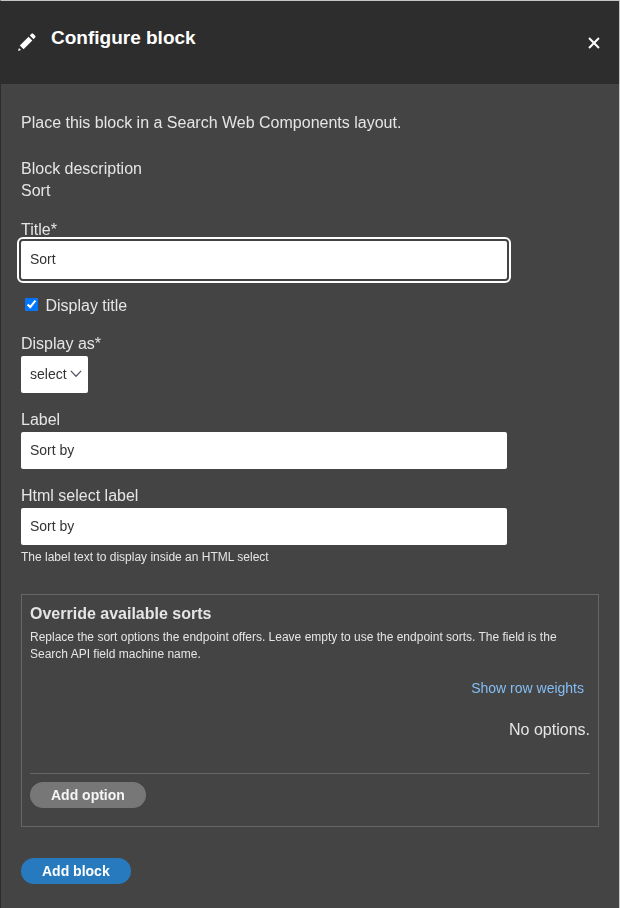
| Block | Element |
|---|---|
| Applied Facets | search-applied-facets |
| Dialog Toggle | search-dialog-toggle |
| Did You Mean | search-did-you-mean |
| Facet: Button | facet-button |
| Facet: Checkbox | facet-checkbox |
| Facet: Dropdown | facet-dropdown |
| Facet: Dropdown HTML | facet-dropdown-html |
| Loading Indicator | search-loading-indicator |
| No Results Message | search-no-results-message |
| Results | search-results |
| Results display switcher | search-results-switcher |
| Results per page | search-results-per-page |
| Result Summary | search-result-summary |
| Search Box | search-box |
| Search Input | search-input |
| Simple Pager | search-simple-pager |
| Sort | search-sort |
Fields whose titles start with A11y: hold text that only screen readers announce. For what to set, see Accessibility.
Facet blocks
Facet lists the facets on the endpoint that use the block's widget: a facet with the Search Web Components: Checkbox widget is offered by Facet: Checkbox and not by Facet: Button. Override the facet label (overrideLabel) replaces the facet's name as its label. The widget's settings come from the facet, see Facets.
With Remote/Other as the endpoint, Facet to display (key) takes the facet key, and the block has the widget's settings and One option at a time (showOnlyOneResult). The facet's settings in the endpoint's response win over them unless Prefer attribute values configured here over facet configuration (preferAttributes) is on. For the settings a facet sends, see Where a setting comes from.
Option rows
Sort, Results per page, and Results display switcher can override the endpoint's options with their own. Override available sorts (sorts) and Override available options (options) take one row per option. For the rows, see Sort options, Page sizes, and Listing layouts.
Result elements
Results can override the endpoint's result elements with its own. Match on field (resultField) and Result elements (mappings) take the same rows as the endpoint's. For the rows, see Result elements.