Appearance
Getting started
This guide builds a search page with a keyword field, a facet, sorting, results, and a pager. The first part sets up the index, the endpoint, and a facet. The second part builds the page, in Layout Builder or in Drupal Canvas.
How the pieces fit
A search page has three parts: an endpoint that answers searches, a search root that sends searches to the endpoint, and the components inside the root, which visitors search with. In Layout Builder the root is a section with a Search Web Components layout and the components are blocks placed in it. In Drupal Canvas the root is a search layout component and the components go in its slots. For more detail, see How a search page works.
If a Search Web Components block or component is placed outside a search root, it is not connected to a search and does nothing. The exception is Search Box, which sends the visitor to a search page from anywhere, e.g., a header.
Enable the modules
composer require drupal/search_web_components drupal/facets. To see every submodule and decide which to enable, see Install.Enable Search Web Components, Search Web Components: Facets, and a search server module, e.g., Database Search:
shdrush en search_web_components search_web_components_facets search_api_db
Index the content
The search needs a Search API index with:
- a Rendered HTML output field, which holds the HTML for each result. Indexing the rendered result explains why the field is needed.
- the fields the facets and sorts use, in this guide Content type and Title
- the content indexed
If the site already has such an index, go on to step 4.
Create a Search API server and an index with the fields above, and index the content.
Creating the server and the index
- On Configuration › Search and metadata › Search API, click Add server. Enter a Server name, e.g., "Database", and click Save.
- On the same page, click Add index. Enter an Index name, e.g., "Content", check Content under Datasources, pick the server under Server, and click Save and add fields.
- Next to Rendered HTML output, click Add. Set Default view mode for Content to the view mode results should use, e.g., Teaser, and click Save.
- Add Content type and Title the same way, and click Done.
- On the index's Fields tab, click Save changes. The fields are not part of the index until then.
- On the index's View tab, click Index now.
Create the endpoint
On Configuration › Search and metadata › Search API, click Add endpoint. Enter a Title, e.g., "Content", pick the index under Search API index, and click Next.
In the Page group, make sure Expose sort is checked, and set Limit to the page size the search starts with, e.g., 10.
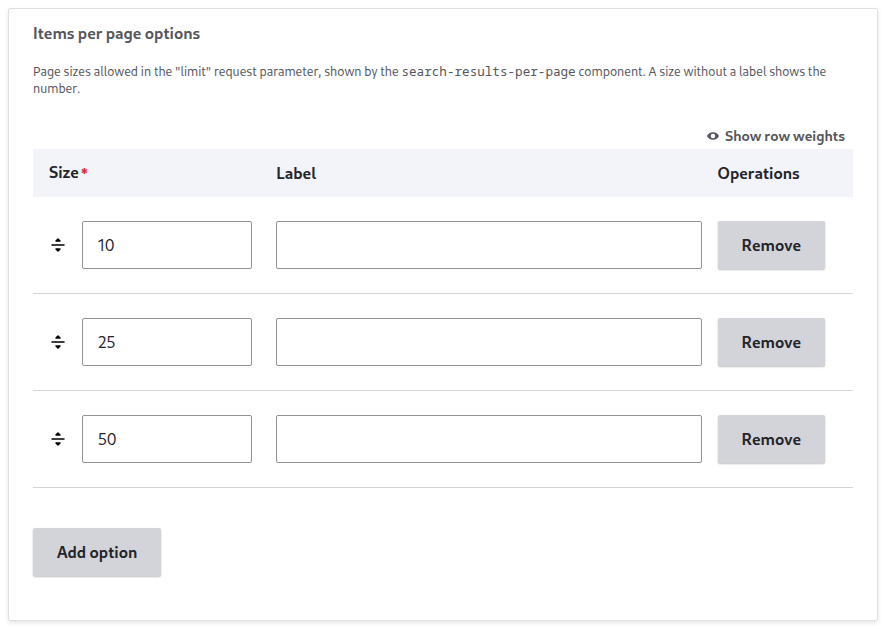
Under Items per page options, click Add option for each page size visitors can pick, e.g., 25 and 50. The table starts with 10. The Limit from step 5 must be one of the sizes.
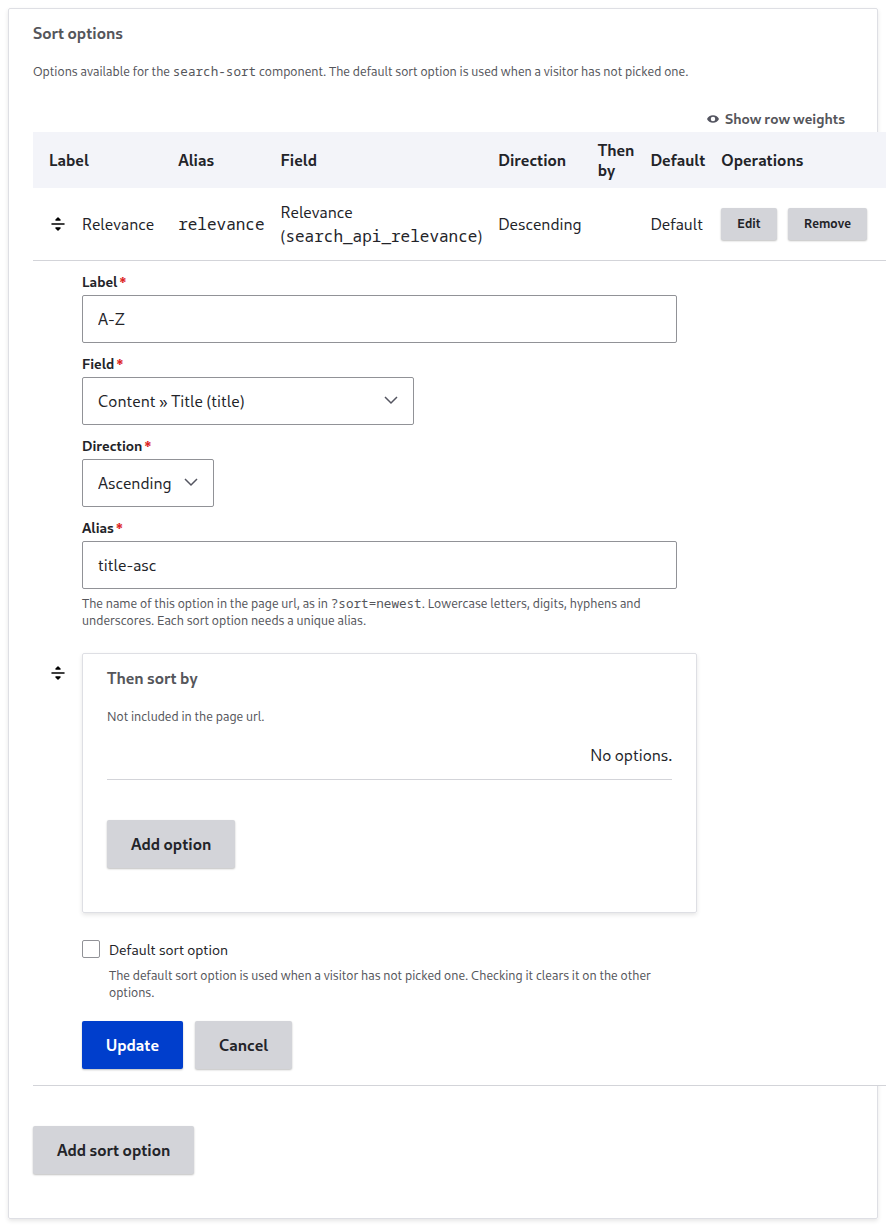
Under Sort options, click Add sort option. Enter the Label "A-Z", pick Title under Field and Ascending under Direction. A new endpoint has Relevance as the default sort option. Check Default sort option to make A-Z the default instead. Click Update.
Under Result elements, click Edit on the row that shows
default. Set Displayed with tosearch-result-element-rendered (the HTML of a result field)and Field to render to the Rendered HTML output field you added to the index in step 3. Click Update. For a different result element per content type or listing layout, see Result elements.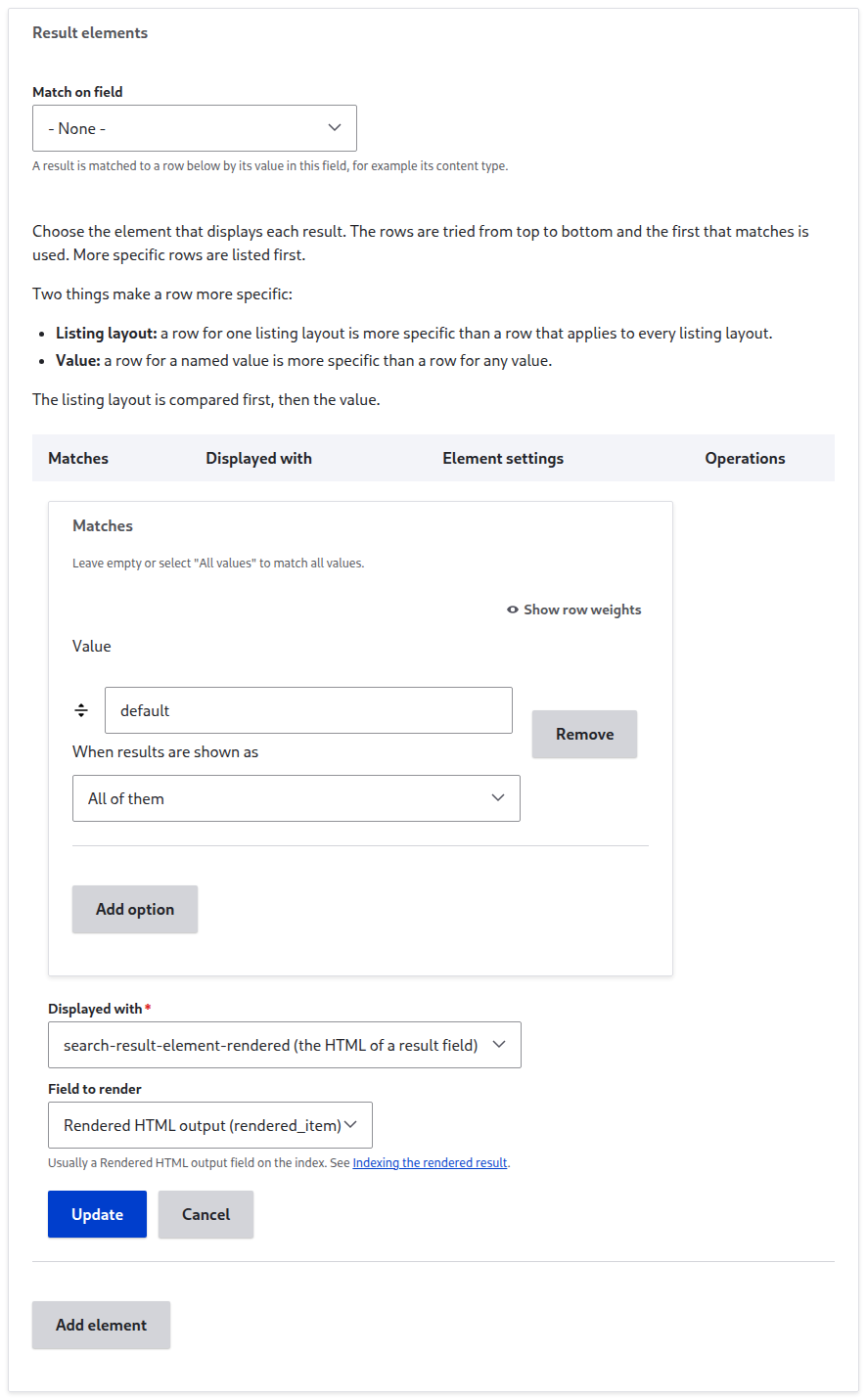
Click Save.
For each setting on the form, see Endpoint settings.
Let visitors search
Visitors need permission to use the endpoint before they can see results.
On People › Permissions, check Use search with Content endpoint for Anonymous user and Authenticated user, and click Save permissions. The permission is named after the endpoint's label.

Add a facet
The facet comes from the Facets module, with the endpoint as its facet source. Its widget decides which Search Web Components facet block or component shows it.
On Configuration › Search and metadata › Facets, click Add facet. Under Facet source, pick the endpoint's label, e.g., Content. Pick the field, e.g., Content type, enter a Name, and click Save.
The facet's edit form opens with Search Web Components: Checkbox under Widget. Keep it and click Save. The facet's other settings work as they are for this guide.

For what each widget renders, see Facets.
Build the page
The endpoint and the facet are ready. Build the page in Layout Builder or in Drupal Canvas.