Appearance
Build the page in Drupal Canvas
At the end of this guide, a page built in Drupal Canvas shows a search with a keyword field, a facet, sorting, results, and a pager, on the endpoint from Getting started.
Enable the submodule
Enable Drupal Canvas and Search Web Components: Canvas:
shdrush en canvas search_web_components_canvasDrupal Canvas needs Drupal core 11.3 or later.
Create the page
On Content › Pages, click Add Page. The Canvas editor opens on a new page. Under Page data, enter the Title, e.g., "Search".
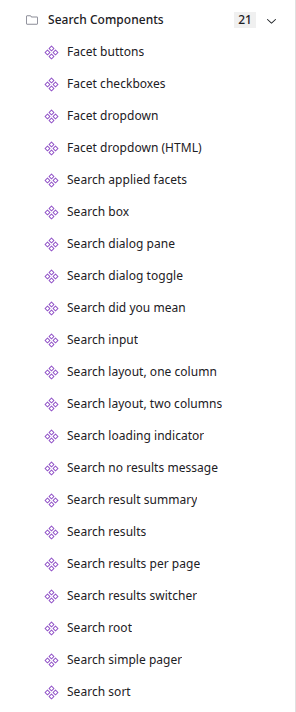
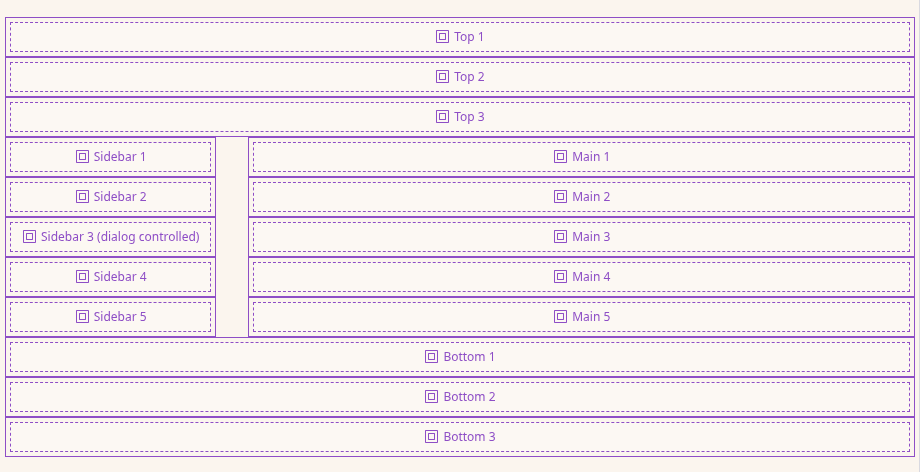
Open the Library with the + at the top left. The Search Components folder holds every component. Drag Search layout, two columns onto Page content.
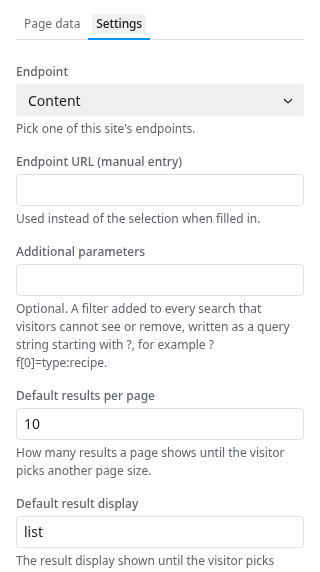
In the Settings form on the right, under Endpoint, pick the endpoint.
Place the components
Drag each component from the Library into a slot:
- Search input into Top 1
- Search sort into Top 2
- Search result summary into Top 3
- Facet checkboxes into Sidebar 1
- Search results into Main 1
- Search simple pager into Main 2
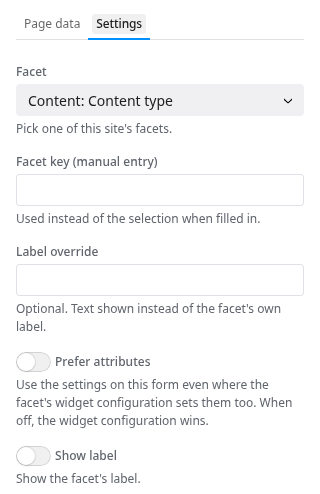
A component's Settings form opens on the right when the component is placed or clicked. The defaults work for this guide, except for the facet. In the Settings of Facet checkboxes, under Facet, pick the facet from Getting started. The list names each facet by the endpoint's label and the facet's name, e.g., Content: Content type.
The editor runs the search as the components are placed, so results and facet options show while you build. With every component placed, the Layers panel looks like this:
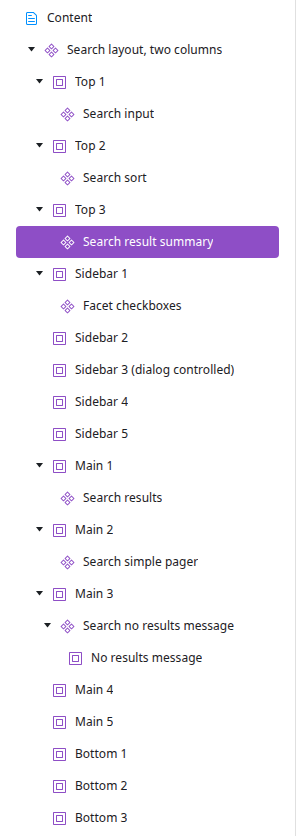
The settings of each component placed above:
Search input
- Placeholder: the text in the empty field.
- Label: the submit button's text.
- Clear text: the text of the button that empties the field.
- Keep filters: off, so a new keyword drops the applied facets.
Search sort
- Display as: how the sort options are shown.
select: a native dropdown.list: a list of buttons.html: a dropdown built from HTML, for styling.
- Label: the dropdown's label.
- Sort options: leave the rows empty to show the endpoint's sort options.
Search result summary
- Summary text: "@start - @end of @total". The tokens are
@start,@end,@total,@searchQuery, and@time.
Facet checkboxes
- Facet: the facet from Getting started. Facet key (manual entry) takes a facet key instead.
- Label override: text shown instead of the facet's name.
- Show label, Show counts, and Show reset: what the facet shows beside its options. The facet's widget settings win over these unless Prefer attributes is on.
Search results
- Result field and Result mappings: leave them empty to use the endpoint's result elements from step 8 of Getting started.
Search simple pager
- Pages to display: how many page numbers show on each side of the current one.
- Show next and previous and Show first and last: which buttons the pager has, with their texts in the fields above.
The Search no results message component in Main 3 shows what is placed in its No results message slot when a search finds nothing, e.g., a text component from the theme.
For all available components and settings, see Drupal Canvas.
Publish and search
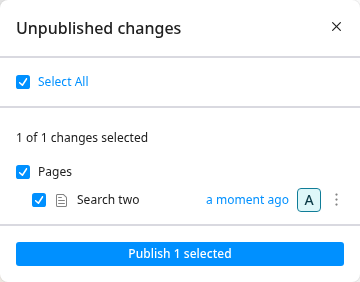
Click Review 1 change at the top right, check Select All, and click Publish 1 selected.
Open the page and search.
Search Web Components ships no CSS. The components take the theme's styles and are styled with normal CSS. For the classes a theme can style, see Styling.
Next
- How a search page works
- Troubleshooting
- The demo project, Umami Search Web Components, installs a preconfigured recipe search on the Umami demo site to explore and experiment with.