Appearance
Build the page in Layout Builder
At the end of this guide, a Basic page shows a search with a keyword field, a facet, sorting, results, and a pager, built from blocks in Layout Builder on the endpoint from Getting started.
Enable the submodules
Enable Search Web Components: Blocks and Search Web Components: Layouts:
shdrush en search_web_components_block search_web_components_layout
Create the page
The search page is a content item with Layout Builder enabled. Its layout holds a search layout, and the search components go inside that. This guide uses Basic page. Any Layout Builder content type works. If Basic page already has Layout Builder enabled, go on to step 3.
On Structure › Content types › Basic page › Manage display, open the view mode the page renders with: Full content, or Default when Full content is not enabled. Under Layout options, check Use Layout Builder, then Allow each content item to have its layout customized., and click Save.

Create a basic page, e.g., "Search", and publish it.
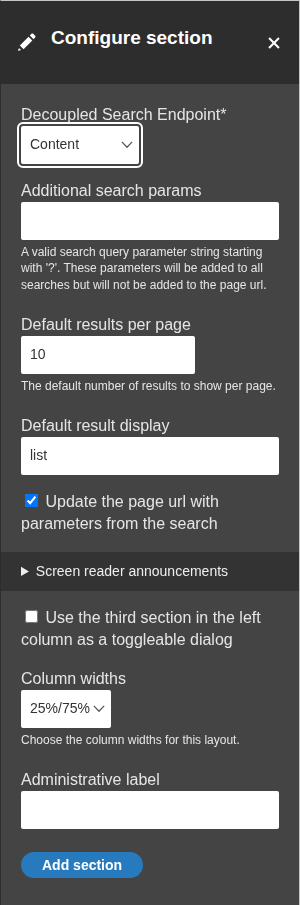
Open the page's Layout tab. Uncheck Show content preview at the top, so each block shows its name and you can see what is placed. Click Add section and pick Search Components: Two Column.
Under Decoupled Search Endpoint, pick the endpoint and click Add section.
Place the blocks
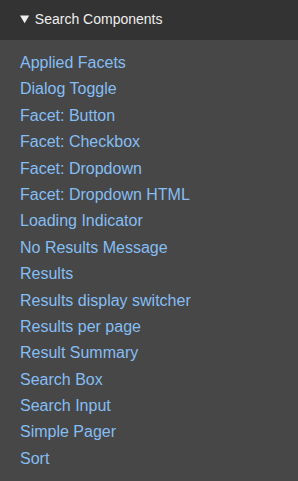
In each region, click Add block and pick the block under Search Components:
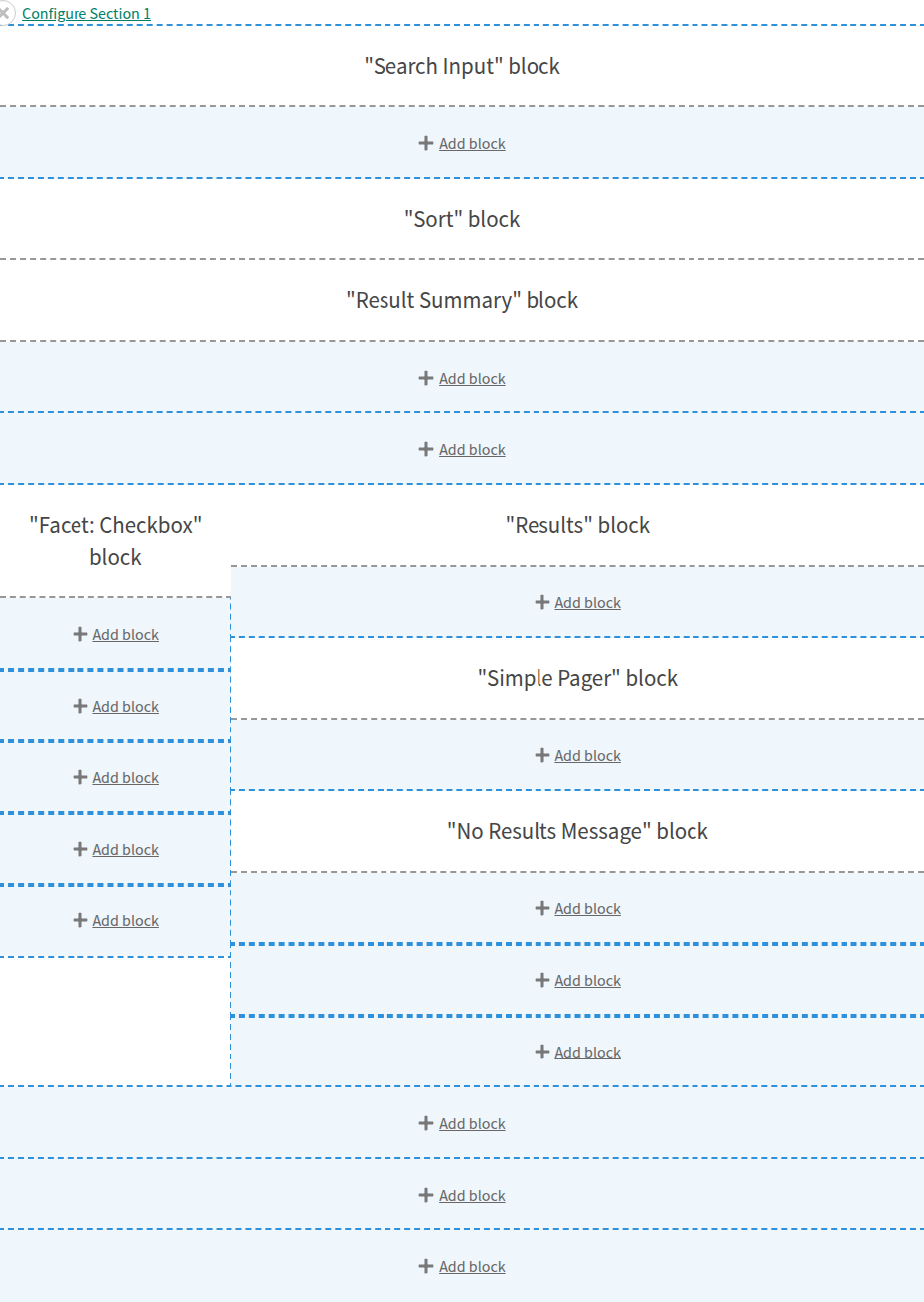
- Top First: Search Input
- Top Second: Sort, then Result Summary
- Left First: Facet: Checkbox, with the endpoint picked under Decoupled Search Endpoint and the facet under Facet
- Right First: Results
- Right Second: Simple Pager
- Right Third: No Results Message
Uncheck Display title on each block, unless its name should show as a heading. The defaults for each block work for this guide.
With every block placed, the section looks like this:
The settings of each block placed above:
Search Input
- Button label text: the submit button's text, "Search".
- Placeholder text: the text in the empty field.
- Clear search text: the text of the button that empties the field.
- Keep the current filters when a new keyword is searched: off, so a new keyword drops the applied facets.
Sort
- Display as: how the sort options are shown.
select: a native dropdown.list: a list of buttons.html: a dropdown built from HTML, for styling.
- Label: the dropdown's label, "Sort by".
- Override available sorts: leave the table empty to show the endpoint's sort options.
Result Summary
- Result summary text: leave it empty for "@start - @end of @total". The tokens are
@start,@end,@total,@searchQuery, and@time.
Facet: Checkbox
- Decoupled Search Endpoint and Facet: the endpoint and the facet from Getting started.
- Override the facet label: text shown instead of the facet's name.
What the facet shows beside its options, such as counts, a reset button, or radios instead of checkboxes, comes from the facet's widget settings.
Results
- Match on field and Result elements: leave them empty to use the endpoint's result elements from step 8 of Getting started.
Simple Pager
- Pages to display on either side of current page: how many page numbers show next to the current one.
- Show next/prev buttons and Show first/last buttons: which buttons the pager has, with their texts below each.
No Results Message
- No results message: the text shown when a search finds nothing. It also shows after a failed search.
For all available blocks and settings, see Layout Builder.
Save and search
- Click Save layout.
- Open the page and search.
Search Web Components ships no CSS. The components take the theme's styles and are styled with normal CSS. For the classes a theme can style, see Styling.
Next
- How a search page works
- Troubleshooting
- The demo project, Umami Search Web Components, installs a preconfigured recipe search on the Umami demo site to explore and experiment with.