Working on code and committing to drupal.org projects
Projects on drupal.org each have a git repository managed with GitLab. For example, https://git.drupalcode.org/project/localgov
Most of our LocalGov Drupal projects have been migrated to use the new GitLab work items.
Issue forks
To commit code to a project on drupal.org, we use 'issue forks'.
An issue fork is a copy of a project that we can use to work on code for that issue. Issue forks are shared rather than personal, so contributors can collaborate on the same branches. We can create multiple branches on an issue fork.
On migrated projects, DrupalBot posts a comment on each new issue with a link to the fork management page on drupal.org. From there you can create the issue fork, or request access if one already exists, and check out the branch locally. You can clone the module to your local contrib modules folder or work on it separately.
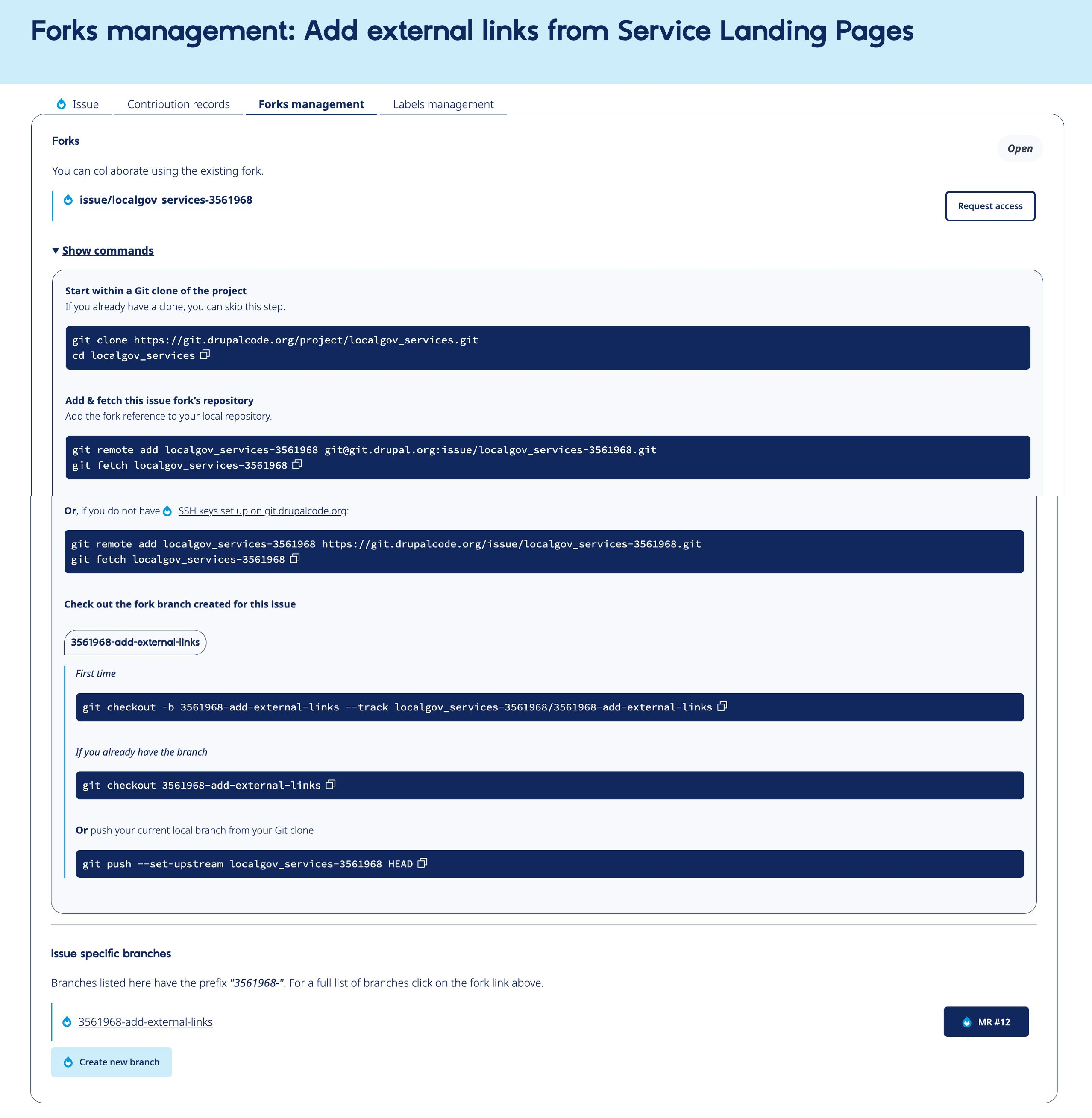
Be sure to create your branch from the major dev branch you wish to work on — that is, the most current 1.x, 2.x, 3.x etc. Usually this will be the default.
Merge requests
Once we have some code committed, we can create a merge request from the issue fork branch to the main project repository.
When the code is ready for review, follow the link in the DrupalBot comment to manage labels and set the label 'State::Needs Review'. You can @ the maintainers in a comment on the issue to ask for a review.
Please assign the merge request to "LocalGov Drupal" (so it shows up in our dashboard: https://localgov-analytics.vercel.app/) and also assign it to whoever you think is best placed to test it.
When review and testing are complete, and we have a green tick on the pipelines, the label 'State::RTBC' (reviewed and tested by the community) can be set for project maintainers to check and consider for release.
The old way: drupal.org issues
A few projects, like LocalGov Docs, are still using the old-style drupal.org issue queue. The flow is the same, with a different interface.
Before an issue fork has been created, a green 'Issue fork' button will appear in the description of the issue. Click the button and an issue fork will be created. Be sure to create an issue fork from the major dev branch you wish to work on.
An expandable commands section will appear when 'show commands' is toggled. It will provide snippets to check out the branch locally.
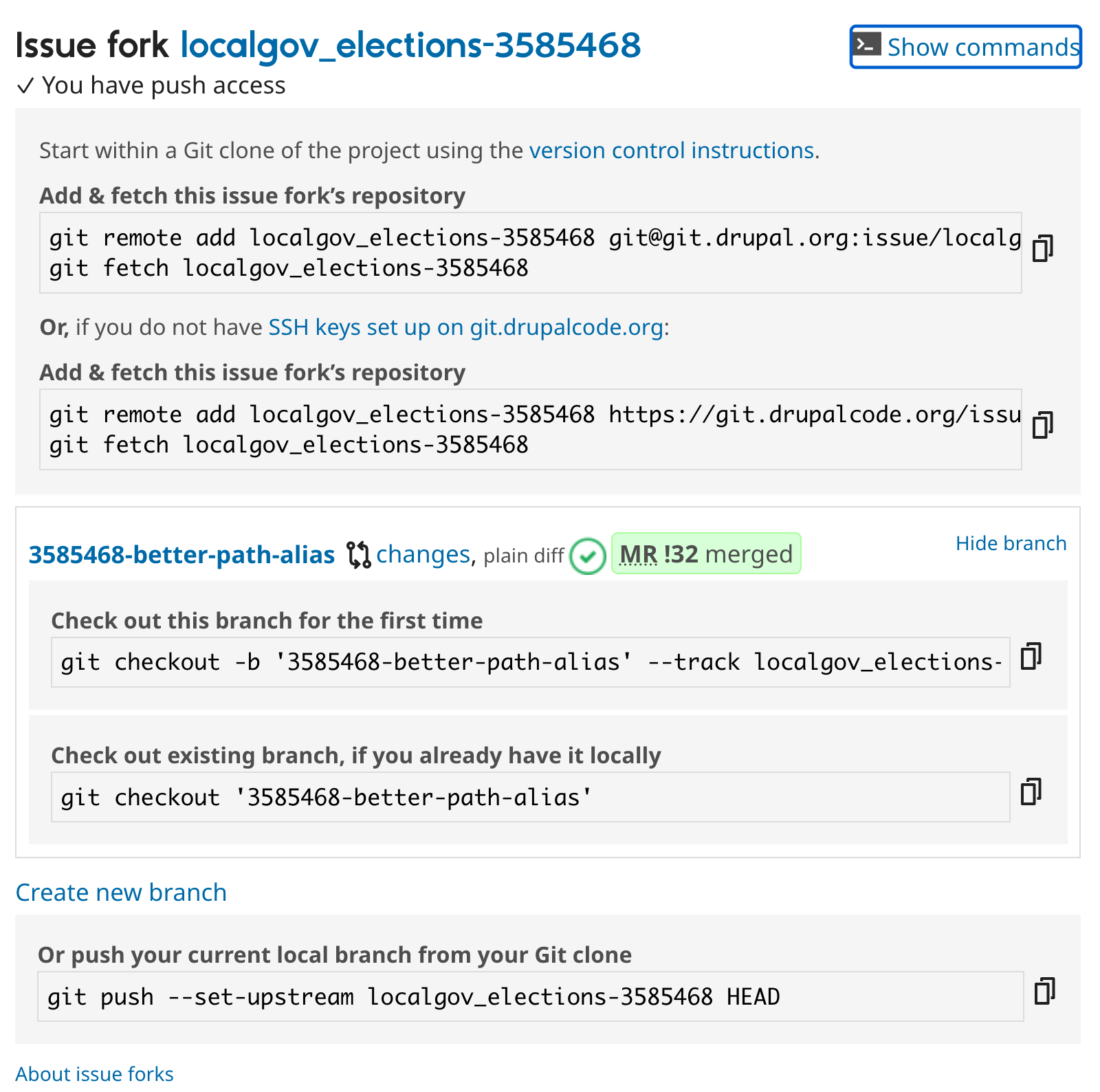
When the code is ready for review, mark the issue status 'Needs review' by expanding the 'Issue metadata' section, setting the value and hitting 'save' on the comment. When review and testing are complete, and we have a green tick on the pipelines, the issue status can be set to 'Reviewed and tested by the community' for project maintainers to check and consider for release.