Drupal.org account setup
1. Create an account on drupal.org
- Create a drupal.org account at https://www.drupal.org/user/register
- Verify your email address
- Ask an existing user to verify you are not a spammer. See https://www.drupal.org/drupalorg/docs/user-accounts/become-a-confirmed-user (probably quickest to ask one of us on Slack to visit your new user page and click 'confirm' — see joining the community for how to find us on Slack)
2. Find or create your organisation on Drupal.org
- First, search drupal.org for your organisation — if a colleague got here before you, it may already have a page.
- If it doesn't exist yet, you can create at new organisation: https://www.drupal.org/node/add/organization
- No organisation? No problem — skip this step and contribute as yourself.
3. Edit and update your profile
- Edit your personal user account and under the 'work' tab you can select your organisation to link your user to the organisation page.
- Also add the LocalGov Drupal organisation (https://www.drupal.org/localgov-drupal) to be listed at https://www.drupal.org/node/3233097/users
4. Ask other people in your organisation to set up accounts
Ask other people from your organisation to create accounts and link them to your organisation too.
5. Comment on an issue on LocalGov Contribution
Now that you have an account and an organisation, you can comment on an issue to get credit for contributing to LocalGov Drupal, such as attending a LocalGov Drupal community event.
We have a specific project on drupal.org for non-code contributions such as attending meetups: https://www.drupal.org/project/issues/localgov_contribution
Find an issue and add a comment, such as "I was there!" or even just "+1".
Once the issue is closed, you and your organisation will be credited.
6. Edit your contribution record defaults
On the issue, you should see a link to the "Contribution record" on the right.
Clicking this takes us to the new contribution record system for this issue. For example https://new.drupal.org/contribution-record/11441471
Once there you might need to log in again, with the link in the top right.
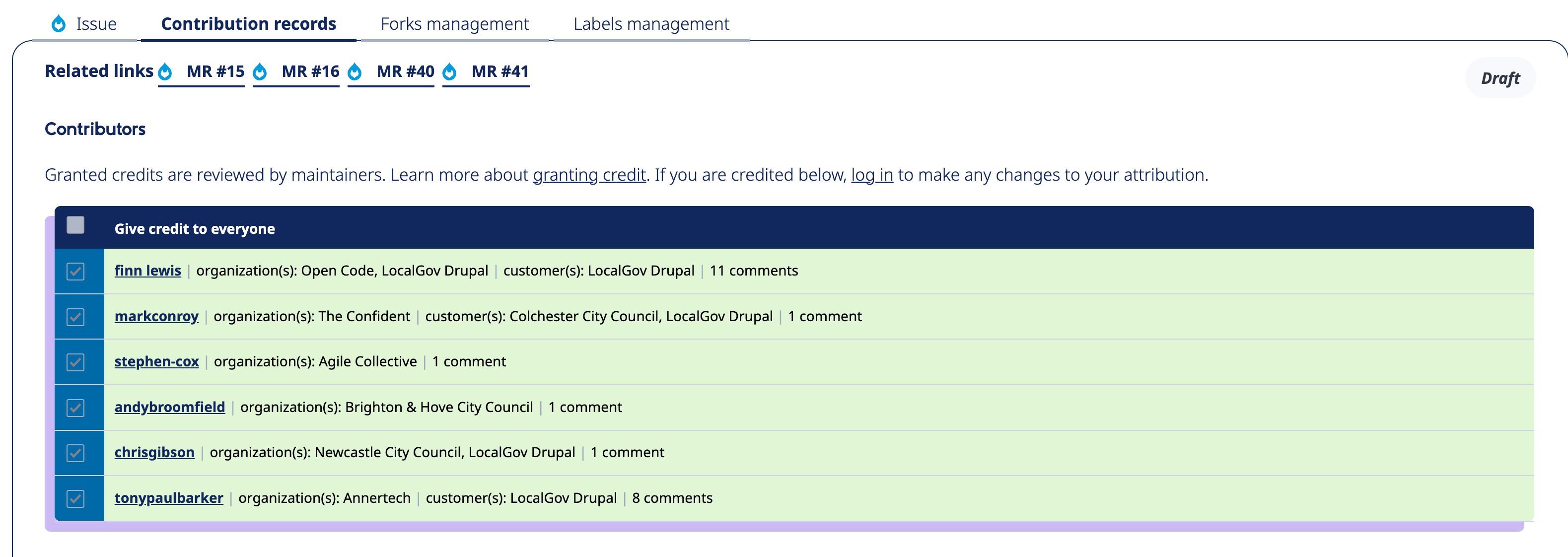
Once logged in, you can edit the organisations and customers that you are working with to give credit to them. You can also save the selection as defaults for future credits. We recommend adding LocalGov Drupal as the customer rather than the organisation.
7. Edit a documentation page
For background, please see Edit or review a documentation page
Then edit the following page and add your organisation and name: