Clearing caches
Where the button appears depends on which admin navigation your site uses:
- Navigation sidebar (core Navigation module): a Rebuild cache link near the bottom of the sidebar. See Navigation sidebar.
- Classic Toolbar (core Toolbar module): a Rebuild Cache button with a recycle icon in the black top bar. See Classic toolbar.
In both cases the steps are the same:
- Open any page on the site while logged in.
- Click Rebuild cache.
- Wait for the page to reload. This takes a few seconds on most sites, longer on large ones.
- You return to the page you were on, with the message All caches cleared.
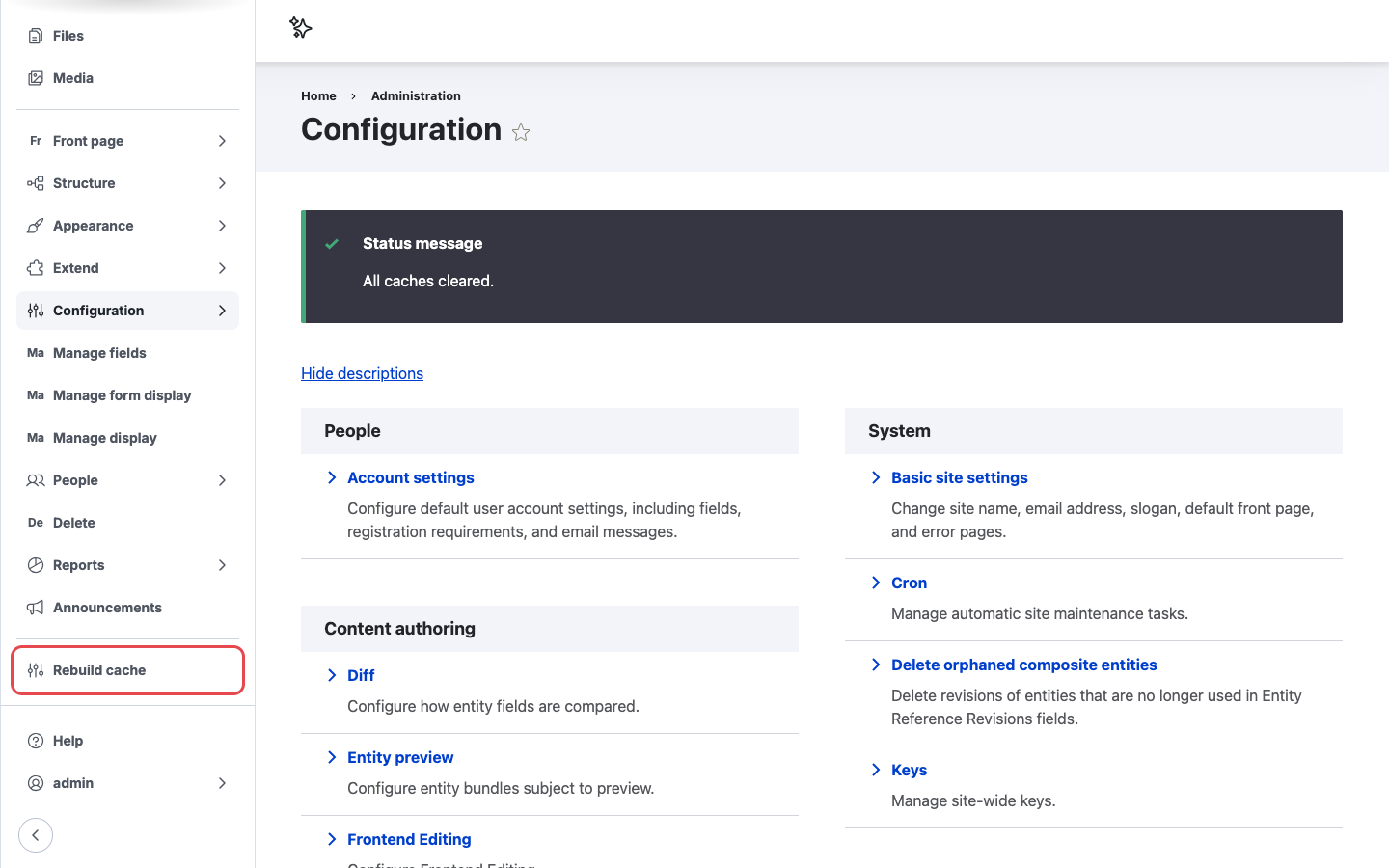
You land back on the same page with a confirmation message.
What gets cleared
The button runs a full cache rebuild, the same as:
- Clear all caches on Configuration > Development > Performance
drush cache:rebuild
That covers rendered pages and blocks, Views results, menus, routes, theme registry, and compiled CSS and JavaScript aggregates. Content and configuration are not touched.
Checking who cleared the caches
Each rebuild writes an Info entry with the message All caches cleared. to the site log, under
the type rebuild_cache_access. With the core Database Logging module enabled:
- Go to Reports > Recent log messages (
/admin/reports/dblog). - In Type, select
rebuild_cache_accessand click Filter.
The User column shows who clicked the button.
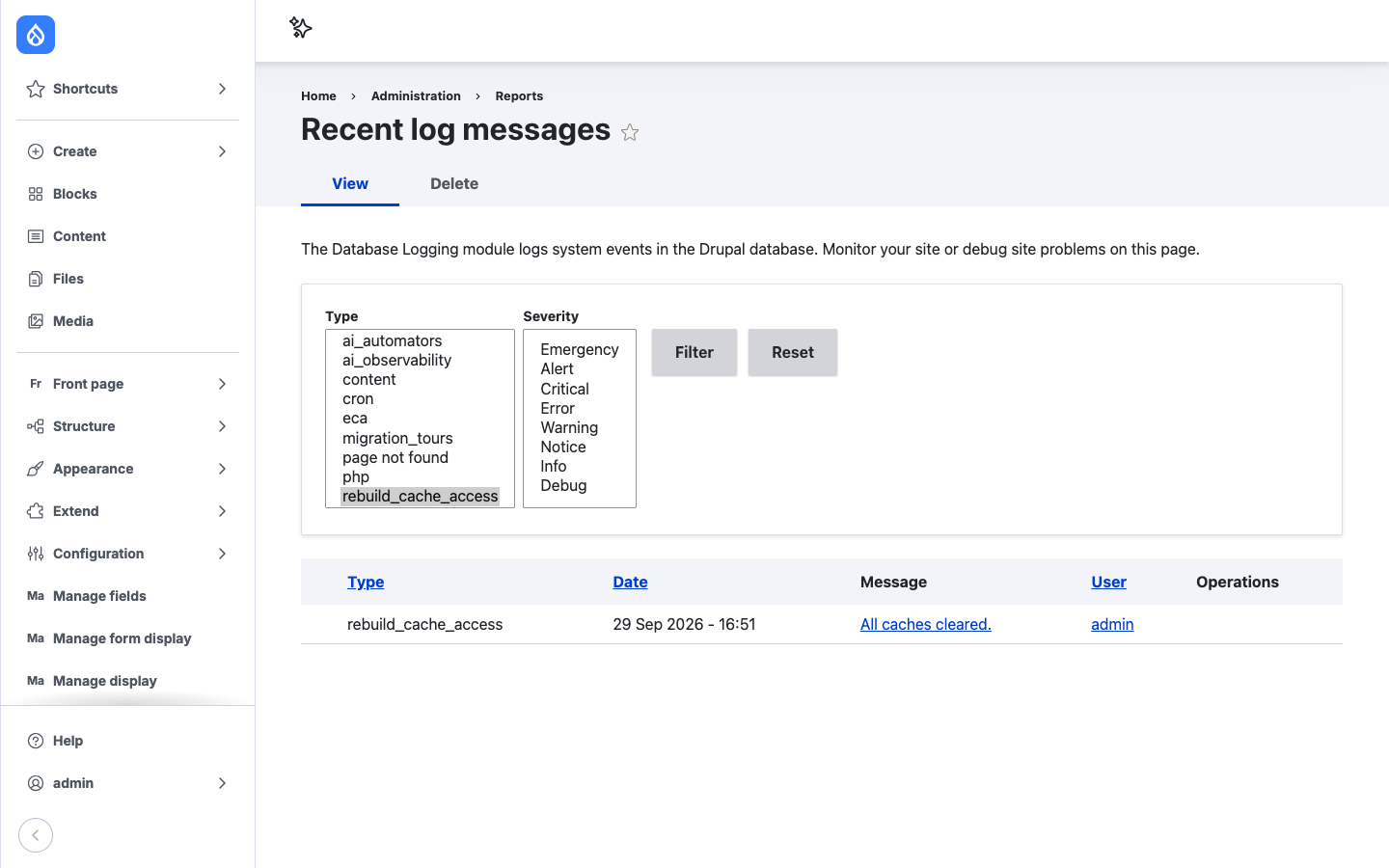
Every rebuild is logged with the user who triggered it.