Configuration
The module has one setting: who is allowed to rebuild caches. You control it with a permission.
Grant the permission
- Go to People > Permissions (
/admin/people/permissions), or open the module's own permission page at/admin/people/permissions/module/rebuild_cache_access. - Find Rebuild Cache under Rebuild Cache Access.
- Check it for each role that should see the button, for example Content editor.
- Click Save permissions.
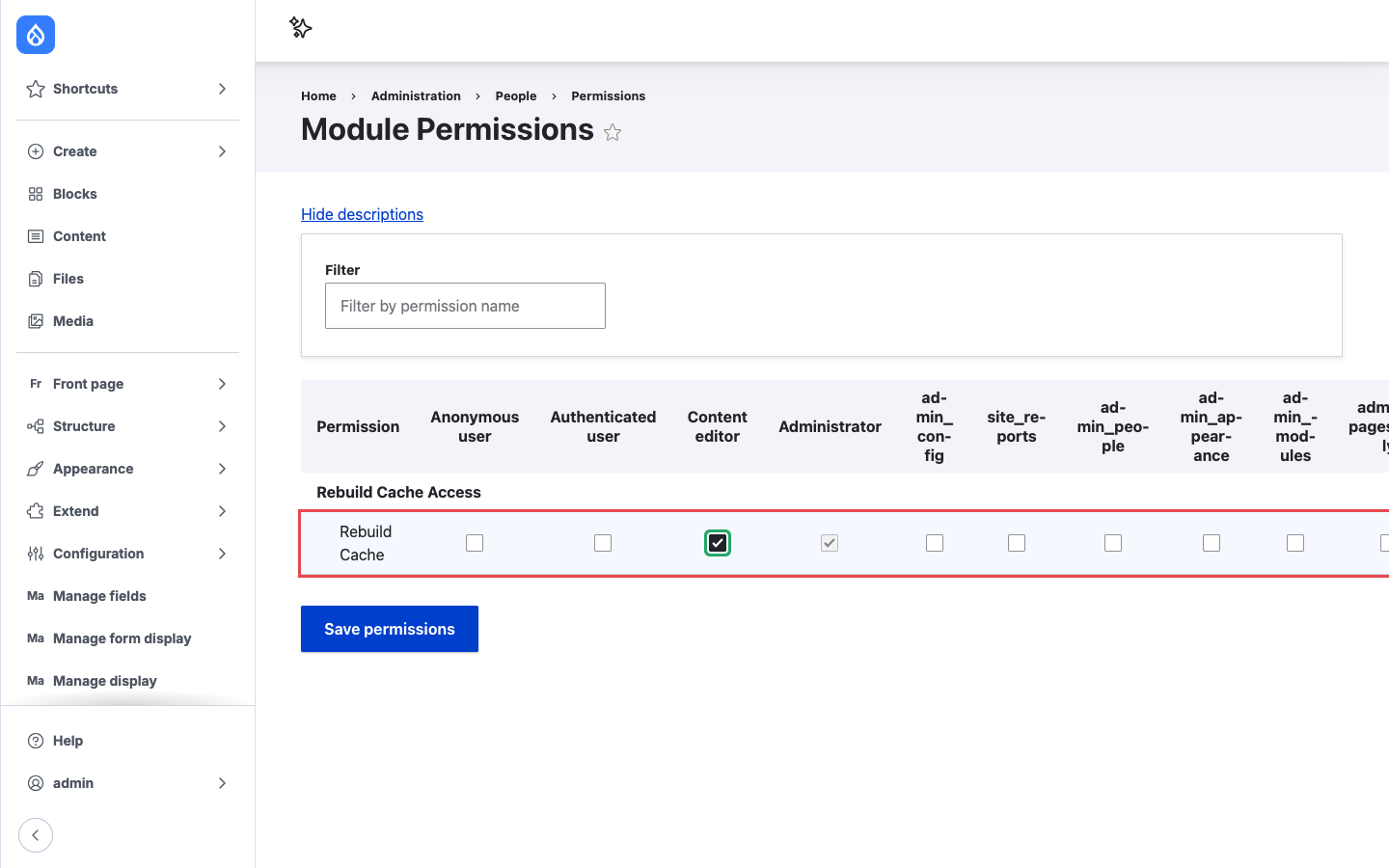
Granting Rebuild Cache to the Content editor role.
Users also need access to the admin navigation
The button lives in the admin navigation, so a role needs permission to see that navigation too:
| Your site uses | The role also needs |
|---|---|
| Core Navigation sidebar | Access navigation bar (access navigation) |
| Classic core Toolbar | Use the toolbar (access toolbar) |
A role with Rebuild Cache but without one of these permissions does not see the button.
Tip
Navigation hides the classic Toolbar once it is enabled. If you switch a site from Toolbar to
Navigation, check that your editor roles have access navigation; roles that only had
access toolbar lose their admin menu, including the Rebuild cache link.
Who should get the permission
A full cache rebuild is expensive. Every cache on the site is emptied, and the next requests rebuild them from scratch, which makes the site slower for everyone until the caches warm up again. On a large site this can take noticeable time.
The permission is therefore marked as restricted, so the permissions page shows the Warning: Give to trusted roles only; this permission has security implications. note next to it.
- Grant the permission to trusted roles that need it, such as editors or site managers.
- Do not grant it to Anonymous user or Authenticated user. Anyone with the permission can slow the site down by clicking the button repeatedly.
Placing the Navigation block by hand
The module adds the Navigation block when Navigation is installed. If the block is missing, for example because someone removed it, or you want it in a different position:
- Go to Configuration > User interface > Navigation blocks
(
/admin/config/user-interface/navigation-block). - Click Enable edit mode.
- Click Add block, choose Rebuild cache, and save the block.
- Drag it where you want it and click Save.
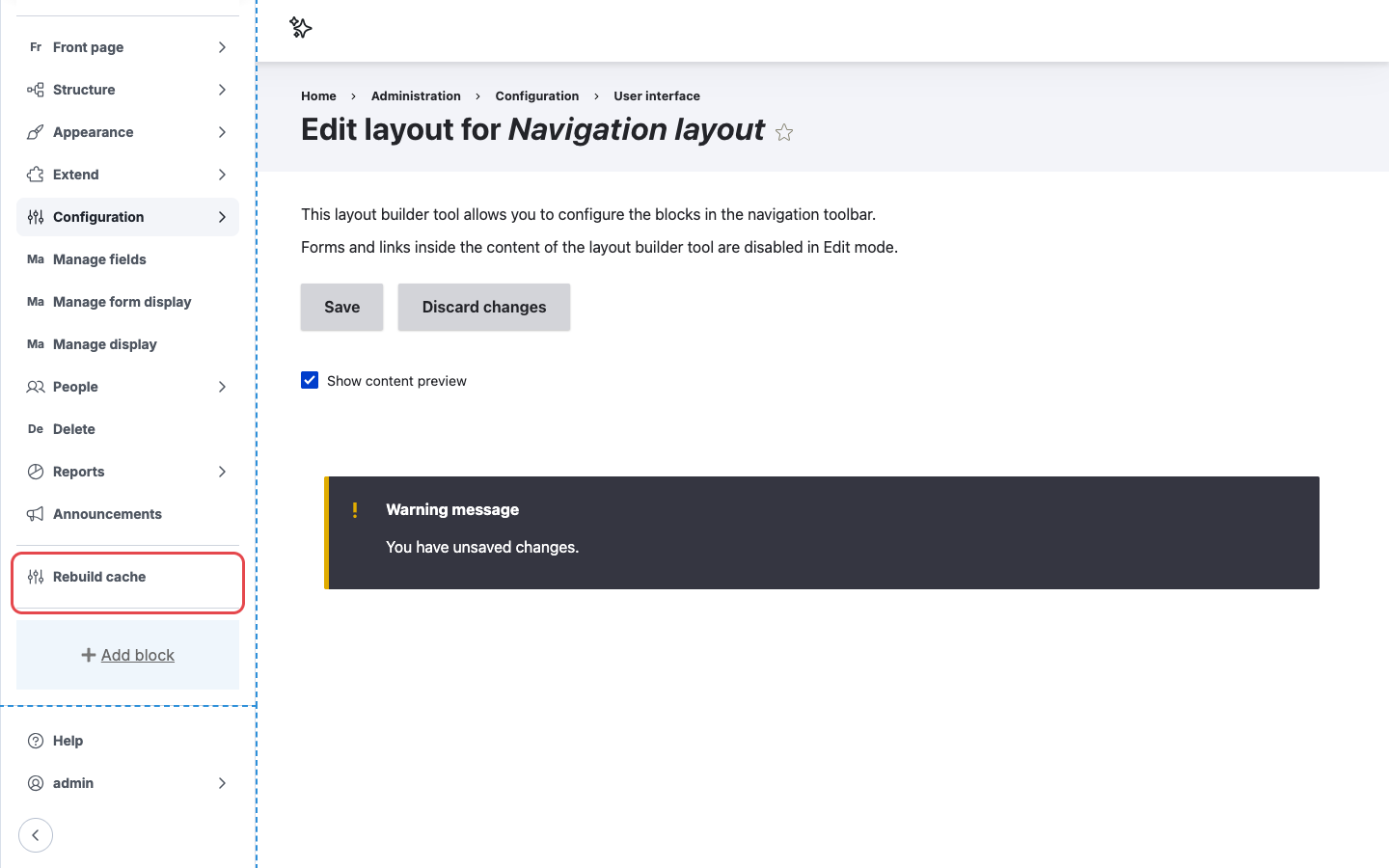
The Rebuild cache block in the Navigation layout editor.
The block is only available in the Navigation layout. It does not appear in the regular Block layout page, because it only renders correctly inside the Navigation sidebar.
You can change the block label in its settings, for example to "Clear caches". The label is what users see in the sidebar.