Editing menu links
Open a menu at Structure > Menus, then add or edit a link. The Attributes section lists every configured attribute.
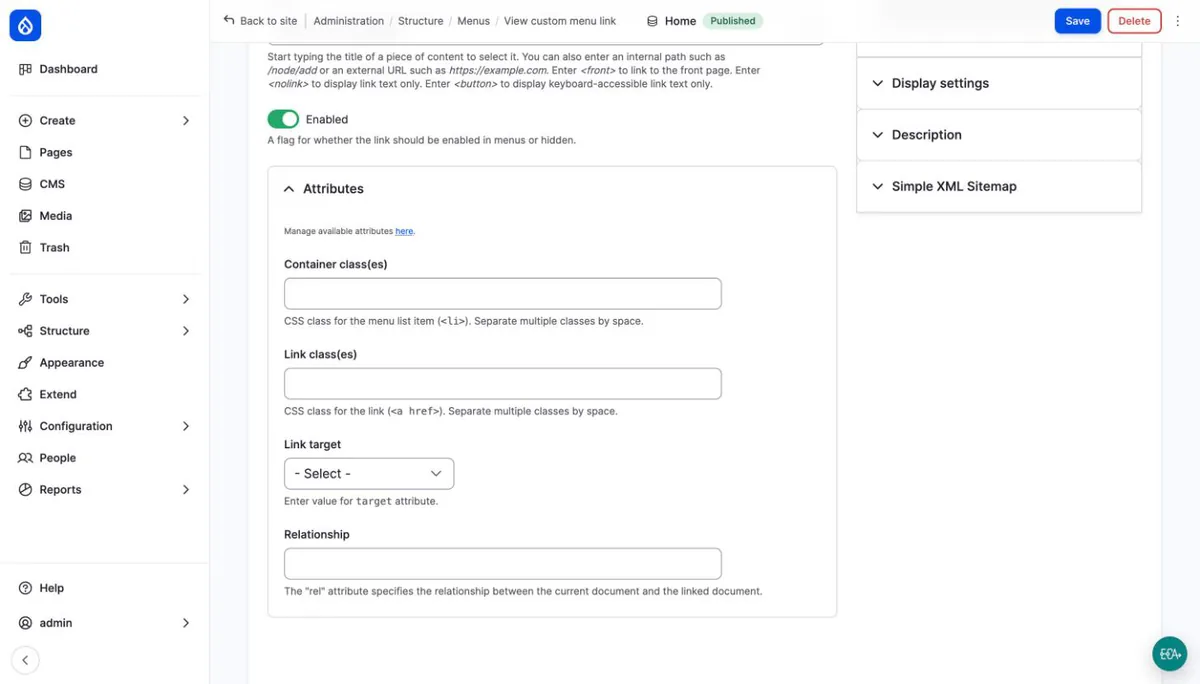
Fill in the values you need and save. Empty fields are not stored.
Users who also have Administer menu link attributes see a link to the configuration page at the top of the section. Without Use menu link attributes the section is hidden, even for administrators of the attributes. After saving the configuration they are sent back to the menu link form with the Attributes section open.
Example: a data attribute
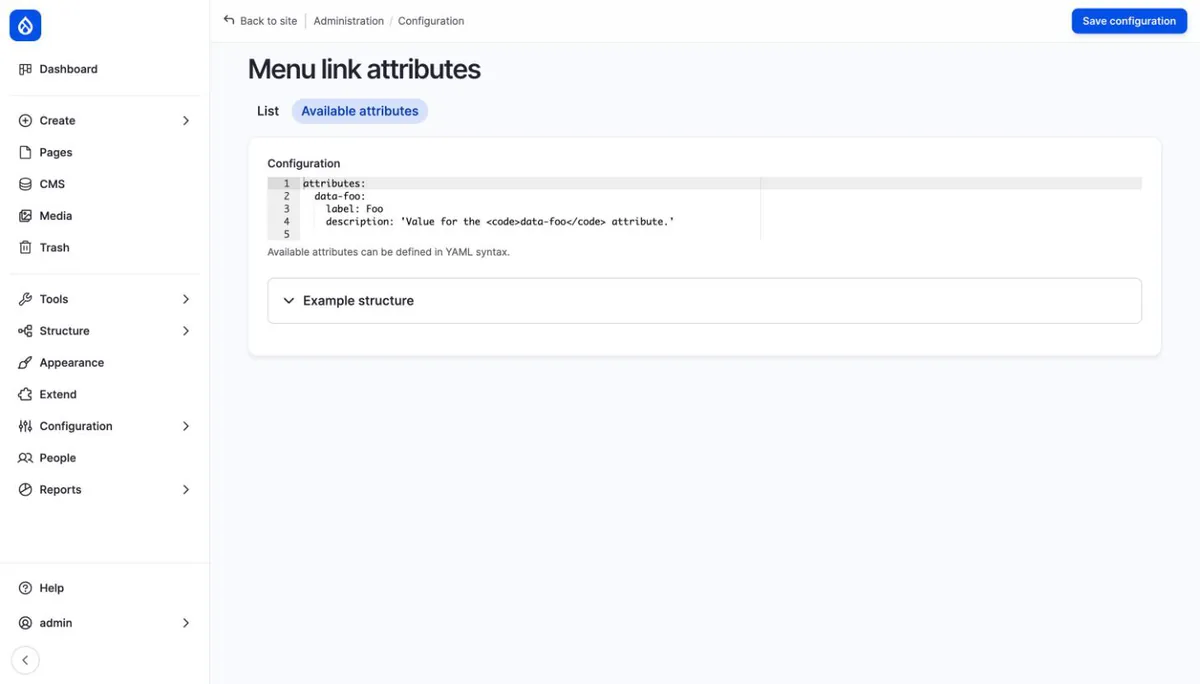
Define a single data-foo attribute on the configuration page:
attributes:
  data-foo:
    label: 'Foo'
    description: 'Value for the <code>data-foo</code> attribute.'
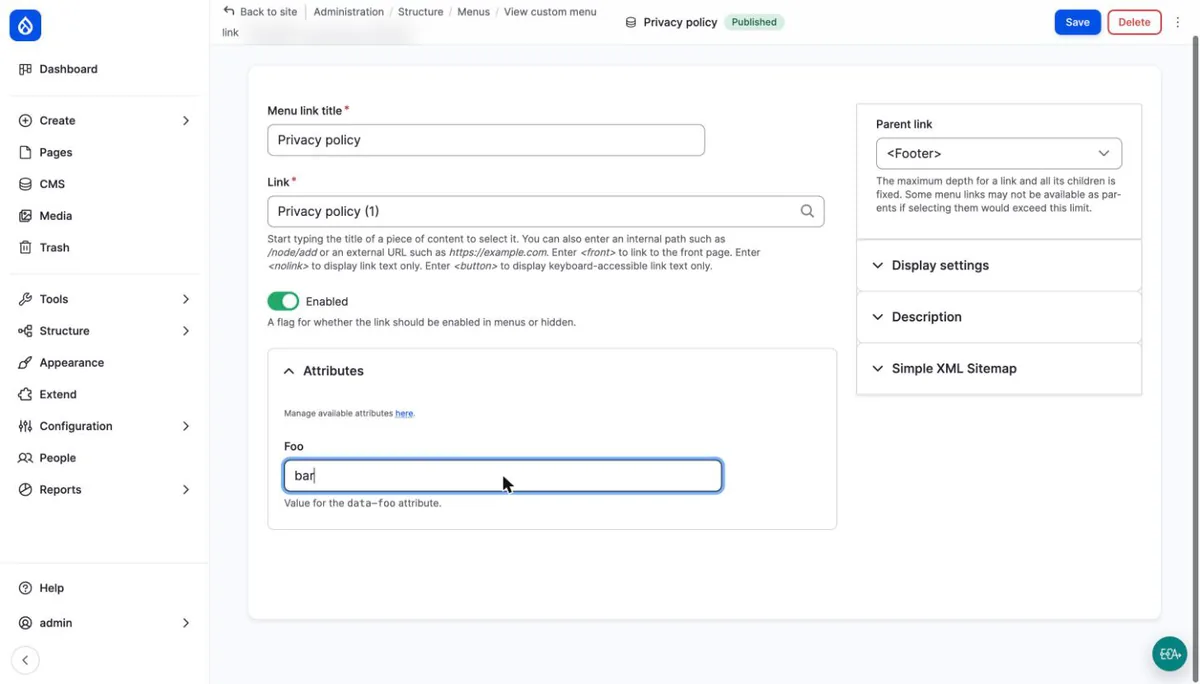
The menu link form now shows a Foo field. Enter bar and save:
The link is rendered with the attribute, as the browser dev tools show:
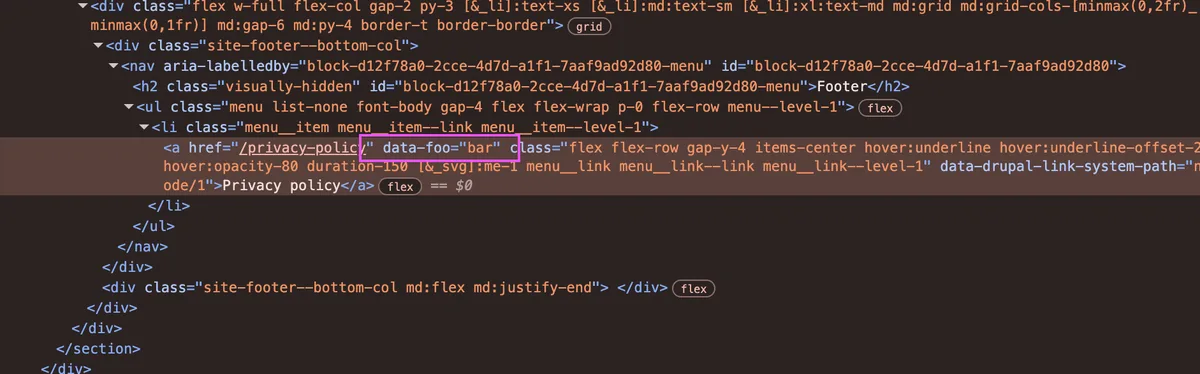
The same markup with the theme classes shortened:
<a href="/privacy-policy" data-foo="bar" class="..." data-drupal-link-system-path="node/1">Privacy policy</a>
Theme support
The module stores the attributes on the menu link. Whether they reach the
page depends on how the theme's menu templates render the link. Templates
that use link(item.title, item.url) print them. Templates that build the
<a> tag themselves print only what they pick from the link, and may
leave the attributes out.
Templates can differ per menu within one theme. In Drupal CMS's Mercury
theme, menu--main.html.twig prints only href, so the main menu drops
link attributes, while the footer menu renders them. That is why the
example above uses a footer menu link.
If attributes are missing, check the menu template your theme uses for
that menu (Twig debug mode shows which one) and override it to use
link(), or add the attributes to the <a> tag with
create_attribute(item.url.options.attributes).
Classes
class and container_class values are stored as an array. Enter several
classes separated by spaces:
menu-item--highlight external
Output:
<a href="/about" class="menu-item--highlight external">About</a>
Translations
Saving a link adds its attribute values to all other translations of the link. Values you clear or uncheck are not removed from the other translations; edit those translations too, see #3590640.
With Hide non translatable fields on translation forms enabled for custom menu links (in the content language settings), only the default translation shows the attribute fields. Saving a translation keeps the values of the default translation.