LocalGov Drupal Ladder
The LocalGov Drupal Ladder is a series of simple steps for first time LocalGov Drupal contributors to reference to start contributing to LocalGov Drupal and Drupal in general.
1. Create an account on drupal.org
- Create a drupal.org account at https://www.drupal.org/user/register
- Verify your email address
- Ask an existing user to verify you are not a spammer. See https://www.drupal.org/drupalorg/docs/user-accounts/become-a-confirmed-user (probably quickest to ask one of us on Slack to visit your new user page and click 'confirm')
2. Create an organisation on Drupal.org
- Create an organisation page at https://www.drupal.org/node/add/organization
3. Edit and update your profile
- Edit your personal user account and under the 'work' tab you can select your organization to link your user to the organisation page.
- Also add the LocalGov Drupal organization (https://www.drupal.org/localgov-drupal) to be listed at https://www.drupal.org/node/3233097/users
4. Ask other people in your organisation to set up accounts
Ask other people from your organization to create accounts and link them to your organizations too.
5. Comment on an issue on LocalGov Contribution
Now that you have an account and an organization, you can comment on an issue to get credit for contributing to Localgov Drupal, such as attending a LocalGov Drupal community event.
We have a specific project on drupal.org for non-code contributions such as attending meetups: https://www.drupal.org/project/issues/localgov_contribution
Find an issue and add a comment, such as “I was there!” or even just “+1”.
Once the issue is closed, you and your organisation will be credited.
6. Edit your contribution record defaults.
On the issue, you should see a link to the “Contribution record” on the right.
Clicking this takes us to the new contribution record system for this issue. For example https://new.drupal.org/contribution-record/11441471 Once there you might need to log in again, with the link in the top right.
Once logged in, you can edit the organizations and customers that you are working with to give credit to them. You can also save the selection as defaults for future credits. We recommend adding LocalGov Drupal as the customer rather than the organisation.
7. Edit a documentation page
See https://www.drupal.org/community/contributor-guide/task/edit-or-review-a-documentation-page
Edit this page and add your org and name
https://www.drupal.org/docs/getting-started/drupal-distributions/distribution-documentation/localgov-drupal
Local development setup
For coders, we’ll want a local development setup. DDEV is the most popular tool for local development.
Using DDEV for local development
We recommend DDEV.
https://www.drupal.org/docs/getting-started/installing-drupal/install-drupal-using-ddev-for-local-development
Install LocalGov Drupal locally
To install LocalGov Drupal locally for testing or development, use the Composer-based project template.
Change MY_PROJECT to whatever you'd like your project directory to be called.
composer create-project --no-install drupal/localgov_project:^4.0 MY_PROJECT
Change directory into the MY_PROJECT directory and run ddev start.
cd MY_PROJECT
ddev start
DDEV will start local containers to run the web server and databse for your local Drupal site.
Once started, we can use composer to download the rest of the code.
ddev composer install
With the code in place, we can now run the install.
ddev drush si localgov -y
If you run into memory limit errors when running Composer commands, prefix the commands with COMPOSER_MEMORY_LIMIT=-1. For example, to install the project run:
COMPOSER_MEMORY_LIMIT=-1 composer create-project --no-install --stability stable drupal/localgov_project MY_PROJECT
SSH / Git setup
To push and pull code from Drupal.org’s git repositories, you’ll need ssh keys to be added to your account.
See Git Authentication for Drupal.org Projects | User accounts
Find an issue to work on
For LocalGov Drupal Dev Days, we have tagged issues on Drupal.org. https://www.drupal.org/project/issues/search?issue_tags=DevDaysLGD https://www.drupal.org/project/issues/localgov_elections?categories=All https://www.drupal.org/project/issues/localgov_waste_collection?categories=All
Working on code and committing to drupal.org Gitlab
Issue forks
To commit code to a project on Drupal.org, we use ‘issue forks’.
An issue fork is a copy of the project that we can use to work on code for that issue. We can create multiple branches on an issue fork.
Before an issue fork has been created, a green ‘Issue fork’ button will appear in the description of the issue. Click the button and an issue fork will be created. Be sure to create an issue fork from the major dev branch you wish to work on. Usually this will be the default.
An expandable commands section will appear when ‘show commands’ is toggled. It will provide snippets to checkout the branch locally. You can clone the module to your local contrib modules folder or work on it separately.
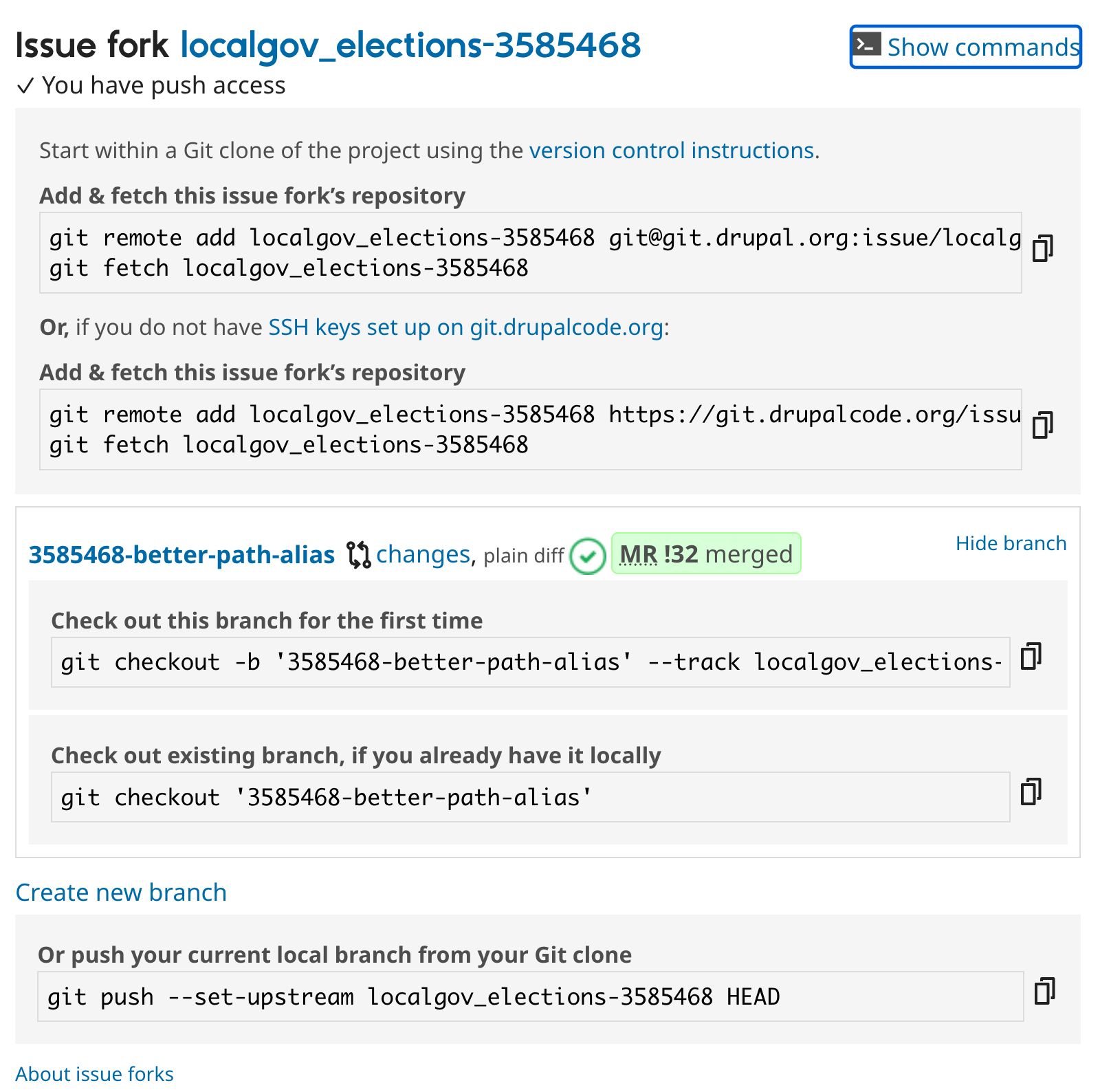
Once we have some code committed, we can create a merge request from the Issue fork branch to the main project repository.
When the code is ready for review, mark the issue status ‘Needs review’, request a review from someone or post a link to the issue in slack #dev-days-lgd channel for review.
Please assign the merge request to "LocalGov Drupal" (so it shows up in our dashboard: https://localgov-analytics.vercel.app/) and also assign it to whoever you think is best to test it (e.g. backend Finn, Stephen, Ekes, etc; and frontend Finn, Me, Tony, Maria, etc).
When review and testing is complete (and we have a green tick on the pipelines we can mark the issue status ‘Reviewed and tested by the community’ for project maintainers to check and consider for release.
Issue status, tags and metadata
To update the status and other meta fields, expand the ‘Issue metadata’. You can optionally add a comment at the same time. When the metadata values are set, hit the ‘save’ button on the comment.
Code editors
Lots of people use VS Code. Open source IDE for code editing. https://code.visualstudio.com/
Some people like PHPStorm https://www.jetbrains.com/phpstorm/ (not free / not open source)
https://www.codium.ai/qodo/